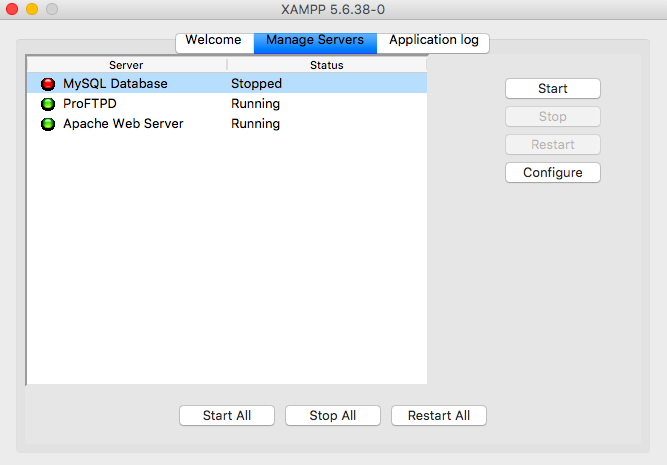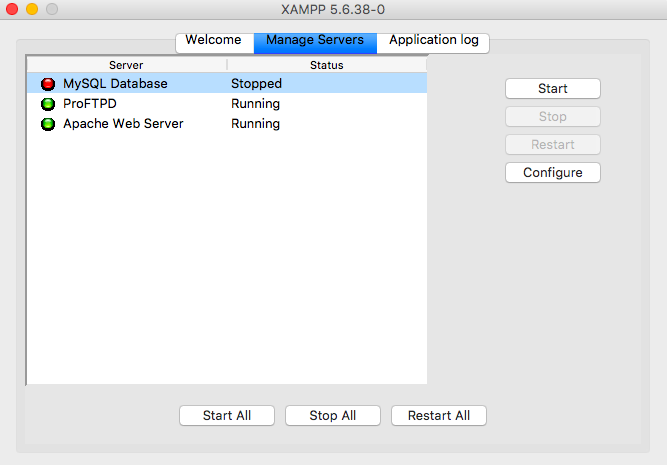
You open XAMPP on your Mac, hit the MySQL start button, and… nothing. The light stays red, the button freezes, and you’re stuck staring at a dead database server while your project waits. I’ve been there. It’s one of the most annoying things that can happen when you’re trying to code locally, but the fix is usually simpler than you think.
The good news: XAMPP MySQL won’t start on Mac is almost always a port conflict, a ghost process, or a corrupted config file. Not a mystery virus, not a broken install. Let’s go through what actually works, in order, without wasting your afternoon.
Why MySQL Refuses to Start on Mac (The Real Reason)
MySQL grabs port 3306 by default. If anything else is already sitting on that port, XAMPP’s MySQL just gives up silently. On Mac, the usual suspects are a Homebrew-installed MySQL, a leftover process from a previous crash, or macOS services you never asked for.
There’s also the permissions angle. macOS loves to lock down files in /Applications/XAMPP/xamppfiles/var/mysql/, and if the user running XAMPP can’t write there, MySQL dies before it even logs a real error. And sometimes, honestly, the my.cnf config file just gets corrupted or points to a path that no longer exists.
Step 1: Check If Port 3306 Is Already Taken
Open Terminal. Yes, it’s intimidating the first time, but it’s the fastest way to diagnose this. Run:
lsof -i :3306
If you see output, something is holding the port. If that something is a Homebrew MySQL, stop it cleanly with:
brew services stop mysql
If it’s a random process, kill it by PID:
kill -9 12345
Replace 12345 with the actual PID from the lsof output. Don’t just kill everything you see — make sure it’s MySQL-related before you nuke it.
Step 2: Hunt Down Ghost MySQL Processes
This is the sneaky one. MySQL can keep running in the background even after XAMPP says it stopped. To see them:
ps aux | grep mysql
You’ll probably see a few lines. Kill each one with kill [PID]. If it refuses to die, escalate to kill -9 [PID]. This exact step fixes the “XAMPP MySQL won’t start on Mac” issue more often than people admit — a zombie process quietly hogging the socket.
Step 3: Rename the my.cnf Config File
If the port is free and no process is running, the config file is your next suspect. XAMPP reads /Applications/XAMPP/xamppfiles/etc/my.cnf on startup. If it’s broken, MySQL won’t boot.
Move it out of the way so XAMPP regenerates a fresh one:
mv /Applications/XAMPP/xamppfiles/etc/my.cnf /Applications/XAMPP/xamppfiles/etc/my.cnf.backup
Now try starting MySQL again from the XAMPP control panel. In most cases I’ve seen, this is the moment it finally turns green. You can always diff the backup against the new file later if you had custom settings.
Step 4: Fix Permissions on the MySQL Data Folder
If renaming my.cnf didn’t do it, macOS permissions are likely blocking MySQL from writing to its data directory. Run:
sudo chown -R $(whoami) /Applications/XAMPP/xamppfiles/var/mysql
Then restart XAMPP. This is particularly common after a macOS update or a Time Machine restore, both of which love to reset ownership on system-adjacent folders.
Step 5: Read the Error Log (The Truth Is There)
When nothing else works, stop guessing and read what MySQL is actually saying. The error logs live here:
/Applications/XAMPP/xamppfiles/var/mysql/*.err
Open the latest .err file in any text editor. You’ll see messages like “Can’t create/write to file,” “InnoDB: Unable to lock,” or “Address already in use.” Each one points to a specific fix — permissions, port, or corrupted InnoDB tablespace.
If the log mentions InnoDB corruption, you can try adding innodb_force_recovery = 1 to your my.cnf, starting MySQL, dumping your databases, and then removing the line. That’s a last-resort rescue, but it saves data when a hard crash has damaged the tablespace.
When to Nuke It and Reinstall XAMPP
If you’ve tried everything and MySQL still won’t start, reinstalling is fair. But do it right: export your databases first using mysqldump or copy the contents of /Applications/XAMPP/xamppfiles/var/mysql/ somewhere safe. Then delete XAMPP, reinstall, and copy your project folders back.
Honestly, I’d also consider skipping XAMPP entirely and using DBngin, Laravel Herd, or a Docker container with MySQL. They handle port conflicts far more gracefully on macOS, and you stop fighting the same battle every few months. XAMPP is great for learning, but it’s showing its age on modern Macs.
Quick Recap Before You Close Terminal
- Check port 3306 with lsof -i :3306 and kill whatever’s holding it.
- Kill ghost MySQL processes with ps aux | grep mysql.
- Rename my.cnf so XAMPP regenerates it.
- Fix ownership on the var/mysql folder.
- Read the .err log — it always tells you the real problem.
The XAMPP MySQL start failure on Mac isn’t a sign you’re a bad developer. It’s a sign you’re running a 2000s-era stack on a 2026 operating system. Fix it, learn a bit of Terminal, and move on with your project.