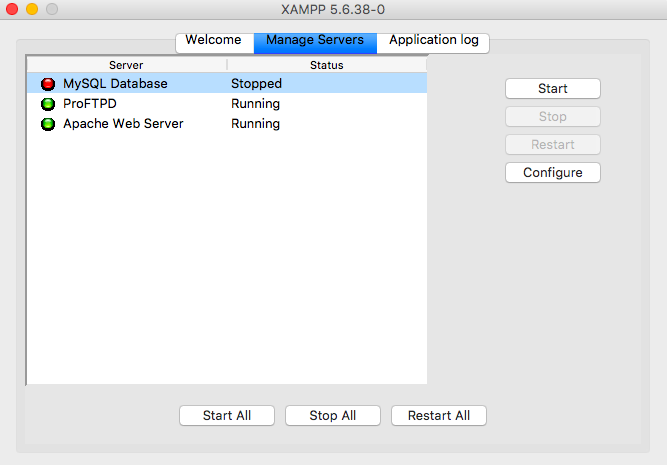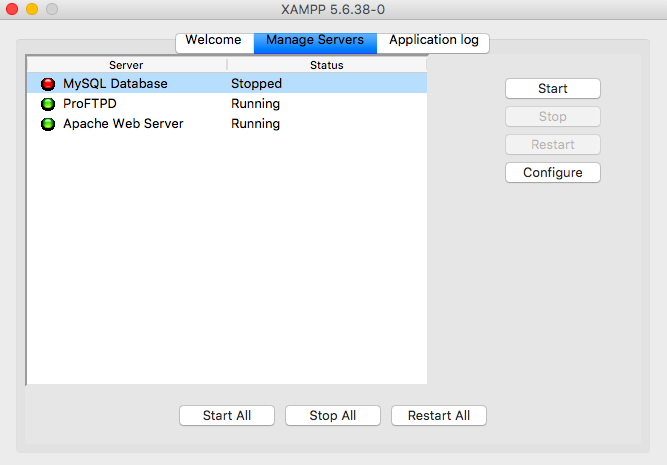
If you’re here, it’s because XAMPP decided to ruin your day. Apache won’t start, MySQL crashes, or port 80 is held hostage by some mystery process. I’ve been through all of it, and I’m going to give you the fixes that actually work, not the generic “restart your computer” nonsense you’ll find everywhere else.
The XAMPP MySQL shutdown unexpectedly error: why it happens and how to kill it for good
The XAMPP MySQL shutdown unexpectedly error is the king of headaches. It usually means MySQL started, hit a wall, and died silently. Before you reinstall anything, check the mysql_error.log inside xampp/mysql/data/. Nine times out of ten, the log points to a corrupted ibdata1 file or a leftover aria_log from a previous crash.
What most guides won’t tell you: if you killed XAMPP by closing the window instead of using the Stop button, InnoDB tables can end up in a dirty state. The fix is to delete the ib_logfile0 and ib_logfile1 files (with XAMPP fully stopped) and restart MySQL. It rebuilds them automatically.
If that doesn’t do it, your port 3306 is probably being grabbed by another MySQL instance installed system-wide. Open a terminal and run netstat -ano | findstr :3306 on Windows. Kill whatever PID shows up, or change MySQL’s port in my.ini under [mysqld].
XAMPP port 80 occupied: the real reason Apache refuses to start
The XAMPP port 80 occupied error is almost never Apache’s fault. On Windows, PID 4 — the System process — hogs port 80 through the HTTP.sys driver. That’s the culprit behind the infamous port 80 in use by unable to open process with pid 4 message. You can’t kill PID 4. You have two realistic options:
- Change Apache’s port to 8080 in httpd.conf (look for Listen 80 and ServerName localhost:80). It’s a 30-second fix and stops the bleeding.
- Disable HTTP.sys by stopping the World Wide Web Publishing Service and the IIS services. If you don’t use IIS, just disable them permanently via services.msc.
Skype is another classic offender. Newer versions let you disable port 80 usage in Settings > Advanced > Connection. Do it once and forget about it.
XAMPP Apache shutdown unexpectedly: read the log before you panic
When Apache throws the XAMPP Apache shutdown unexpectedly error, the error.log in xampp/apache/logs/ will tell you exactly what happened. Common culprits: a syntax error in httpd.conf after you edited it, a missing php8ts.dll after an upgrade, or an antivirus (looking at you, Avast) blocking httpd.exe.
My rule: if Apache worked yesterday and doesn’t today, diff your httpd.conf against a backup. A single misplaced quote will silently kill the service.
XAMPP MySQL won’t start: the checklist that actually solves it
The XAMPP MySQL won’t start error often comes down to three things: port conflict, corrupted InnoDB, or a missing Visual C++ Redistributable. On a fresh Windows install, XAMPP will fail silently because vcruntime140.dll isn’t there. Install the latest Microsoft Visual C++ Redistributable (x64 and x86) and MySQL starts like nothing happened.
If the log says “This may be due to a blocked port, missing dependencies”, don’t waste time reinstalling XAMPP. Run mysqlcheck -u root -p –auto-repair –all-databases from the XAMPP shell. It repairs corrupted tables without touching your data.
Pro tip: back up the entire xampp/mysql/data folder before any repair. If mysqlcheck goes sideways, you can roll back in seconds.
XAMPP control.ini error and how to unbreak the Control Panel
The XAMPP control.ini error is rare but annoying. It usually shows up after a Windows update changes file permissions. The Control Panel can’t write its config, so it crashes on launch. Fix: right-click the XAMPP Control Panel and run it as administrator. If that doesn’t work, delete control.ini from the XAMPP root folder — it regenerates with defaults on next launch.
Persistent cases mean your antivirus is quarantining the file. Whitelist the entire XAMPP directory and move on.
When to stop fixing and reinstall (the honest answer)
After 30 minutes of chasing the same error, reinstalling XAMPP is faster than debugging. But do it smart: export your databases first with mysqldump, copy your htdocs folder, and uninstall cleanly. Then install the latest XAMPP 8.x build. Most “unsolvable” errors vanish because you’re running a 2019 build on Windows 11.
One more thing nobody says out loud: if you’re only doing PHP development, skip XAMPP entirely. Laragon or Docker with a LAMP stack is more reliable in 2026 and doesn’t fight Windows for ports. XAMPP is fine for learning, but for real projects it’s a liability.
Fix the port, repair the tables, read the logs. That order solves 90% of XAMPP errors without a single reinstall.