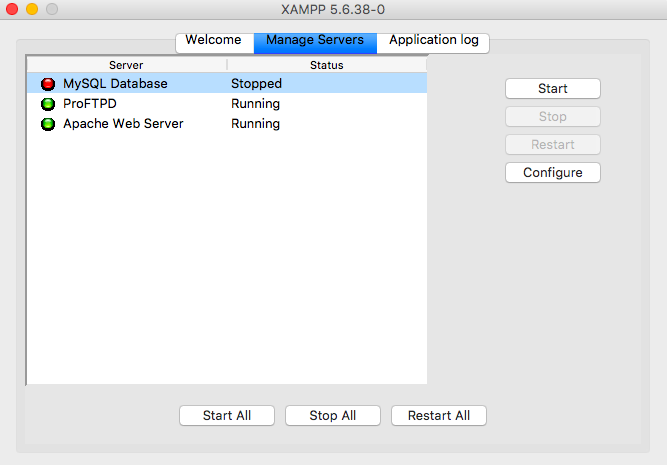
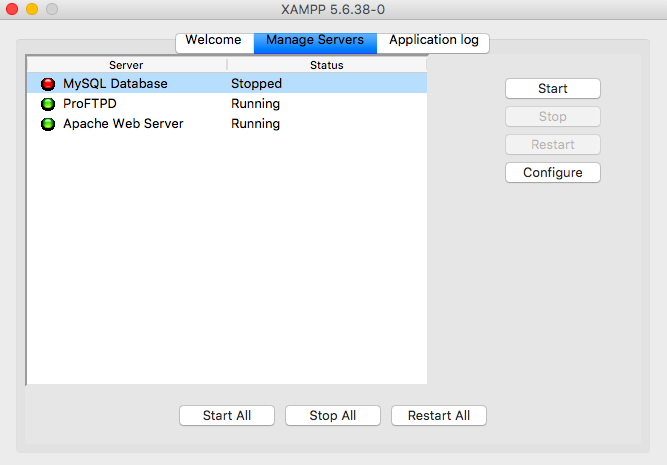
So XAMPP’s MySQL refuses to start and you’re stuck staring at a red “Stopped” status while Apache runs happily next to it. Yeah, I’ve been there. The XAMPP MySQL not starting error is one of the most common headaches for local developers, and 90% of the time it’s not XAMPP’s fault — it’s Windows or a rogue process stealing port 3306.
Before you reinstall anything, understand this: MySQL on XAMPP doesn’t fail silently out of nowhere. There’s always a log, a port conflict, or a corrupted InnoDB file behind it. Let’s dig into the real causes and fix the XAMPP MySQL service problem for good.
Why XAMPP MySQL Fails to Start on Windows 10 and 11
The most frequent culprit is that another MySQL instance is already grabbing port 3306. If you installed MySQL standalone, MariaDB, or even Workbench with its own server, that service is likely running on boot and hijacking the port before XAMPP can claim it.
Second cause: corrupted InnoDB logs. If your PC shut down hard or you killed the XAMPP process mid-write, ibdata1 or the redo logs can get locked or half-written, and MySQL simply refuses to boot. Third: a Windows service named MySQL or MariaDB installed by another app and set to Automatic.
Don’t guess. Verify. Open Task Manager (Ctrl+Shift+Esc), go to the Services tab, and check whether anything MySQL-related is already running. If it is, that’s your answer.
Step 1: Check the Windows Event Viewer for Port Conflicts
This is the fastest way to confirm a port collision. Open the Control Panel, go to Administrative Tools, then launch Event Viewer. Navigate to Windows Logs and look for events with Event ID 10048.
That ID literally means “only one usage of each socket address is normally permitted” — in plain English, port 3306 is already taken. Kill the offending process or reconfigure it. You can also run netstat -ano | findstr :3306 in CMD to see the PID using the port, then kill it from Task Manager.
- Event ID 10048 → port 3306 already in use
- Event ID 10061 → connection refused, MySQL isn’t even listening
- Event ID 7034 → service crashed unexpectedly
If you find 10048, don’t just disable the other service blindly — check what it is. Sometimes it’s a legit MySQL you actually use for work, and you’d rather change XAMPP’s port instead. Open my.ini in xampp/mysql/bin/ and change port=3306 to port=3307. Restart XAMPP and you’re done.
Step 2: Windows Firewall Blocking the MySQL Service
A lot of people forget this one. The Windows Firewall sometimes flags MySQL as a threat after an update, especially after a big Windows feature update. The XAMPP MySQL not starting error then appears with zero log clues because MySQL never even gets to bind the socket.
Go to Control Panel → System and Security → Windows Firewall → Advanced Settings. In the inbound rules panel, look for any entry related to mysqld.exe or MySQL. If it’s set to Block, disable it or create a new inbound rule allowing TCP port 3306.
Do the same for outbound rules. It sounds paranoid, but outbound blocks do exist and they break the connection from phpMyAdmin even when MySQL is technically running. I’ve seen it more than once on corporate laptops where IT pushed a lockdown policy.
Step 3: Read the XAMPP MySQL Error Log (Yes, Actually Read It)
The XAMPP install has a goldmine most people ignore. Open the XAMPP folder, then head to mysql/data/ and look for files ending in .err. Open the most recent one with Notepad.
Common messages and what they really mean:
- “InnoDB: Unable to lock ./ibdata1” → another mysqld.exe process is alive. Kill it in Task Manager.
- “InnoDB: Database page corruption on disk” → you need to run innodb_force_recovery.
- “Can’t start server: Bind on TCP/IP port” → confirmed port conflict, go back to Step 1.
- “Plugin ‘InnoDB’ init function returned error” → your ib_logfiles are toast, delete them (MySQL rebuilds them).
Also check xampp/mysql/data/mysql_error.log if it exists. It’s older, but sometimes holds the crash reason when the standard error log is empty.
Step 4: Kill Zombie mysqld.exe Processes
This is the sneakiest cause of the XAMPP MySQL not starting error. You stop MySQL from the XAMPP panel, but the process doesn’t actually die — it lingers in the background holding the port and the ibdata1 lock. Then when you hit Start, it fails with no obvious reason.
Open Task Manager, search for mysqld.exe, and end every instance. Same for httpd.exe if Apache is also misbehaving. Then close the XAMPP control panel entirely, run it as Administrator, and start MySQL again.
Pro tip: Always run the XAMPP Control Panel as Administrator on Windows. Non-admin mode is responsible for half of the mysterious “Stopped” states people complain about.
Step 5: Repair a Corrupted InnoDB Database
If the error log points to InnoDB corruption, don’t panic and don’t reinstall XAMPP yet. Open xampp/mysql/bin/my.ini and under [mysqld] add this line:
innodb_force_recovery = 1
Start MySQL. If it boots, immediately export your databases with mysqldump. Then stop MySQL, remove that line, and delete ib_logfile0 and ib_logfile1 from mysql/data/. MySQL regenerates them on the next start. You’ll lose any uncommitted transactions, but your data survives.
Levels 2 through 6 of innodb_force_recovery exist for tougher corruption, but each one risks more data loss. Only go past level 1 if you’re desperate and you have a backup.
Step 6: Reinstall the MySQL Service Cleanly
If nothing above works, the service entry itself is probably broken. Open CMD as Administrator, navigate to C:xamppmysqlbin, and run:
- mysqld –remove mysql to delete the broken service
- mysqld –install mysql to recreate it
- net start mysql to launch it
If that returns “The service name is invalid,” the service was never properly registered. Running the XAMPP Control Panel once more as Administrator usually fixes the registration automatically.
What Actually Works Long Term
Stop fighting XAMPP on Windows. If you only need MySQL and PHP for local development, Laragon or Docker with a MySQL container handle port management and service conflicts far better. XAMPP is fine for learning, but once you’re doing serious work, the XAMPP MySQL not starting error will keep coming back every time Windows updates something.
If you’re staying on XAMPP, at least do these three things: change the port to 3307 to avoid conflicts, run the Control Panel as Administrator every time, and keep a nightly mysqldump of your databases. That way, when MySQL inevitably breaks again, you lose nothing.
None of these steps require a tech background. They require patience and reading the logs — which is exactly what 99% of people skip before posting “XAMPP MySQL won’t start” on a forum.