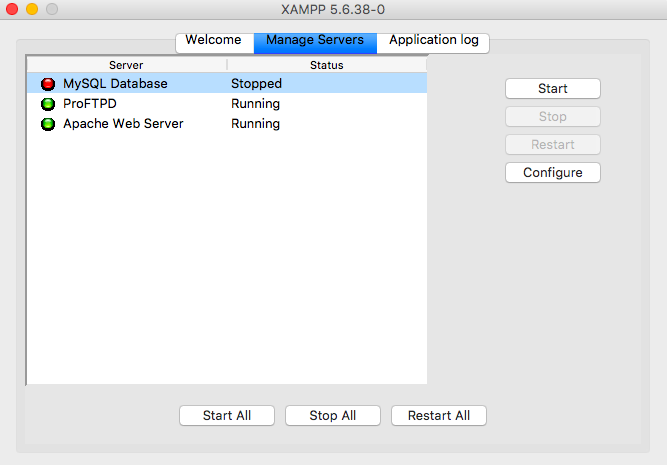
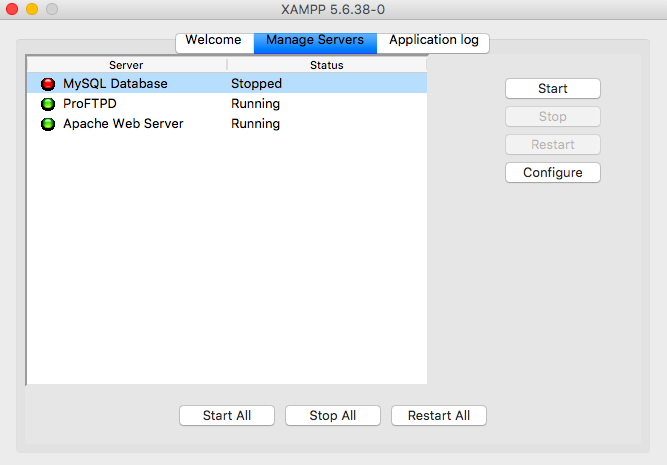
If you’ve ever fired up XAMPP, hit Start on Apache, and watched it die with the infamous port 80 already in use error, you already know the pain. Apache refuses to boot, MySQL might still run, and your local project isn’t loading. Here’s how to fix the XAMPP port 80 error without wasting an afternoon googling in circles.
Why Port 80 Gets Hijacked on Windows in the First Place
Port 80 is the default HTTP port. Every time you open a browser and type a URL without specifying a port, that’s port 80 doing its job. So it’s not strange that a lot of software fights over it.
The usual suspects on Windows are Skype, Microsoft IIS, TeamViewer, VMware Workstation, Steam, and even the Windows “World Wide Web Publishing Service”. Any of them can grab port 80 before XAMPP does, and Apache simply gives up.
Before you touch a single config file, close the obvious apps. Kill Skype from the system tray, quit TeamViewer, stop IIS if you have it installed. Restart Apache in the XAMPP Control Panel. If it starts, done. If it doesn’t, keep reading because the real fix comes next.
Quick Fix: Change XAMPP’s Main Port to 8080
This is the fix most tutorials recommend, and it works. It’s also the one I’d personally avoid unless you have no other option, because it changes the URL of every project you have (you’ll be typing localhost:8080 forever). Still, if you just need Apache running right now, here’s the drill.
- Open the XAMPP Control Panel.
- Click Config next to the Apache module, then Apache (httpd.conf).
- Search for Listen 80 and replace it with Listen 8080.
- Also find ServerName localhost:80 and change it to ServerName localhost:8080.
- Save, stop Apache, start it again.
Now your local sites live at http://localhost:8080. That’s the trade-off: no more port 80 conflict, but every shortcut and bookmark you had is now wrong.
Find Out Exactly What’s Using Port 80 (The Real Fix)
Instead of running away from port 80, hunt down the process that stole it. This is the XAMPP port 80 already in use fix that actually solves the root problem.
Hit Win + R, type cmd, and press Enter. In the black window type:
netstat -ano | findstr :80
You’ll get a list of lines ending in a PID (Process ID). The one with status LISTENING is your culprit. Take that number and run:
taskkill /F /PID [PID]
Replace [PID] with the actual number. That kills the process and frees port 80 instantly. Restart Apache in XAMPP and it should start without complaining.
If It’s a System Service, Don’t Kill It Blindly
Sometimes the PID belongs to System or http.sys, which handles the World Wide Web Publishing Service or the BranchCache service. Killing those from the command line is a bad idea. Stop them properly from services.msc:
- Press Win + R, type services.msc, Enter.
- Find World Wide Web Publishing Service and set it to Manual, then Stop it.
- Do the same with Web Deployment Agent Service if it exists.
- Reboot XAMPP Apache.
On Windows 11 24H2 there have been reports of the update re-enabling IIS components silently after a cumulative patch. If your XAMPP port 80 error came back out of nowhere after an update, that’s probably why.
Skype and TeamViewer: The Silent Port 80 Thieves
Skype used to grab port 80 by default on older versions. Newer builds don’t, but TeamViewer absolutely does if remote printing or the web interface is enabled. Go to Extras → Options → Advanced → Advanced settings for connections to local network and disable the incoming web connection.
Steam, VMware Workstation, and even some antivirus suites (looking at you, older Bitdefender builds) also listen on port 80 in the background. If netstat keeps showing the same PID after each reboot, it’s a startup service, not a random app.
Check httpd-ssl.conf Too (Port 443 Conflicts)
Half the people who fix port 80 immediately hit the same issue on port 443. Apache tries to start SSL and fails because something else grabbed it. Same netstat trick, same taskkill, but this time filter for :443.
VMware Workstation uses port 443 for its Shared VMs feature. If you have it installed, disable the Shared VMs service, and 443 is yours again.
Last Resort: Run XAMPP as Administrator
On some Windows setups, XAMPP simply doesn’t have permission to bind to port 80, even if nothing is using it. Launch the XAMPP Control Panel by right-clicking and choosing Run as administrator. It sounds dumb, but I’ve seen this exact thing fix persistent port 80 errors on Windows 11 machines with aggressive UAC settings.
Also, double-check that your Windows Firewall or third-party firewall isn’t blocking Apache’s inbound rules on port 80. If the rule got removed after an update, recreate it and point it at xamppapachebinhttpd.exe.
Which Fix Should You Actually Use?
If you’re just prototyping something and don’t care about URLs, change the port to 8080 and move on with your life. It’s the fastest route.
If you’re building anything serious — WordPress multisite, Laravel with strict local domains, or projects with hardcoded URLs — go the netstat route and actually free port 80. Your future self will thank you when a client asks why the staging URL has a weird port number in it.
And if the error keeps coming back after every reboot? That’s a startup service. Open Task Manager → Startup apps, disable anything related to IIS, web deployment, or remote access tools, and reboot. Apache will claim port 80 cleanly from then on.