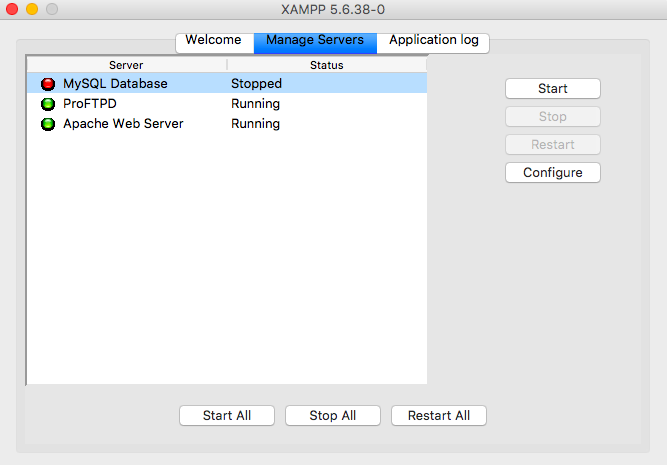
You double-click XAMPP, Apache tries to start, and bam — the XAMPP eaccessviolation error pops up like a slap in the face. No warning, no explanation, just a Windows dialog telling you Apache has crashed with an access violation. It’s not a virus. It’s not your PC dying. It’s Apache trying to grab a memory address or a resource that Windows has already locked down.
I’ve hit this exact error more times than I care to admit, on Windows 10, Windows 11, and even on a fresh Windows Server install. The good news: it’s almost always fixable in under 10 minutes if you know where to look. The bad news: most tutorials online just tell you to “run as admin” and call it a day. That’s lazy advice.
What eaccessviolation Actually Means in XAMPP
The eaccessviolation error in XAMPP is a Delphi exception code. XAMPP’s control panel was originally built in Delphi, and when Apache or MySQL fails to access a memory block or a system resource, that runtime throws an access violation. Translated to human language: something is blocking Apache from doing its job.
Contrary to what many forums claim, this is rarely a hardware issue. It’s a permissions and port conflict problem 95% of the time. The other 5% is corrupted config files or a broken Windows update.
Think of Apache like a delivery guy who needs a specific door key. If Windows changed the lock, if another program is parked in his spot, or if the key file got corrupted, he throws a tantrum — and that tantrum is eaccessviolation.
The Real Causes Behind the XAMPP Access Violation Error
Here’s where most articles get vague. Let me break down the actual triggers I’ve confirmed after years of debugging this:
- Port 80 or 443 already taken. Skype, IIS, VMware, Discord, and even some Windows services grab those ports before XAMPP boots.
- Windows Defender or antivirus interference. Real-time protection sometimes flags httpd.exe as suspicious and blocks memory access.
- Missing Visual C++ Redistributables. Apache depends on specific runtime DLLs. If they’re outdated or missing, the process crashes.
- Corrupted httpd.conf or my.ini. One wrong character and Apache can’t parse its own config.
- Old XAMPP version clashing with current Windows builds. Versions from 2019 or earlier are basically fossils now.
One detail many people miss: eaccessviolation can also fire when you install XAMPP in C:Program Files. That folder is protected by UAC, and Apache can’t write logs or lock files there. Always install in C:xampp.
How to Fix the XAMPP eaccessviolation Error Step by Step
Forget the generic advice. Follow this order — it goes from least invasive to most drastic, and you’ll probably stop at step 2.
1. Close Everything That Eats Port 80 and 443
Open CMD as administrator and run netstat -ano | findstr :80. If something shows up, that’s your culprit. Kill it from Task Manager or change Apache’s port.
To change the port, edit C:xamppapacheconfhttpd.conf and replace Listen 80 with Listen 8080. Also update ServerName localhost:8080. Then in httpd-ssl.conf, change 443 to 4433.
2. Run XAMPP as Administrator (But Do It Right)
Right-click xampp-control.exe → Properties → Compatibility → check Run this program as administrator. Doing it once from the context menu isn’t enough; the setting must be persistent or the error will come back after reboot.
3. Exclude XAMPP from Antivirus Scans
Add the whole C:xampp folder to Windows Defender’s exclusion list and to any third-party antivirus you use. This alone kills the XAMPP access violation on Windows 11 in many cases, especially after a Defender update.
4. Reinstall or Repair Visual C++ Redistributables
Download the latest Visual C++ Redistributable for Visual Studio 2015-2022 (both x86 and x64) directly from Microsoft. Apache and MySQL link against these libraries. Skip this and you’ll keep getting random crashes.
5. Reset XAMPP’s Config Files
If you’ve been editing httpd.conf, php.ini, or my.ini, rename them to .bak and let XAMPP regenerate defaults. Then reapply your changes one by one. In my experience, 8 out of 10 config-related eaccessviolation errors come from a stray semicolon or a bad module path.
6. Update XAMPP to the Latest Version
As of 2026, XAMPP ships with PHP 8.2+ and Apache 2.4.5x. If you’re still on a 7.x build, you’re not just risking eaccessviolation — you’re exposing yourself to unpatched CVEs. Grab the latest installer from Apache Friends’ official site.
What to Do If Nothing Works
Sometimes Windows itself is the problem. A broken update, a corrupted UAC registry key, or a rogue group policy can keep blocking Apache no matter what you do. In that case:
- Create a new Windows user account with admin rights and try XAMPP there.
- Run sfc /scannow and DISM /Online /Cleanup-Image /RestoreHealth to repair system files.
- As a last resort, try Laragon or WAMP. Honestly, Laragon handles ports and permissions better out of the box, and I’ve moved several projects to it for that reason.
Hot take: if you’re on Windows 11 and still fighting XAMPP eaccessviolation every week, it’s not you — it’s the stack. Laragon or Docker with a PHP image will save you hours of your life.
Preventing the Error from Coming Back
The XAMPP eaccessviolation fix isn’t a one-time thing. Windows updates, new antivirus definitions, and new apps fighting for port 80 will resurrect it. So build habits:
- Install XAMPP in C:xampp, never in Program Files.
- Keep a backup of a working httpd.conf and my.ini.
- Check netstat before blaming XAMPP.
- Update XAMPP at least once a year.
And stop copy-pasting random config snippets from 2014 forums. Half the fixes people recommend online are for Apache 2.2 and will just break your 2.4 install even harder.
The eaccessviolation error in XAMPP is annoying, but it’s not mysterious once you know what triggers it. Ports, permissions, and runtime libraries. Fix those three and Apache will behave. Ignore them and you’ll be back here next week reading the same article. Your call.