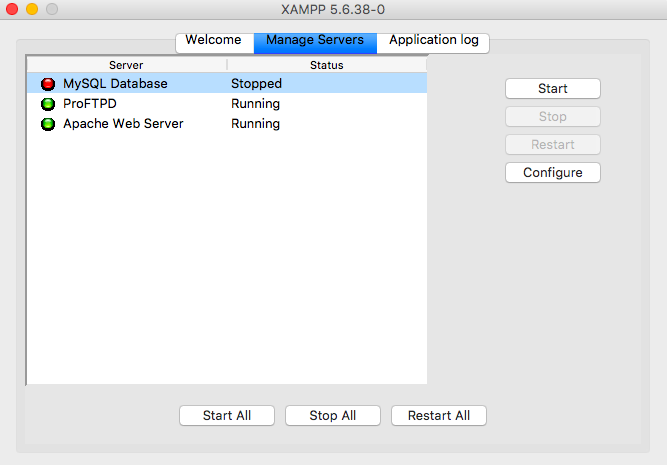
If you’ve ever fired up XAMPP expecting your local WordPress or PHP project to just work, and instead got slapped with a red error, welcome to the club. The most common errors in XAMPP are almost a rite of passage: ports blocked, MySQL refusing to start, Access denied, and the classic DocumentRoot not found. The good news? None of them are unfixable. The bad news is that most tutorials out there still tell you to change port 80 to 8080 and call it a day, which is lazy advice.
Before touching anything, open the XAMPP Control Panel and hit the Logs button next to each service. Ninety percent of the time, the real cause is written there in plain English. Guessing without reading logs is how people break their installations.
Port busy: why Apache refuses to start (and how to actually fix it)
The “Port 80 in use” error is the most repeated XAMPP problem on the internet. Apache tries to bind to port 80 or 443 and something else is already sitting there. On Windows, the usual suspects are IIS (World Wide Web Publishing Service), Skype, VMware, and increasingly, Docker Desktop, which quietly grabs ports 80 and 443 when you run containers.
Ignore the advice to just change the port blindly. First, identify the intruder. Open CMD as administrator and run netstat -ano | findstr :80. That gives you the PID. Then run tasklist | findstr PID and you’ll know exactly what’s hogging your port. Kill it or reconfigure it.
If you do decide to move Apache, open httpd.conf via Config > Apache, and change Listen 80 to Listen 8080. Also update the ServerName localhost:80 line. Then your URLs become http://localhost:8080, and if you’re running WordPress you’ll need to update wp-config.php and the siteurl in the database, otherwise you’ll get redirect loops.
Pro tip from experience: don’t change the port unless you really have to. Fixing the conflicting service is cleaner and saves you from broken permalinks later.
MySQL won’t start: the invisible wall in XAMPP
The dreaded “Error starting MySQL” hits hard because XAMPP gives you almost no info by default. There are three real causes worth checking, in this order:
- Port 3306 blocked by another MySQL instance, MariaDB, or a leftover service from an old install.
- Corrupt InnoDB data after a hard shutdown or a Windows update.
- Antivirus interference, especially Bitdefender and Kaspersky, which lock mysqld.exe.
Open mysql/data/mysql_error.log inside your XAMPP folder. If you see “InnoDB: File ./ibdata1 is corrupted”, don’t panic — but do back up the data folder before messing around. Deleting ibdata1 means losing every database you had. Instead, try adding innodb_force_recovery=1 to my.ini, start MySQL, export your databases with mysqldump, then rebuild cleanly.
If the log says the port is taken, edit my.ini (in mysql/bin) and change port=3306 to port=3307. Remember to update your PHP connection strings and phpMyAdmin’s config.inc.php too, otherwise you’ll fix one error and create two new ones.
Access denied for user ‘root’@’localhost’ in MySQL
This is the security guard that doesn’t recognize you. Two scenarios dominate: a wrong password, or a root user with missing privileges after a partial install.
If you simply forgot the password, the cleanest fix is stopping MySQL, then launching it from the command line with mysqld –skip-grant-tables. This bypasses authentication entirely. Open another terminal, run mysql -u root, and execute:
ALTER USER ‘root’@’localhost’ IDENTIFIED BY ‘newpassword’;
Then FLUSH PRIVILEGES; and restart MySQL normally. Don’t leave skip-grant-tables running — it’s a gaping security hole on any machine connected to a network.
If the error is “Access denied for user ‘root’@’localhost’ (using password: NO)”, it means PHP is trying to connect without a password while MySQL expects one. Check your config.inc.php in phpMyAdmin and your application’s connection file. This mismatch is the number one cause of Access denied on fresh XAMPP installs running WordPress or Laravel.
DocumentRoot not found: Apache can’t find your web files
You open http://localhost and get a blank page, a 403, or “The requested URL was not found”. Apache is looking for a folder that no longer exists, usually because you moved htdocs, renamed it, or copied a config file from another machine.
Open httpd.conf and search for DocumentRoot. The default is C:/xampp/htdocs. If you moved your projects, you have to update both the DocumentRoot line and the matching <Directory “…”> block below it. Forgetting the second one causes 403 Forbidden — the permissions block still points to the old path.
On macOS and Linux the same rule applies, and permissions matter more. If Apache runs as the daemon user, your project folder needs to be readable by that user. Running chmod -R 755 on the folder solves 90% of these cases. Don’t go wild with 777; it’s a security risk and you don’t need it.
Other XAMPP errors worth knowing in 2026
Beyond the big four, there are a few that keep popping up in forums this year. The phpMyAdmin “Cannot log in to the MySQL server” error almost always traces back to a mismatch between the MySQL port and phpMyAdmin’s config. The “Apache shutdown unexpectedly” error is usually a syntax error in httpd.conf or a missing Visual C++ Redistributable on Windows 11.
Also relevant: XAMPP still ships with outdated PHP versions by default. If you’re testing modern frameworks like Laravel 11 or Symfony 7, you need PHP 8.2 or higher. Download a fresh XAMPP build or swap the PHP folder manually — otherwise you’ll blame XAMPP for errors that are really just version mismatches.
The honest truth? XAMPP is fantastic for learning and local testing, but it’s not built for production, and it’s not great at handling multiple PHP versions. Tools like Laragon, DDEV, or Docker with a proper LAMP stack solve most of these errors out of the box. If you’re hitting the same XAMPP errors every week, that’s a signal to upgrade your local environment, not to keep patching it.
Fix the port conflict, read your logs, back up your databases before touching InnoDB files, and always update both DocumentRoot entries. Do that and XAMPP stops feeling like a haunted box and starts behaving like the handy tool it’s supposed to be.