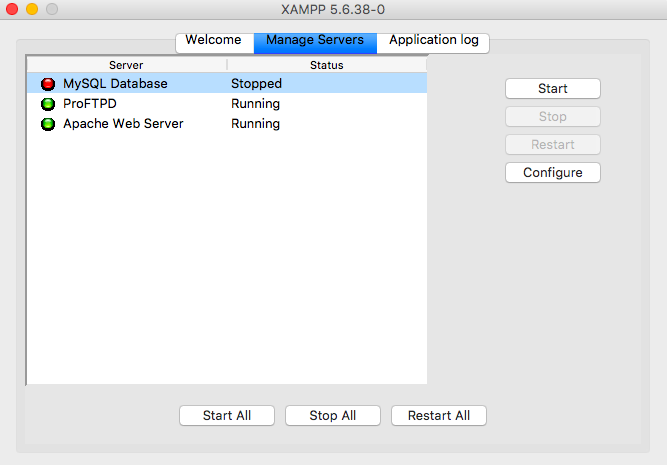
Let’s cut the crap: if you’re here, XAMPP just threw a fat Access Violation in your face and you’re about to lose it. I’ve been there. That popup with the memory address and the module name feels like a bad joke when you just wanted to spin up a local server. After fighting this error on Windows 10 and Windows 11 with different XAMPP builds, I can tell you most guides out there are copy-paste garbage. Here’s what actually works.
What the XAMPP Access Violation Error Really Means
An Access Violation in XAMPP isn’t a virus, isn’t a broken install, and almost never means your Apache or MySQL binaries are corrupt. It’s Windows telling you a process tried to read or write memory it doesn’t own. In 90% of the cases I’ve seen, the culprit is a conflict between XAMPP’s bundled libraries (OpenSSL, libmysql, Apache’s DLLs) and something else running on your machine — antivirus, another service holding port 80 or 443, or a leftover process from a previous crash.
The error usually shows up the moment you hit Start on Apache or MySQL, or right after Windows boots and XAMPP auto-starts as a service. If it happens on startup, the fix is different from the one you need when it crashes mid-session. Don’t mix them up.
Step 1: Kill the Port Thieves Before Touching Anything Else
Before you go disabling antivirus like every forum post tells you, open Task Manager (Ctrl + Shift + Esc) and look for anything squatting on ports 80, 443, and 3306. Skype, IIS, VMware, Docker Desktop, and even some Adobe services love to hijack those ports.
Quick way to check from the command line:
- netstat -ano | findstr :80 — shows the PID holding port 80
- netstat -ano | findstr :443 — same for HTTPS
- netstat -ano | findstr :3306 — MySQL’s default port
Find the PID, match it in Task Manager, kill it. If it’s a Windows service like World Wide Web Publishing Service or Web Deployment Agent, disable it permanently via services.msc. This alone fixes a huge chunk of XAMPP access violation reports, because two processes fighting for the same socket can absolutely trigger a memory access fault in Apache’s child process.
Step 2: Change XAMPP Ports the Right Way
If you can’t free port 80 or 443, change XAMPP’s. Open the XAMPP Control Panel, hit Config next to Apache, then Apache (httpd.conf). Look for these two lines and swap them:
Listen 80 → Listen 8080
ServerName localhost:80 → ServerName localhost:8080
Then in httpd-ssl.conf, change Listen 443 to Listen 8443. For MySQL, go to Config → my.ini and change port=3306 to port=3307. Restart everything. If the access violation disappears after this, congrats — it was a port collision, not a memory bug.
Step 3: Antivirus and Windows Defender Are Not Always the Villain
Everyone screams “disable Defender” the second XAMPP hiccups. That’s lazy advice and it’s often wrong. Modern Windows Defender doesn’t usually cause access violations on XAMPP — but third-party antivirus like Avast, Kaspersky, Bitdefender, and McAfee absolutely can, because they inject DLLs into every process, including httpd.exe and mysqld.exe.
Don’t disable your whole antivirus. Instead, add exclusions for the entire C:xampp folder in your AV settings. That’s the surgical fix. If the error stops, you keep protection and XAMPP runs clean. Only temporarily disable real-time protection as a diagnostic test — never as a permanent solution.
Step 4: The Real Culprit Nobody Mentions — Visual C++ Redistributables
Here’s the part that took me embarrassingly long to figure out: XAMPP on Windows depends on specific Microsoft Visual C++ Redistributable versions. If you have a mismatched or missing runtime, Apache and MySQL will throw access violations on launch. This is especially common on fresh Windows 11 installs or machines where someone uninstalled old redistributables.
Install both the x86 and x64 versions of the Visual C++ Redistributable 2015–2022 package directly from Microsoft’s official site. Don’t trust third-party download portals. Reboot, then start XAMPP again. In my experience, this fixes the stubborn cases where nothing else works.
Step 5: When Apache Itself Is Broken — Do a Clean Reinstall
If you’ve tried ports, exclusions, and redistributables and the XAMPP access violation still shows up, your Apache or MySQL binaries might genuinely be corrupted. This happens when you upgrade XAMPP over an old install instead of doing a clean wipe.
Do this properly:
- Stop all XAMPP services and exit the control panel.
- Back up your htdocs and mysql/data folders.
- Uninstall XAMPP, then delete the C:xampp folder manually — leftovers cause problems.
- Download the latest XAMPP build from apachefriends.org only.
- Install to a path without spaces or special characters. C:xampp is safest. Avoid Program Files.
After reinstalling, restore your htdocs and database files. Launch XAMPP as Administrator the first time so it can register services correctly.
The One Setting That Breaks Everything: Running as a Service
If you installed Apache and MySQL as Windows services, they run under the Local System account. That account sometimes can’t access files in your user profile or external drives, triggering access violations the moment XAMPP tries to read its config. Run XAMPP from the control panel without the service checkbox first. If it works that way, you’ve found your problem — either fix the service account permissions or just keep running it manually. For local development, manual is fine.
Quick Diagnostic Checklist Before You Rage-Quit
- Ports 80, 443, 3306 free? Check with netstat.
- C:xampp excluded from antivirus?
- Visual C++ Redistributables x86 and x64 installed?
- Running as Administrator?
- Fresh install, not an upgrade?
- No leftover httpd.exe or mysqld.exe processes in Task Manager?
If you tick every box and still get the error, check the xamppapachelogserror.log and xamppmysqldatamysql_error.log files. The real error is always there, buried under generic warnings. Don’t guess — read the log. That’s the difference between fixing it in ten minutes and reinstalling Windows out of frustration.
XAMPP is old software held together with duct tape and hope, but it still works. The access violation isn’t a death sentence — it’s Windows telling you exactly where the conflict is. You just have to listen instead of clicking “disable antivirus” like a parrot.