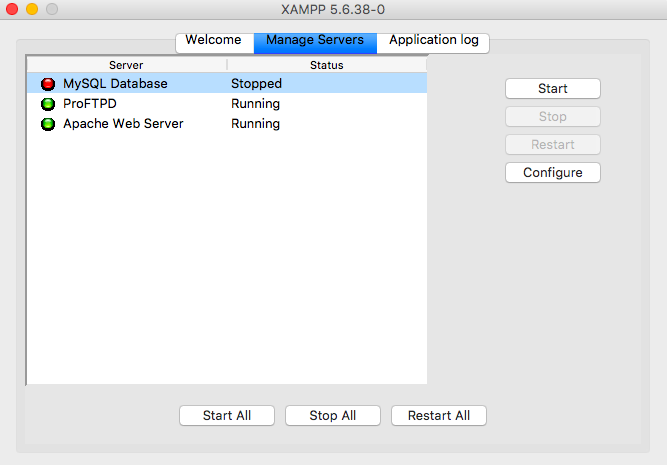
You double-click XAMPP, Apache turns green, MySQL flashes red and dies. The infamous MySQL shutdown unexpectedly error. It’s 2026 and this still happens because XAMPP ships with an ancient MariaDB build that chokes on modern Windows updates, port conflicts, or a corrupted InnoDB log. Let’s cut the fluff and fix it for good.
Why MySQL Crashes on XAMPP (Not Just ‘Unexpectedly’)
Nine times out of ten, the culprit is a leftover ibdata1 or aria_log file from a previous crash. When Windows forces a shutdown or you kill the process from Task Manager, InnoDB leaves the log in a dirty state. On restart, it tries to recover, fails, and XAMPP kills the process.
Another common trigger: port 3306 already in use by another MySQL instance, a Docker container, or even Skype. XAMPP doesn’t warn you properly—it just silently shuts down.
And yes, Windows Defender and third-party antivirus are still flagging mysqld.exe in 2026. That’s not paranoia; it’s a real cause of the MySQL shutdown unexpectedly loop.
Step 1: Check the Error Log Before Touching Anything
Don’t guess. Open C:xamppmysqldatamysql_error.log with Notepad. Look for the last lines before the shutdown. If you see InnoDB: Database page corruption or Cannot allocate memory, you know the exact problem.
If the log says Do you already have another mysqld server running on port 3306?, skip to the port fix below. If it says InnoDB: Unable to lock ./ibdata1, you’ve got a stale lock file.
Pro tip: The XAMPP Control Panel’s ‘Logs’ button opens the same folder. Stop wasting time navigating manually.
Step 2: Kill the Zombie Process and Free the Port
Open Command Prompt as admin and run:
- netstat -ano | findstr :3306 — note the PID.
- taskkill /PID [PID] /F — replace [PID] with the number.
Then restart MySQL from XAMPP. If it stays green, you’re done. If not, the problem is deeper.
Also check for mysqld.exe in Task Manager. Kill every instance. Windows sometimes leaves orphan processes after a crash, and that’s a classic cause of MySQL shutdown unexpectedly.
Step 3: Delete the Corrupted InnoDB Logs (Backup First!)
This is the nuclear option that fixes 80% of cases. Close XAMPP completely. Navigate to C:xamppmysqldata. You’ll see files like ib_logfile0, ib_logfile1, and ibdata1.
Create a backup folder and move ib_logfile0 and ib_logfile1 there. Do not delete ibdata1 unless you’re ready to lose all databases. Restart XAMPP. MySQL will recreate the log files and usually start fine.
If it still fails, move ibdata1 too, but only if you have a SQL dump backup. Otherwise, you’ll lose your data. This is the harsh truth nobody tells you in those copy-paste blog posts.
Step 4: Change the MySQL Port (When 3306 Is Cursed)
If port 3306 is permanently occupied by another service you can’t kill, change XAMPP’s MySQL port. Edit C:xamppmysqlbinmy.ini. Find port=3306 and change it to port=3307. Save, restart MySQL, and update your PHP connections to use 3307.
This is a clean workaround when you can’t free the original port. It’s not ideal, but it works.
Step 5: Reinstall MariaDB Inside XAMPP (Yes, Really)
If nothing works, your MariaDB binaries are probably corrupted. Download the latest XAMPP version from Apache Friends. Copy the entire mysql folder from the new installation over your old one. Keep your data folder intact.
This replaces the executables without touching your databases. It’s the fastest way to recover from a broken MySQL shutdown unexpectedly scenario when the error log shows DLL errors or missing files.
Prevention: Stop This From Happening Again
Always shut down MySQL from the XAMPP Control Panel before closing your PC. Never kill it from Task Manager. Set up automatic SQL dumps with a tool like mysqldump scheduled daily.
Also, exclude the XAMPP folder from Windows Defender real-time scanning. It’s a security trade-off, but for a local dev environment, it’s acceptable. Just don’t do this on a production server.
And if you’re still on a 2018 XAMPP version, upgrade. The 2026 builds handle Windows 11 updates and modern PHP versions far better.
That’s it. No magic. Just methodical troubleshooting. If your MySQL still dies after all this, the problem is your Windows installation, not XAMPP.