<a href="https://www.empresadeserviciosweb.com/post/por-que-xampp-no-inicia-mysql-o-apache-descubre-el-misterio-y-solucionalo-ya/” title=”😩 Why won’t XAMPP start MySQL or Apache? 😤 (The most honest and complete guide you’ll ever read)”>How to use XAMPP as a server local?
I recommend you check out this interesting article: how to apply the subtraction function in excel.
Do you want to learn how to use XAMPP as a local server? The answer is simple: <a href="https://www.empresadeserviciosweb.com/post/como-meter-una-entrada-en-una-pagina-wordpress-de-forma-sencilla/” title=”How to add a post to a WordPress page easily?”>XAMPP lets you simulate a server on your computer easily and for free. With this tool, you can develop websites without needing an internet connection. How to install XAMPP on Mac .
To get started, XAMPP integrates Apache, MySQL, and PHP, which means you can set up your own server without relying on external services. It’s ideal for those just starting out in the world of web development because it greatly simplifies the testing and configuration process. Plus, its <a href="https://www.empresadeserviciosweb.com/soluciones-para-la-actualizacion-acumulativa-de-windows-11-version-24h2/" title="How to troubleshoot Windows 11 version 24H2: cumulative update guide, installation, what’s new, services, and data updates”>installation doesn’t require advanced knowledge, just a few clicks and you’re done.
Using XAMPP is like having a laboratory at home to experiment with your projects risk-free. It lets you see your site running in real time, even before uploading it to the web. This is <a href="https://www.empresadeserviciosweb.com/post/como-vincular-google-analytics-con-wordpress-para-beginners/” title=”How to link Google Analytics with WordPress for Beginners?”>perfect for those who want to learn to code without stress.
So, if you ever thought that setting up a local server was difficult, with XAMPP you’ll realize it isn’t. The best part is that you can start right now, without any complications.
How does XAMPP work?
Understanding how XAMPP works isn’t complicated. This tool acts as a package that installs everything you need to create a local web server. XAMPP combines Apache, MySQL, and PHP, along with other useful services. Each one plays an essential role.
For example, Apache is responsible for making your website accessible, while MySQL manages the databases where you store your content. PHP, on the other hand, lets you program your website dynamically. By integrating everything into a single piece of software, you can forget about manual configurations.
XAMPP works through modules, which means you can enable and disable components depending on what you need. If you’re just testing a simple page, you may not need all the services active. This flexibility is key for both beginner and advanced developers.
The most important thing is that with XAMPP you can work on your website from anywhere, without worrying about crashes or internet connections. That’s why learning how XAMPP works will give you a big advantage if you’re just starting out in web development.
How to use XAMPP easily?
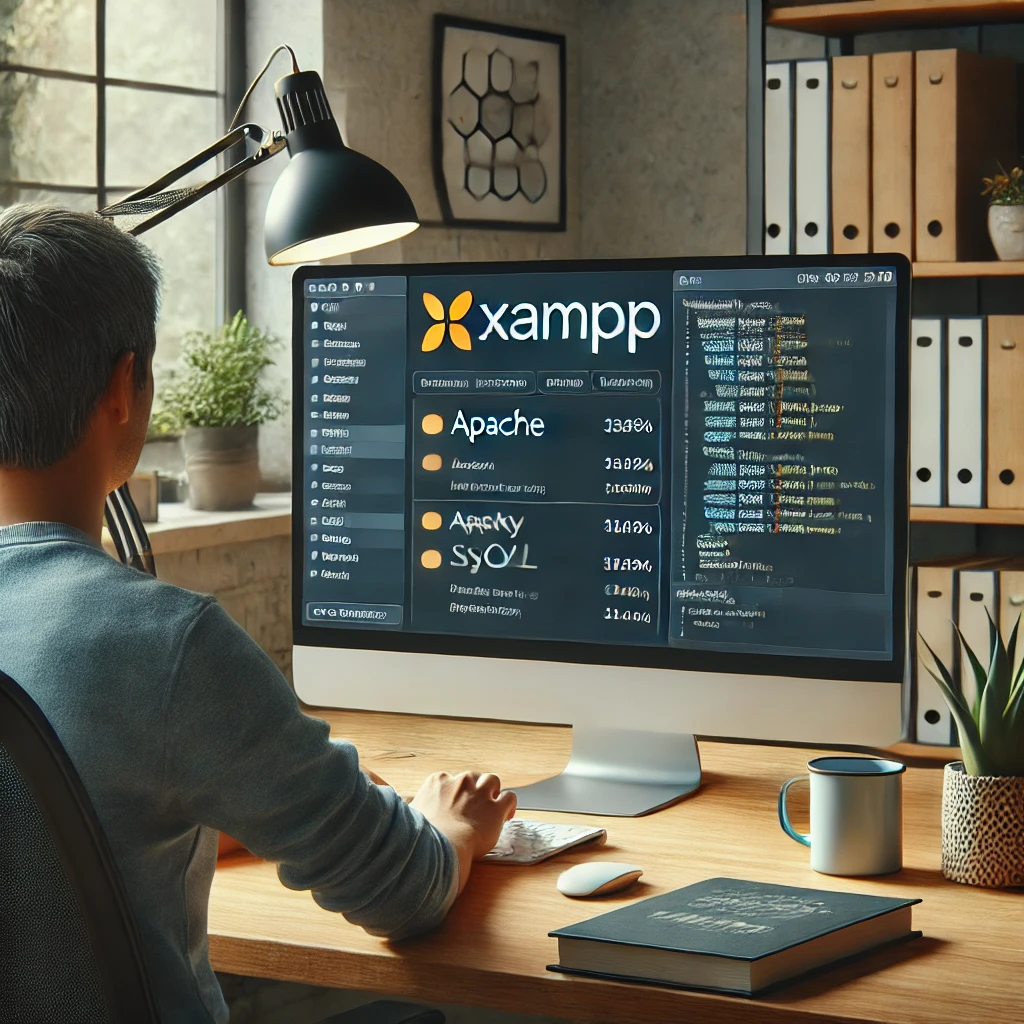
If you want to know how to use XAMPP, the key is to make the most of its basic tools. Once you install it, the first thing you should do is enable Apache and MySQL from the panel of control. This will turn on your local server and your databases.
Then, place your files inside the folder “htdocs” in your XAMPP installation. This folder acts as the root of your local server, so any HTML, PHP, or CSS file you put there will run when you open the browser.
Once everything is set up, just type “localhost” in your browser, and that’s it! You’ll see your files running as if they were on a real server. If something fails, the XAMPP control panel will show you which services aren’t working.
Learning to use XAMPP is a quick process. You can try out different configurations until you feel comfortable. Plus, if you run into problems, there are always tutorials available to help you resolve any questions.
How to configure XAMPP for your web projects?
Configuring XAMPP doesn’t have to be complicated. The first step is to install it and make sure Apache and MySQL are active in the control panel. From there, you can customize your settings according to your needs.
If you need to change PHP settings, for example, edit the “php.ini” file, which is located in the main XAMPP folder. Here you can adjust memory limits, file upload sizes, and other useful parameters for your projects.
Additionally, it’s important to configure your databases with MySQL. Access phpMyAdmin, which comes integrated with XAMPP, to create and manage your databases visually and easily. This will save you time if you’re not familiar with SQL commands.
Finally, test that everything is working correctly by typing “localhost” in your browser. If your site loads and the databases connect, it means you’ve successfully configured XAMPP.
How to enable MySQL in XAMPP quickly?
If you need to enable MySQL in XAMPP, the process is super simple. Open the XAMPP control panel and look for the MySQL service. Click the “Start” button and you’ll see the indicator turn green, which means MySQL is active.
From there, you’ll be able to access your databases using phpMyAdmin. Just type “localhost/phpmyadmin” in your browser, and it will open a visual interface where you can create, modify, or delete databases.
If MySQL doesn’t start, check whether another program is using port 3306, which is the default for MySQL. In case of a conflict, you can change the MySQL port from the XAMPP configuration files.
How to access phpMyAdmin in XAMPP without problems?
Accessing phpMyAdmin in XAMPP is very easy. Once you have activated Apache and MySQL from the control panel, open your browser and type “localhost/phpmyadmin” in the address bar. This will take you directly to the phpMyAdmin panel.
From this tool, you can manage all your databases without complications. You can create new databases, import SQL files, or even optimize existing tables. All of this is done through a visual interface, without the need to write commands.
If you can’t access phpMyAdmin, verify that Apache and MySQL are active. Also make sure you don’t have blocks from antivirus or firewall, as they can sometimes interfere with XAMPP.
What is XAMPP?
Answer: XAMPP is a free software package that includes Apache, MySQL, PHP, and Perl. It is an ideal tool for setting up a local server on your computer to develop and test websites or applications without needing to be online.
How do you install XAMPP?
Answer: To install XAMPP, download the installer from the official XAMPP website, run the downloaded file, and follow the installation wizard steps. XAMPP is available for Windows, macOS, and Linux.
What are the main components of XAMPP?
Answer: The main components of XAMPP are Apache (web server), MySQL (database), PHP (programming language), and Perl. It also includes tools like phpMyAdmin for managing databases.
How do you start XAMPP after installation?
Answer: Once installed, open the XAMPP Control Panel, where you can start or stop services like Apache and MySQL by clicking the corresponding “Start” buttons.
What port does XAMPP use by default for Apache?
Answer: XAMPP uses port 80 by default for the Apache server. If this port is occupied by another program, you can change it in the Apache configuration.
How do you change the Apache port in XAMPP?
Answer: Open the XAMPP Control Panel, click “Config” next to Apache, select “httpd.conf”, and look for the line Listen 80. Change it to another port, such as Listen 8080, and save the file.
How do you access my local XAMPP server?
Answer: Once Apache is running, open your browser and go to http://localhost or http://127.0.0.1. If you changed the port, use http://localhost:8080.
What is phpMyAdmin in XAMPP?
Answer: phpMyAdmin is a web-based MySQL database administration tool that is included with XAMPP. You can access it through http://localhost/phpmyadmin.
How do you create a database in XAMPP?
Answer: Access phpMyAdmin from your browser, click “Databases”, then enter a name for your database and select the desired collation (for example, utf8_general_ci). Click “Create”.
How do you upload PHP files to XAMPP?
Answer: Place your PHP files inside the htdocs folder in the XAMPP installation directory (for example, C:xampphtdocs on Windows). Then, access them through http://localhost/file_name.php.
What should you do if XAMPP doesn’t start Apache or MySQL?
Answer: Make sure there are no other programs (such as Skype) using the same port as Apache or MySQL. You can also try running XAMPP as administrator or changing the port in the Apache configuration.
How do you stop XAMPP services?
Answer: Open the XAMPP Control Panel and click “Stop” next to Apache and MySQL to stop the services.
Is it safe to use XAMPP in a production environment?
Answer: No. XAMPP is designed to be used in development environments, not in production, since it is not configured with the necessary security measures for an online server.
How do you configure an .htaccess file in XAMPP?
Answer: You can create an .htaccess file in your website’s directory within the htdocs folder. This file allows you to configure rules for URL rewriting, authentication, among others.
What should you do if I want to use XAMPP with WordPress?
Answer: Download WordPress, extract it into the htdocs folder, create a database in phpMyAdmin, edit the wp-config.php file to add the database details, and then access WordPress through http://localhost/directory_name.
Can I use XAMPP on an online server?
Answer: XAMPP is not suitable for production servers. For online servers, it is recommended to use a more robust and secure web server configuration, such as LAMP or WAMP, depending on the operating system.
How do you back up my database in XAMPP?
Answer: Access phpMyAdmin, select the database you want to back up, click “Export”, and choose the format (such as SQL or ZIP). Then, click “Go” to download the backup file.
How do you modify the PHP configuration in XAMPP?
Answer: To modify the PHP configuration, open the php.ini file in the XAMPP installation folder (for example, C:xamppphpphp.ini), make the desired changes, and restart Apache from the XAMPP Control Panel.
What does “DocumentRoot” mean in the Apache configuration?
Answer: “DocumentRoot” is the Apache directive that defines the folder where your web server files are located. In XAMPP, the default value of “DocumentRoot” is C:xampphtdocs on Windows.
How do you update XAMPP?
Answer: To update XAMPP, you must download the latest version from the official website and follow the installation instructions. Make sure to back up your files before updating.