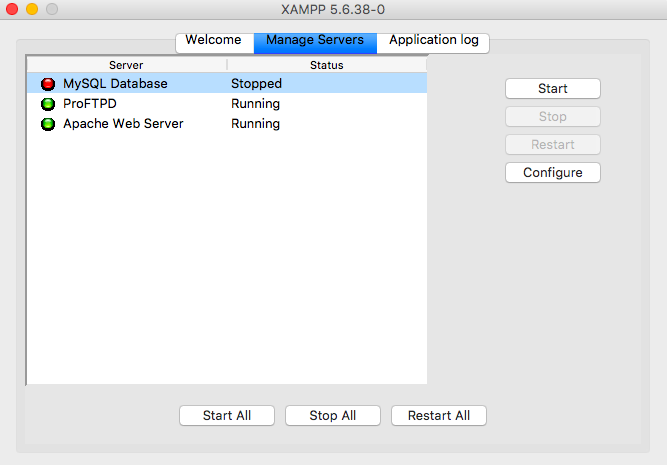
XAMPP died on you mid-project? It happens more than people admit. One minute Apache is green, the next MySQL refuses to start and PHPMyAdmin throws a blank page. The good news: how to repair XAMPP is almost never a mystery once you know where the failure actually lives. And it’s rarely the whole stack — it’s one broken piece dragging the rest down.
I’m not going to sell you a magic button. XAMPP is a local server bundled from Apache, MySQL/MariaDB, PHP and Perl, and each component fails for its own reasons. Port collisions, corrupted InnoDB files, stale config files, zombie processes from a previous crash. That’s the shortlist.
Why XAMPP Won’t Start: The Real Culprit Behind Apache and MySQL
Before you reinstall anything, open the XAMPP Control Panel and hit Logs next to the failing module. Nine out of ten times the answer is right there in plain text. If Apache won’t start, you’ll usually see “make_sock: could not bind to address 0.0.0.0:80” — that’s a port conflict, not a broken install.
On Windows, the usual suspect is the World Wide Web Publishing Service (IIS) or Skype hogging port 80. On macOS, it’s the built-in Apache from the system. And on Linux, it could be nginx or systemd’s own apache2 service. Killing the intruder is faster than reinstalling XAMPP, and it actually fixes the root cause.
MySQL failing is a different animal. If the log says “InnoDB: Unable to lock ./ibdata1” or “Another mysqld process is already running,” you’ve got a zombie process or a lock file left behind. Task Manager (or ps aux | grep mysql) will show it. Kill it, delete mysql/data/ibdata1.lock if it exists, and restart.
How to Repair MySQL in XAMPP When It Refuses to Boot
The classic error “MySQL shutdown unexpectedly” in XAMPP almost always points to corrupted data files in the mysql/data folder. This is where how to repair MySQL in XAMPP stops being scary: you don’t need to lose your databases if you do this carefully.
- Stop XAMPP completely.
- Copy the entire xampp/mysql/data folder somewhere safe. Always.
- Delete ibdata1, ib_logfile0 and ib_logfile1 from that folder.
- Copy fresh copies of those three files from xampp/mysql/backup.
- Restart MySQL from the Control Panel.
This works because InnoDB rebuilds its log files on startup, and the backup folder ships with clean originals. Your user databases live in separate subfolders, so they survive. I’ve done this on a Saturday night with a client demo on Monday — it took four minutes.
If MySQL still won’t start, check the port. XAMPP defaults to 3306, but if you already have another MySQL instance installed (very common on dev machines), change XAMPP’s port to 3307 in my.ini under [mysqld] and update PHPMyAdmin’s config to match.
Repair PHPMyAdmin in XAMPP: The Step Most People Skip
PHPMyAdmin breaking is usually a symptom, not a disease. If MySQL is down, PHPMyAdmin will throw “Cannot log in to the MySQL server” or a white screen every single time. So before you start repairing PHPMyAdmin XAMPP, confirm MySQL is actually running.
When MySQL is fine and PHPMyAdmin still fails, the problem is almost always in phpMyAdmin/config.inc.php. Open it and verify:
- $cfg[‘Servers’][$i][‘host’] = ‘127.0.0.1’; (not ‘localhost’ on Windows — it breaks socket lookups sometimes)
- $cfg[‘Servers’][$i][‘port’] = ‘3306’; (or whatever port you set)
- $cfg[‘Servers’][$i][‘auth_type’] = ‘config’; if you’re tired of login prompts locally
Another silent killer: a PHP version mismatch. XAMPP ships with a specific PHP build, and PHPMyAdmin is version-locked to it. If you upgraded PHP manually inside XAMPP, PHPMyAdmin will crash. Revert PHP or upgrade PHPMyAdmin to a compatible branch — don’t mix and match.
Port 80 Conflicts and the Fastest Way to Fix Apache
Port 80 is the most contested port on any dev machine. If Apache refuses to start and the log confirms the bind error, you have two clean options: find and kill the intruder, or move XAMPP to another port.
On Windows, run netstat -ano | findstr :80 in CMD. You’ll get a PID. Plug it into Task Manager’s Details tab and kill it. On Linux and macOS, sudo lsof -i :80 tells you the process name instantly.
If you’d rather dodge the fight forever, edit xampp/apache/conf/httpd.conf, change Listen 80 to Listen 8080, and also update ServerName localhost:8080. Then your projects live at http://localhost:8080. Not elegant, but it works every time and saves you from re-fighting IIS after every Windows update.
When to Stop Repairing XAMPP and Just Reinstall
Here’s my honest take: if you’ve spent more than an hour chasing config ghosts and you don’t have custom data in the MySQL folder, reinstall. XAMPP is a dev tool, not a production server. Reinstalling takes ten minutes and gives you a clean baseline.
The exception: if you have databases you can’t regenerate, never reinstall without a backup. Copy mysql/data to an external drive first, then reinstall, then paste your databases back into the fresh data folder. That’s the safest repair XAMPP path when everything else fails.
Also worth saying out loud: Windows XAMPP and macOS XAMPP behave differently. On macOS, permissions on the htdocs and mysql/data folders cause half the failures. Run sudo chown -R $USER:admin /Applications/XAMPP and watch how many “mysterious” errors vanish.
Prevention: How to Keep XAMPP From Dying Again
Stop XAMPP cleanly every time — don’t just close the window. Use the Control Panel’s Stop buttons in reverse order (Apache, then MySQL). Half the corrupted ibdata1 files I’ve seen come from hard shutdowns or laptop lid closures with XAMPP running.
Keep a versioned backup of your htdocs and mysql/data folders. A simple zip once a week saves you from every disaster scenario in this article. And keep XAMPP updated — older builds have known bugs with newer Windows updates and macOS security patches.
If you’re running XAMPP daily for real work, consider Docker with a LAMP stack instead. It’s heavier to set up but it doesn’t rot the same way. XAMPP is great for learning and quick prototypes; it’s less great as your permanent daily driver. Knowing when to repair XAMPP and when to move on is the real skill here.