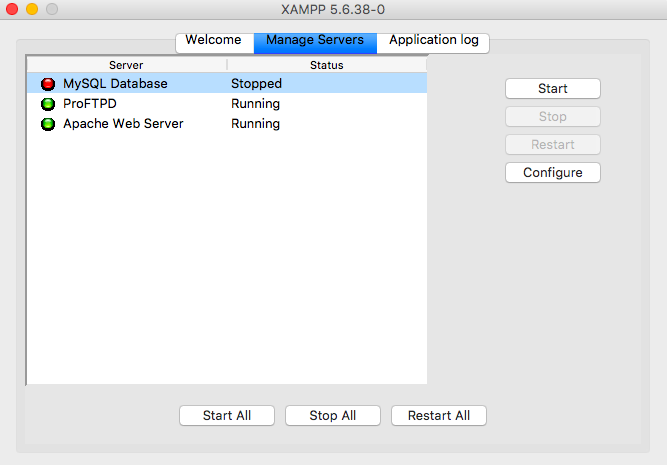
XAMPP not working? Yeah, I’ve been there. You’re ready to code, and suddenly Apache or MySQL refuses to start. It’s a classic. But don’t freak out. In 2026, the fixes are the same as always, but with a few new tricks. Let’s dive in.
Why XAMPP Fails and How to Diagnose It
First things first: XAMPP errors are rarely random. Usually, it’s a port conflict, a corrupted config file, or a permissions issue. On Windows, port 80 is the usual suspect. Skype, IIS, or even the Windows HTTP service can hog it. To check, open PowerShell as admin and run netstat -ano | findstr :80. If something’s there, note the PID and kill it in Task Manager.
On macOS, it’s often a permissions problem with the /Applications/XAMPP folder. Linux users, check if Apache or MySQL are already running as system services. The command sudo lsof -i :80 will show you.
Once you’ve freed the port, try starting XAMPP again. If it still fails, the issue is deeper. Let’s move on.
Fixing Apache When It Won’t Start
Apache is the drama queen of XAMPP. If it won’t start, open the XAMPP control panel and click “Logs” next to Apache. The error log will tell you exactly what’s wrong. Common errors:
- Port 80 in use: Change Apache’s port to 8080 in httpd.conf. Look for Listen 80 and change it to Listen 8080. Also, update ServerName localhost:80 to ServerName localhost:8080.
- Missing VC++ redistributables: XAMPP needs Visual C++ Redistributable. Download the latest from Microsoft’s site.
- Corrupted httpd.conf: Replace it with the default from the apache/conf/extra folder or reinstall XAMPP.
After any change, restart Apache from the control panel. If it starts, congrats. If not, keep reading.
MySQL Won’t Start? Here’s the Fix
MySQL errors are usually due to a corrupted InnoDB log file or a port conflict (default 3306). Check the MySQL log in XAMPP control panel. If you see InnoDB: Unable to lock ./ibdata1, it means another MySQL instance is running. Kill it via Task Manager or sudo killall mysqld on Linux/macOS.
If the error is about the log file, delete ib_logfile0 and ib_logfile1 from the mysql/data folder. Don’t worry, MySQL will recreate them. But back up your databases first! You can copy the entire data folder.
Another common issue: MySQL port 3306 is blocked by Windows Firewall. Add an exception for mysqld.exe.
Restoring Default Configuration Files
If you’ve messed with config files and now nothing works, reset them. XAMPP doesn’t have a built-in reset button, but you can manually restore:
- Stop all services.
- Rename your current httpd.conf to httpd.conf.bak.
- Copy the default from xampp/apache/conf/httpd.conf.default (if it exists) or download a fresh copy from the XAMPP source.
- Do the same for my.ini in xampp/mysql/bin.
- Restart XAMPP.
This often fixes weird issues like PHP not parsing or MySQL refusing connections. If it doesn’t, it’s time for the nuclear option.
Reinstalling XAMPP Without Losing Your Data
Reinstalling is the last resort, but it’s not as scary as it sounds. Here’s how to do it right:
- Back up your htdocs folder (your projects) and the mysql/data folder (your databases).
- Uninstall XAMPP via Control Panel (Windows) or drag to Trash (macOS). On Linux, run sudo /opt/lampp/uninstall.
- Download the latest XAMPP from apachefriends.org. As of 2026, the latest version is 8.2.12 with PHP 8.2.
- Install it in the same directory as before to avoid path issues.
- Copy back your htdocs and data folders.
- Start XAMPP and check if everything works.
If you have custom configs, reapply them one by one. Don’t just copy the old files, as they might be the cause of the problem.
Preventing Future XAMPP Headaches
To avoid repeating this mess, follow these rules:
- Always run XAMPP as administrator on Windows to avoid permission issues.
- Don’t install XAMPP in C:Program Files; use C:xampp instead.
- Keep a backup of your htdocs and databases regularly.
- Update XAMPP when a new version comes out, but test on a staging environment first.
- Use port 8080 for Apache if you frequently have conflicts.
And if you’re on Windows 11, make sure to disable “World Wide Web Publishing Service” if you don’t use IIS. It’s a common port 80 hog.
Still stuck? The XAMPP community on Reddit and Stack Overflow is super helpful. Post your error logs and someone will help. But 9 times out of 10, it’s one of the fixes above.