If you’re seeing the fatal error maximum execution time xampp message, you already know the feeling: your local project freezes right when you’re about to test something important. PHP kills the script, Apache throws a hissy fit, and you’re left staring at a white screen wondering what just happened.
Let me tell you straight: this isn’t a bug in XAMPP. It’s PHP doing exactly what it was told to do. By default, PHP gives every script 30 seconds to finish. Once that clock runs out, the process gets axed to protect the server from runaway loops and heavy queries. The fix is simple, but the real skill is knowing which fix to apply and when.
What the “Maximum Execution Time Exceeded” Error Really Means
The maximum execution time exceeded xampp error means a PHP script took longer than the allowed limit. That limit is controlled by the max_execution_time directive, which by default sits at 30 seconds in most XAMPP builds.
This isn’t random. PHP uses that ceiling as a safety net. Without it, a bad loop or a slow MySQL query could hang Apache indefinitely and eat all your RAM. So when you see the error, PHP is basically telling you: “something in this script is too slow.”
Two scenarios exist. One: your script is legitimately heavy (importing a big CSV, generating a PDF, running a migration). Two: your code has a hidden problem, like an infinite loop or a query without an index. The first case deserves a higher limit. The second deserves a rewrite.
How to Fix It by Editing php.ini in XAMPP
The most reliable way to solve the xampp maximum execution time issue is by editing the php.ini file. This applies globally to every PHP script running on your local server.
Head to your XAMPP installation folder. On Windows that’s usually C:xamppphpphp.ini. On macOS with the standard installer, it’s /Applications/XAMPP/xamppfiles/etc/php.ini. Open it with a code editor like VS Code or Notepad++.
Search for this line:
max_execution_time = 30
Change the 30 to something bigger. For local development I usually set max_execution_time = 300 (five minutes). If you’re running heavy imports, 600 or even 0 (unlimited) works, but I’d avoid 0 unless you know exactly what you’re doing. Unlimited execution is a real footgun on production servers.
While you’re in there, also bump max_input_time and memory_limit. A script that takes 5 minutes often needs more than 128M of RAM too. Something like memory_limit = 512M is a sane starting point for local work.
Restart Apache or Nothing Will Change
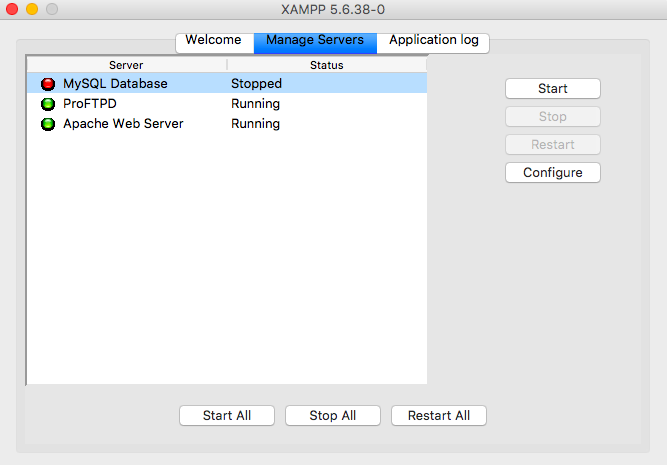
This is the step people skip and then complain the fix didn’t work. After saving php.ini, you must restart Apache from the XAMPP control panel.
PHP reads php.ini once when the module loads. If you don’t restart, Apache keeps the old config in memory and your php.ini max_execution_time change stays invisible. Stop Apache, start it again, and then reload your script.
Quick sanity check: create a file called info.php with <?php phpinfo(); ?>, open it in the browser, and search for “max_execution_time”. If it still says 30, your edit didn’t take. Usually it’s a wrong php.ini path or a typo in the directive.
Using set_time_limit() Inside Your Script
Sometimes you can’t touch php.ini. Maybe you’re on shared hosting, or you only need to extend time for one specific endpoint. That’s where set_time_limit() comes in.
Drop this at the top of your PHP file:
set_time_limit(300);
That overrides the global limit for that script only. I use it inside controllers that handle uploads or batch processing. It keeps the rest of the app locked at 30 seconds, which is exactly what you want.
Fair warning: set_time_limit() doesn’t work in safe mode (rare nowadays), and some hosts disable it entirely. On those setups, you’re stuck with php.ini or a support ticket.
For Apache, .htaccess Can Also Do the Trick
If you don’t want to touch the global config, you can push the change through .htaccess at the root of your project:
php_value max_execution_time 300
php_value max_input_time 300
php_value memory_limit 512M
This only works when PHP runs as an Apache module. If you’re on PHP-FPM or FastCGI, Apache will throw a 500 error and you’ll waste an hour figuring out why. Check your XAMPP setup before going this route.
Don’t Just Bump the Limit — Fix the Real Problem
Raising the timeout is a bandage. If you find yourself doing it every week, something else is wrong.
Common culprits behind php maximum execution time exceeded:
- Unindexed database queries scanning millions of rows.
- Loops that call an API on every iteration instead of batching.
- Recursive functions with no exit condition.
- Loading huge files entirely into memory with file_get_contents().
- Debug tools like Xdebug running on every request.
Profile the script. Use Xdebug’s profiler or just drop microtime(true) markers around suspected blocks. Nine times out of ten you’ll find one query or one loop eating 90% of the time.
Why 30 Seconds Isn’t a Random Number
People ask why PHP picked 30 seconds as the default. The answer is historical: it was chosen decades ago to keep shared hosting from melting down. It’s a conservative number that assumes scripts are quick and users are impatient.
For local development with XAMPP, that assumption doesn’t hold. You’re the only user. There’s no shared server to protect. So bumping it to 300 or 600 is fine. On production, though, think twice. A 5-minute request ties up a worker process for 5 minutes. Under load, that’s how sites go down.
Common Mistakes When Fixing This Error in XAMPP
The xampp fatal error maximum execution time keeps coming back for a few predictable reasons:
- Editing the wrong php.ini. XAMPP ships several (one for Apache, one for CLI). The Apache one is the one that matters.
- Forgetting to restart Apache after saving.
- Setting max_execution_time = 0 globally and forgetting about it. Then every slow script runs forever.
- Using .htaccess on a FastCGI setup and getting a 500 instead.
- Ignoring max_input_time, which controls how long PHP waits for input data before it even starts executing.
Fix all five at once and the error stops haunting you.
What About CLI Scripts?
Here’s something a lot of people miss: max_execution_time doesn’t apply to scripts run from the command line. PHP sets it to 0 automatically in CLI mode. So if your cron job or artisan command works fine but the same logic times out in the browser, that’s why.
This is actually useful. If a task is too heavy for the web, run it from CLI. That’s how real backups, migrations, and data imports should be handled anyway.
My Honest Take
Bumping max_execution_time in XAMPP takes 30 seconds of work. But the developers who actually get good at this stuff are the ones who ask why the script needed 5 minutes in the first place.
Treat the error as a signal, not an obstacle. Fix the config so you can keep working today, then go back and optimize the code tomorrow. That’s the difference between a dev who fights the same error every month and one who never sees it again.