You open your browser, type http://localhost/my-project/, hit enter, and there it is: the XAMPP 404 error. That blank white page with “Object not found!” staring back at you like it’s mocking your whole afternoon. I’ve been there more times than I care to admit, and 90% of the time the fix is embarrassingly simple.
Let me save you the two hours of forum-hopping I wasted the first time this happened to me. This isn’t a theoretical guide — it’s what actually works when your local Apache refuses to serve your files.
What the 404 in XAMPP Really Means (Hint: It’s Not Google’s Fault)
The 404 not found in XAMPP has nothing to do with the internet or SEO. Apache is running, it received your request, but it looked in its document root and didn’t find what you asked for. End of story.
The document root in a default XAMPP install on Windows is C:xampphtdocs. On macOS it’s /Applications/XAMPP/htdocs. On Linux, usually /opt/lampp/htdocs. If your project folder isn’t sitting inside that exact directory, Apache will never see it. Period.
So before you touch a single config file, confirm three things: Apache is green in the control panel, your folder is inside htdocs, and the URL matches the folder name exactly. Case sensitivity matters on Linux and macOS — MyProject and myproject are two different things there.
Fix #1: The URL You’re Typing Is Probably Wrong
This sounds insultingly basic, but it kills more afternoons than anything else. If your project lives at C:/xampp/htdocs/portfolio, the correct URL is http://localhost/portfolio/ — not http://localhost/portfolio/index.html if you renamed the file, and definitely not http://localhost/htdocs/portfolio.
One trap nobody warns you about: if you have an index.php and you’re requesting only the folder, Apache needs DirectoryIndex configured correctly. It usually is by default, but if someone edited httpd.conf and removed it, the folder request returns 403 or 404 even though the files exist.
Open httpd.conf, search for DirectoryIndex, and make sure you see something like DirectoryIndex index.php index.html index.htm. That single line has rescued more broken local setups than any Stack Overflow answer.
Fix #2: Kill the Port 80 Conflict for Good
Skype used to be the classic culprit, but in 2026 it’s more likely IIS, another Apache instance, Docker Desktop, or a Windows service quietly squatting on port 80. If Apache shows red or “Port 80 in use by…” in the XAMPP panel, the 404 behavior gets weird because Apache never actually starts.
The fix: open the XAMPP control panel, click Config next to Apache, then Apache (httpd.conf). Change Listen 80 to Listen 8080, and also update ServerName localhost:8080. Save, restart Apache, and now your projects live at http://localhost:8080/my-project/.
Don’t forget to also edit httpd-ssl.conf if you’re using HTTPS locally — port 443 conflicts are just as common and just as annoying.
Fix #3: .htaccess Is Sabotaging Your Rewrite Rules
If you’re running WordPress, Laravel, or any framework with pretty URLs, the XAMPP 404 error often comes from a broken .htaccess file. One wrong rewrite rule and every request that isn’t a physical file returns 404.
Quick test: temporarily rename .htaccess to .htaccess.bak and reload the page. If it works, you’ve found your villain. Common fixes include:
- Ensure mod_rewrite is uncommented in httpd.conf (remove the # before LoadModule rewrite_module).
- Set AllowOverride All inside the <Directory “C:/xampp/htdocs”> block — without this, Apache ignores .htaccess entirely.
- Verify the WordPress permalink block matches your installation: RewriteRule . /index.php [L] for root installs, RewriteRule . /subfolder/index.php [L] for subfolder installs.
That AllowOverride line is the one people miss constantly. Apache will happily serve files but silently ignore your rewrite rules if it’s set to None.
Fix #4: File Permissions on Linux and macOS
On Windows you can skip this section. On Linux and macOS, permission problems cause 403 more often than 404, but they can mask the real issue. Your project files should be readable by the Apache user, which is usually daemon or nobody on XAMPP.
Run chmod -R 755 your-project from inside htdocs, and chmod 644 on individual files. Don’t go crazy with 777 — it’s a security joke even on local servers, and it teaches bad habits you’ll carry to production.
Fix #5: Read the Apache Error Log (Seriously)
Most people never open the log and then complain the fix “didn’t work”. Open C:xamppapachelogserror.log right after triggering the 404. It tells you exactly which path Apache tried to resolve.
I once spent 40 minutes chasing a rewrite bug that the log revealed in 5 seconds: I was running the project from htdocs/htdocs/project because of an accidental double paste. The Apache error log is the single most underrated tool in this whole troubleshooting process.
Fix #6: MySQL Down Can Trigger Weird Redirects
MySQL being stopped doesn’t directly cause a 404, but it does in WordPress and similar CMS platforms. Here’s the chain: Apache serves index.php, PHP tries to connect to MySQL, fails, and the CMS redirects to an install page or a broken URL that doesn’t exist — instant 404.
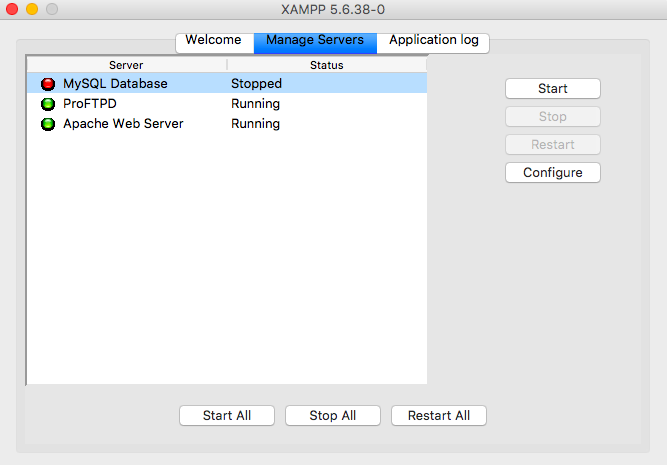
Check the XAMPP control panel, start MySQL, and refresh. If the database itself is missing, re-import your SQL dump via phpMyAdmin. Nine times out of ten, this is what’s happening when the 404 appears after you moved a site between machines.
Fix #7: When Nothing Works, Nuke It and Start Over
I’m not a fan of the reinstall-everything advice because it wastes time. But there’s a targeted version that works: back up your htdocs folder and your databases, then reinstall XAMPP on top of the existing install (Windows keeps your htdocs). This resets corrupted httpd.conf files without nuking your projects.
If even that fails, the problem isn’t XAMPP — it’s your project’s routing. Test with a plain index.html containing “hello”. If that loads, XAMPP is fine and your framework config is the problem. That 30-second test has saved me from reinstalling things that were never broken.
The XAMPP 404 error is almost never a mystery. It’s a path, a port, a permission, or a rewrite rule. Four suspects, one fix each. Stop treating it like a black box.
Fix the path first, then the port, then .htaccess, and only then touch permissions. In that order, you’ll solve 95% of 404 cases in under five minutes. The other 5% will teach you something new about Apache — and honestly, that’s the whole point of running a local server anyway.