XAMPP error 404 is almost never about a missing file. It’s a server configuration fight, and I’m going to tell you the exact order I dig in, because if you start touching config files randomly you’ll turn a small problem into a full disaster.
The first check is the dumbest, and that’s exactly why most people skip it: the URL in the browser. In XAMPP, if your project lives in C:xampphtdocsmi_proyecto, the URL is http://localhost/mi_proyecto. Not one letter more. If you type http://localhost/xampp/mi_proyecto, you’re going to cry. Watch out for uppercase letters too, because on some setups they matter and the XAMPP Apache 404 error shows up for that alone.
Why XAMPP HTTP Error 404 “The Requested Resource Is Not Found” Really Happens
Apache doesn’t guess. It serves what’s inside htdocs and only what’s inside htdocs. If the path doesn’t match a real folder or file, it throws the classic XAMPP HTTP error 404 “the requested resource is not found” without blinking. So before editing anything, confirm with your own eyes that the folder exists and that the name is spelled exactly like the URL.
The second suspect is the .htaccess file. This tiny file is a beautiful headache. If it’s missing, corrupted, or has a stray character, Apache loses the rewrite rules and starts serving 404s for URLs that used to work. For WordPress it’s critical. Look inside C:xampphtdocs[name-of-your-folder]. If it’s not there, create it with Notepad and paste the standard WordPress block:
RewriteEngine On
RewriteRule .* – [E=HTTP_AUTHORIZATION:%{HTTP:Authorization}]
RewriteBase /
RewriteRule ^index.php$ – [L]
RewriteCond %{REQUEST_FILENAME} !-f
RewriteCond %{REQUEST_FILENAME} !-d
RewriteRule . /index.php [L]
Save it as .htaccess with the dot at the beginning, inside your project folder, and restart Apache. Sometimes that’s the whole fix. Sometimes the file exists but is screwed up: rename it to .htaccess_backup, create a fresh one, done.
Plugins, the Silent Killers of Your Local WordPress
WordPress plugins are geniuses at breaking things. If the 404 appeared right after installing or updating one, there’s your culprit. Deactivate them all from the dashboard. If you can’t even reach the dashboard, go brute force: rename the plugins folder inside wp-content to plugins_old. That disables every plugin at once. If the 404 vanishes, reactivate them one by one until you catch the traitor.
And don’t stop there. After deleting a plugin, go into phpMyAdmin at http://localhost/phpmyadmin and check the wp_options table. Some plugins leave garbage rows behind even after uninstalling, and that leftover junk can keep triggering a WordPress 404 error on localhost long after the plugin is gone.
Port 80 Conflict: The Real Reason Apache Won’t Answer
Here’s the big one. Apache uses port 80 by default, but Skype, IIS, VMware, or any other web server can steal it first. When that happens, Apache either refuses to start or behaves like a ghost. You have to change the port. In the XAMPP control panel, click “Config” next to Apache, open httpd.conf, find Listen 80 and change it to Listen 8080. Then find ServerName localhost:80 and set it to localhost:8080. Save and restart.
Now open http://localhost:8080/your_project. If it loads, the port was the problem. But there’s a consequence nobody warns you about: every project now needs :8080 in the URL. And if you’re running a WordPress install, you must search and replace in the database every http://localhost with http://localhost:8080, or all your internal links break and you’ll be chasing a fresh batch of XAMPP Apache errors.
Virtual Hosts: When localhost Just Won’t Cooperate
If nothing above worked, move to virtual hosts. It’s more advanced, but if you juggle several projects or a CMS that hardcodes its domain, a vhost saves your sanity. Edit C:xamppapacheconfextrahttpd-vhosts.conf and add a block like this:
<VirtualHost *:80>
ServerAdmin webmaster@yoursite.local
DocumentRoot “C:/xampp/htdocs/your_project”
ServerName yoursite.local
</VirtualHost>
Then edit the hosts file at C:WindowsSystem32driversetc and add the line 127.0.0.1 yoursite.local. In the browser, use http://yoursite.local. Honestly, Apache sometimes behaves better with a virtual domain name than with plain localhost, especially when cookies or redirects are involved.
MySQL Failures: The Other Half of the XAMPP Nightmare
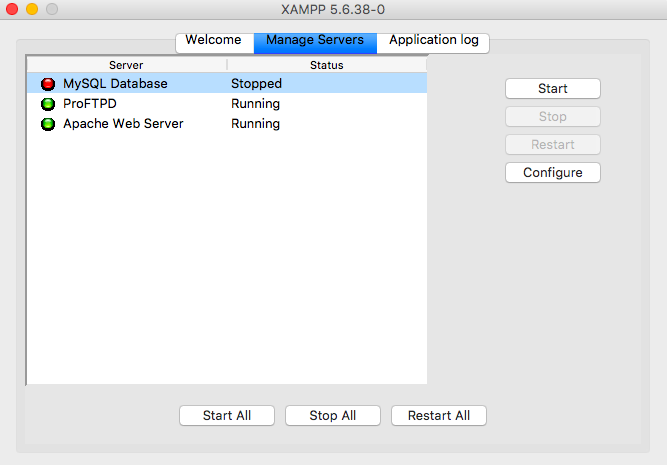
A 404 is Apache’s problem, but a dead MySQL is a whole different beast. If phpMyAdmin shows “Cannot connect: invalid settings” or WordPress says “Error establishing a database connection,” your MySQL service either didn’t start or port 3306 is already taken. Check the XAMPP control panel log first. If port 3306 is blocked, edit my.ini and change it to 3307, then update wp-config.php accordingly.
Another classic: MySQL starts and dies two seconds later because of a corrupted InnoDB log or a leftover ibdata1 file from an old install. In that case, back up your databases folder, delete ib_logfile0 and ib_logfile1, and restart. Nine times out of ten, MySQL comes back to life.
Quick Checklist to Troubleshoot XAMPP Like a Pro
- Verify the URL matches the exact folder name inside htdocs.
- Check, recreate, or replace the .htaccess file.
- Disable all plugins (rename the folder if needed).
- Clean leftover rows in wp_options via phpMyAdmin.
- Change Apache from port 80 to 8080 if something else is using it.
- Set up a virtual host if localhost keeps failing.
- Confirm there’s an index.php or index.html inside the folder.
- If MySQL is down, check port 3306 and InnoDB logs.
My flow is simple: URL, .htaccess, plugins, port. That covers around 90% of XAMPP error 404 cases I’ve seen. Only if you touched Apache’s config or installed something new should you jump straight to virtual hosts. Don’t do everything at once. Test, restart Apache, and try again. That’s how you actually troubleshoot XAMPP instead of guessing.