Let’s cut the crap: watching a movie on a 6-inch screen while everyone huddles around is a joke. In 2026, mirroring your phone to the TV is not a geeky trick, it’s basic survival for anyone who shares a living room. And no, you don’t need to be a technician or buy a $2,000 smart TV.
The original viral post made it sound like magic. It’s not. It’s just protocols, adapters, and a bit of common sense. I’ve tested them all, and I’ll tell you which ones actually work and which ones will make you want to throw your phone out the window.
Why mirroring your phone to TV is the new normal
Let’s be honest: screen mirroring phone to TV went from a novelty to a daily habit. Netflix, YouTube, TikTok, family photos, even video calls with grandma. The tiny screen era is over. If you’re still passing your phone around like a hot potato, you’re doing it wrong.
But here’s the catch: not all phones and TVs play nice. Apple’s AirPlay is a walled garden. Android’s Miracast is a mess of implementations. Google Cast is the closest thing to universal, but it’s not perfect either. So before you buy anything, know your ecosystem.
The three real ways to connect phone to TV (and which one to pick)
Forget the fluffy lists. There are only three methods that matter, and each has a clear winner and a clear loser.
1. HDMI cable + adapter: the idiot-proof method
If you want zero lag, zero Wi-Fi drama, and zero setup, go wired. A USB-C to HDMI adapter (for most modern Android phones) or a Lightning to HDMI adapter (for older iPhones) does the job. Plug it in, select the right HDMI input, and boom. Your phone to TV screen mirroring is instant.
Downside? You’re tethered. You can’t walk around. But for movie nights or presentations, it’s the most reliable. And it works even if your Wi-Fi is trash.
2. Wi-Fi mirroring: Miracast, AirPlay, Smart View, Chromecast
This is where things get messy. Miracast is built into many Android TVs and Windows devices, but support is hit-or-miss. Samsung calls it Smart View, LG has Screen Share, and Sony just calls it screen mirroring. Apple uses AirPlay, which only works with Apple TVs or AirPlay 2-compatible TVs from brands like Samsung, LG, Vizio, and Sony.
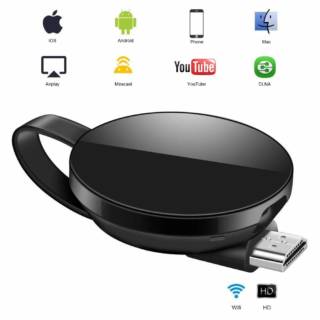
Google’s Chromecast (and Chromecast built-in) uses the Google Home app. It’s the most cross-platform option, but it’s not true mirroring for everything—some apps block it. Still, for YouTube, Netflix, and photos, it’s solid.
My advice: if you have an iPhone, get an Apple TV or an AirPlay 2 TV. If you have Android, a Chromecast with Google TV is the safest bet. Don’t rely on Miracast unless you enjoy troubleshooting.
3. Third-party apps: the wild card
Apps like Google Home, Smart View, or even ApowerMirror can simplify things, but they often add bloat, ads, or lag. Google Home is the only one I’d recommend for Chromecast users. The rest? Skip unless you’re desperate.
Step-by-step: how to mirror your phone to TV without losing your mind
Here’s the no-BS process for the two most common setups.
For Android + Chromecast:
- Plug Chromecast into your TV’s HDMI port and power it.
- Connect your phone and Chromecast to the same Wi-Fi network.
- Open the Google Home app, tap your Chromecast, then tap «Cast my screen.»
- Accept the prompt on your TV. Done.
For iPhone + AirPlay 2 TV:
- Make sure your iPhone and TV are on the same Wi-Fi.
- Open Control Center, tap the Screen Mirroring icon.
- Select your TV from the list.
- If prompted, enter the AirPlay code shown on your TV.
That’s it. No secret handshake.
Common problems (and how to fix them fast)
Let’s be real: phone to TV mirroring fails more often than it should. Here’s why and what to do.
- Lag or stuttering: Your Wi-Fi is probably congested. Use the 5 GHz band if possible, or switch to a wired HDMI connection.
- No devices found: Check that both devices are on the same network. Guest networks often block device discovery.
- Black screen with audio: Some apps (looking at you, Netflix) block mirroring due to DRM. Use the TV’s built-in app or a Chromecast with Google TV instead.
- AirPlay not working: Restart your router, then your TV, then your iPhone. In that order. It’s stupid, but it works.
If you’re still stuck, a factory reset of your TV’s network settings often clears the cobwebs. And if you have an old TV without smart features, a cheap Chromecast or Fire TV Stick solves everything for under $50.
What about 2026 and beyond? The future of screen mirroring
Matter and Thread are slowly making smart homes less of a headache, but screen mirroring is still a protocol zoo. The good news: Wi-Fi 7 and improved casting standards are coming. The bad news: your 2018 TV might not get those updates.
My take? Don’t wait for a perfect standard. Pick the method that matches your gear today. If you have a modern Samsung or LG TV, Smart View or AirPlay 2 will serve you well. If you’re on a budget, a Chromecast is the Swiss Army knife of casting.
And please, stop watching TikToks on your phone while your 55-inch TV sits there collecting dust. Mirror that screen and enjoy it the way it was meant to be seen.