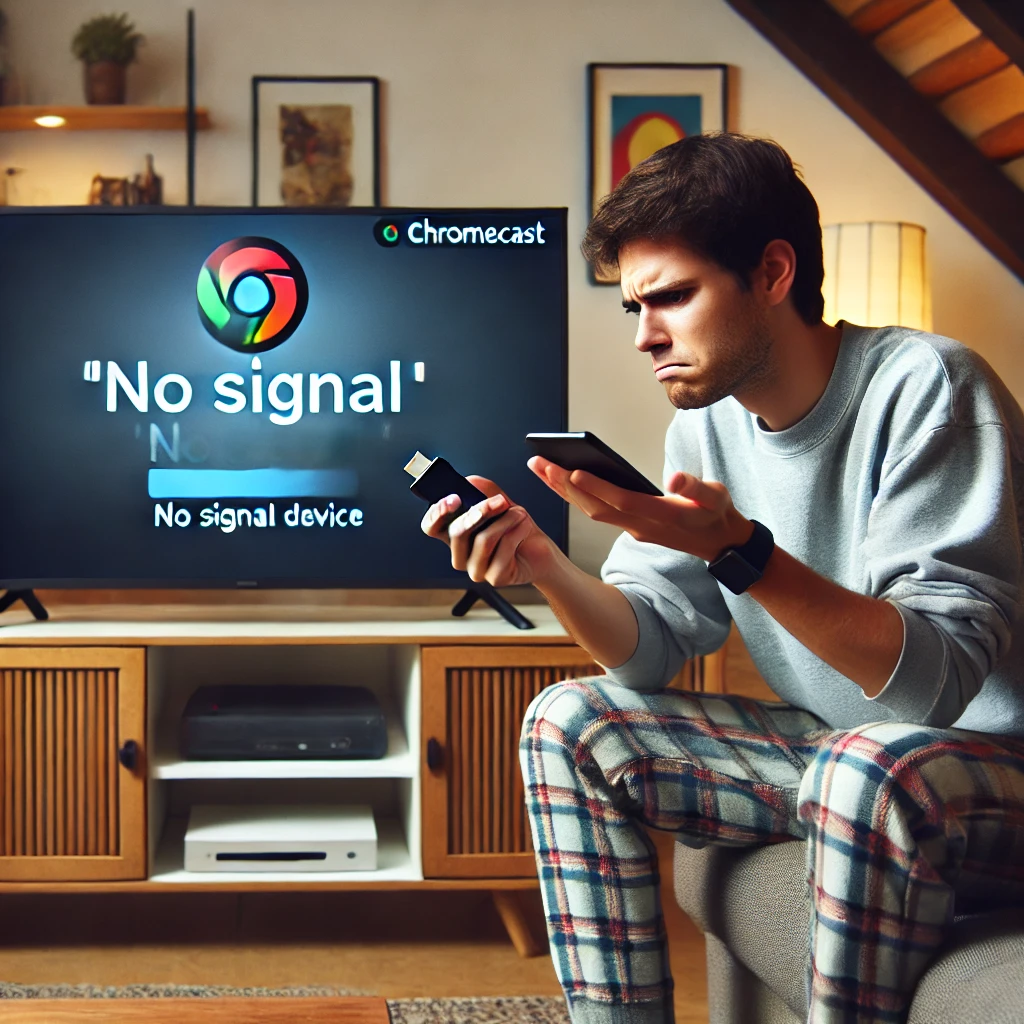
So there I was, popcorn ready, phone in hand, about to cast a movie to the TV, and boom: «Couldn’t authenticate». That damn message. If you’ve landed here, you’re probably staring at the same dead end with your Chromecast won’t authenticate error in 2026, and you want it gone. Let me tell you exactly what’s going on and how to kill it for good.
Why your Chromecast won’t authenticate (the real reason)
Google doesn’t say it out loud, but the authentication error almost always comes down to three things: your Google account token went stale, the Google Home app is running an old build, or your phone and the Chromecast are on different networks without you noticing.
I’ve seen people blame the WiFi for weeks when the actual culprit was a 5GHz vs 2.4GHz split on the router. The Chromecast sits on one band, the phone hops to the other, and the handshake dies silently. That’s why the fix for Chromecast won’t authenticate starts with ruling out network mismatch, not by reinstalling anything.
Another sneaky one: if you changed your Google password recently (even just a security update), every signed-in device gets its token revoked. The phone re-authenticates automatically, the Chromecast doesn’t. It just sits there waiting for credentials that no longer exist.
Step-by-step: how I fixed it without smashing the device
Before you throw the thing out the window, do this in order. I’m serious about the order, because skipping steps is why most people end up more frustrated than when they started.
- Restart the Chromecast from the Google Home app, not by yanking the cable. Pulling power can corrupt the boot state on older models.
- Update the Google Home app. Mine was three versions behind. Three. That alone breaks the authentication flow on newer Android versions.
- Confirm both devices are on the exact same SSID. Not just «same WiFi», same network name and band.
- Remove your Google account from the app and add it back. This is the one that actually did it for me. Full removal, not just signing out.
- Factory reset the Chromecast if steps 1-4 fail. It takes 5 minutes and wipes the corrupted auth token.
The account removal trick works because it forces Google’s servers to issue a fresh OAuth token tied to your current credentials. The old token is what was stuck. Once it’s gone, the Chromecast authentication problem disappears.
Chromecast not showing up? Different problem, same confusion
People mix up two completely different errors. «Won’t authenticate» means the device sees your account but rejects the credentials. «Not showing up» means it never even gets that far, usually a network discovery issue.
If your Chromecast doesn’t appear in the device list, don’t touch your Google account. Check that AP isolation is off on your router (some ISPs enable it by default and it kills cast discovery), and that both devices are on the same subnet. A guest network will never work for casting, period.
iPhone users get hit harder
If you’re casting from an iPhone, the Chromecast won’t detect my iPhone issue usually means the app you’re using doesn’t have local network permission enabled. iOS 14+ blocks that by default for privacy, and it silently breaks casting from apps like YouTube, Spotify or Chrome.
Go to Settings > Privacy > Local Network and make sure every casting app is toggled on. This single setting fixes more iPhone casting failures than any restart will.
Updating the Chromecast and Google TV: what actually works in 2026
If your Chromecast isn’t updating, it’s almost always because it’s sitting on an unstable connection during the download window. Google TV devices pull firmware in the background and a dropped packet mid-update can leave the device in a half-updated state.
To force an update on Chromecast with Google TV, go to Settings > System > About > System update. On older Chromecast models (2nd gen and up), the update happens automatically once the device is idle on a stable network for a few hours. You can’t force it manually, so don’t waste time looking for a button that doesn’t exist.
How to activate Chromecast on Android TV
Open Google Home, tap the + icon, select «Set up device», choose «Works with Google», and pick your Android TV. Both devices must share the same WiFi. If the TV was previously linked to a different Google account, you have to unlink it first or the activation will loop forever.
Tip that saved me hours: if you have a mesh WiFi system, temporarily disable the 5GHz band on your router, set everything up on 2.4GHz, then re-enable 5GHz. The Chromecast will stay paired and your speeds come back.
When it’s actually a hardware or firmware bug
There’s a point where no amount of resetting helps. If your Chromecast reboots randomly, gets hot, or the LED stays solid orange for more than 10 minutes after a factory reset, you’re dealing with dying hardware. The 1st gen and some 2nd gen units from 2015-2017 have known power supply failures that present exactly like authentication errors.
Don’t sink more time into it. A new Chromecast with Google TV runs about $30 and will save you a weekend of swearing. I know that’s not what you want to hear, but it’s the honest answer after troubleshooting dozens of these.
Preventing it from coming back
Two habits keep the error away long-term. First, keep the Google Home app set to auto-update. Second, whenever you change your Google password, immediately open Google Home and re-verify your account on every casting device. Takes 30 seconds and saves you the whole circus next time.
And if you’re still stuck after all this, the last resort that works more often than it should: sign into the Google Home app from a different phone, complete the setup there, then log back in from your main device. The authentication handshake sometimes just needs a clean client to succeed.