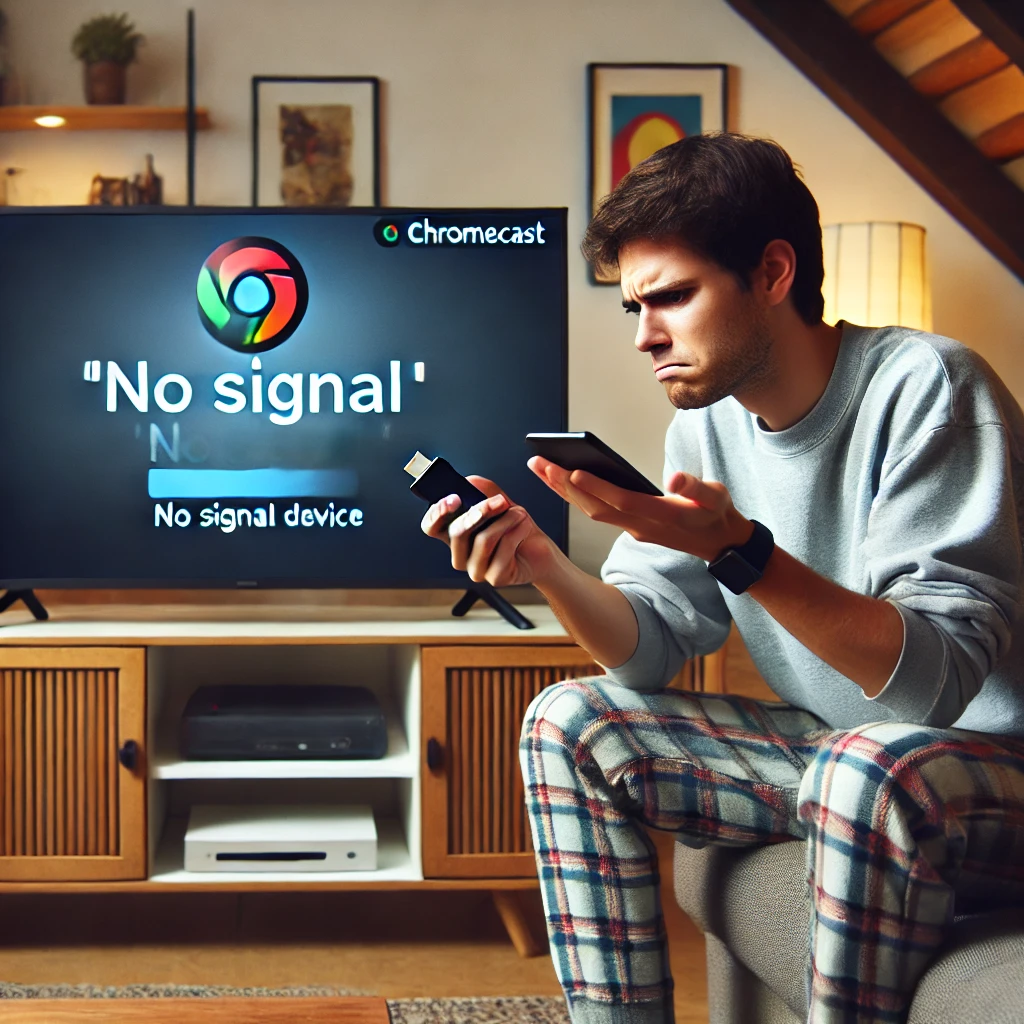
You sit down, ready to cast something, and the Chromecast just sits there like a brick. No signal, no icon on your phone, black screen, or it randomly disconnects. It’s annoying, but here’s the truth: most of the time it’s not dead, it’s just stuck. I’ve gone through this more times than I’d like to admit, and I’m going to give you the real fixes, not the fluffy stuff.
If your Chromecast isn’t working, the culprit is almost always one of three things: power, Wi-Fi, or a software hiccup. Forget about crying or lighting candles; let’s troubleshoot this properly.
First: Check the Boring Stuff (HDMI and Power)
Yeah, it sounds dumb, but I can’t tell you how many times the issue was the TV was on the wrong HDMI input. Grab your TV remote and cycle through the inputs until you see the Chromecast screen. Also, make sure the USB cable is actually plugged into a power source, not just dangling. Sometimes the TV’s USB port doesn’t give enough juice, so use the wall adapter that came with it.
If the HDMI port feels loose or damaged, try another one. It happens more than you’d think.
Restart the Chromecast (The Classic Power Cycle)
Unplug the Chromecast from power, wait a solid 10 seconds, and plug it back in. Let it boot up. That alone fixes a ton of «Chromecast not working» cases. You can also do it from the Google Home app: open the app, tap your device, go to Settings (gear icon), hit the three dots, and choose Reboot. Nothing gets erased, so it’s safe.
If that doesn’t do it, don’t worry, we’re just getting started.
Wi-Fi Woes: When Chromecast Won’t Connect to the Network
Your phone and Chromecast need to be on the same Wi-Fi network. If you recently changed routers or got a new internet provider, the Chromecast might still be looking for the old network. In that case, you’ll need to reset it (more on that later).
First, check your phone’s Wi-Fi. Then, restart your router: unplug it for 30 seconds and plug it back in. Wait for all the lights to stabilize. If the Chromecast still doesn’t show up, it might be a router setting like AP isolation or a 5GHz vs 2.4GHz mismatch. Some older Chromecast models only work on 2.4GHz, so make sure that band is active.
If you’re feeling brave, log into your router (usually 192.168.1.1) and try changing the Wi-Fi channel to 1, 6, or 11 to avoid interference. That’s a pro move that saves headaches.
Update the Google Home App (It’s the Brains of the Operation)
If the Google Home app is outdated, it might not detect your Chromecast at all. Go to the Play Store or App Store, search for Google Home, and update it. Then force close the app and reopen it. Sometimes clearing the app’s cache helps too: on Android, go to Settings > Apps > Google Home > Storage > Clear Cache. On iOS, you’d have to offload and reinstall, but that’s rare.
This step fixes a surprising number of «Chromecast won’t connect to phone» issues.
Factory Reset: The Nuclear Option That Usually Works
If nothing else has worked, it’s time to reset the Chromecast to factory settings. This wipes everything, but it often brings a dead device back to life. Here’s how:
- With the Chromecast plugged in and powered on, press and hold the physical button on the side (or top, depending on the model) for about 20-25 seconds.
- You’ll see the LED start blinking. Keep holding until it blinks orange or white rapidly.
- Release the button. The Chromecast will reboot and go into setup mode.
After that, open the Google Home app and set it up from scratch. Choose your Wi-Fi, give it a name, and you’re done. Yeah, you lose your settings, but it’s better than a dead device.
Still Dead? Try These Hardware Checks
If a factory reset didn’t help, the problem might be hardware. Test the Chromecast on another TV or a different HDMI port. Swap the USB cable and power adapter. Try it on a completely different Wi-Fi network (like your phone’s hotspot, just for testing). If you have another phone or tablet, see if that one detects it.
If it fails on all fronts, the Chromecast might be toast. Check if it’s still under warranty and contact Google support. Don’t waste money on a repair; these things are cheap enough to replace.
Why Chromecast Fails and How to Avoid It
Chromecast is a fantastic, affordable streaming device, but it’s completely dependent on your Wi-Fi and the Google Home app. If your network is unstable or the app is buggy, you’ll have a bad time. Keep your router firmware updated, don’t bury the Chromecast behind the TV (it needs airflow and a clear signal), and restart your router occasionally. That’s the maintenance nobody talks about but it keeps things smooth.
And if you’re still rocking an older Chromecast model, consider upgrading to a Chromecast with Google TV. The newer hardware handles Wi-Fi better and has fewer hiccups. But if you’re not ready to spend, the steps above should get you back to streaming.
So next time your Chromecast acts up, don’t panic. Work through these steps in order, and chances are you’ll fix it in under 10 minutes. If not, well, at least you tried before buying a new one.