So you’ve hit the wall every PS4 owner eventually hits: that dreaded “Not enough storage” message. You’ve deleted old games, cleared screenshots, maybe even sacrificed a save file or two. And now you’re wondering if you can just plug in an external hard drive and make the problem disappear. Short answer: yes, and it’s one of the easiest upgrades you’ll ever do on a console. But there are a few catches nobody tells you upfront, and getting them wrong means wasted money or a drive that simply won’t work.
Can You Actually Use an External Hard Drive on a PS4?
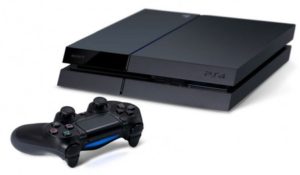
Yes, Sony enabled external storage support back in firmware 4.50, which rolled out in early 2017. Since then, any PS4 — original, Slim, or Pro — can run games directly from a USB drive. Not just store them there. Actually play them.
That last part matters more than people realize. On older consoles, external drives were mostly dumping grounds for media files. On PS4, an external hard drive for PS4 games works exactly like the internal one. Load times are usually similar, sometimes a touch slower with a mechanical drive, sometimes faster if you go SSD.
What you can’t do is split the difference. The PS4 lets you use one external drive at a time as “extended storage.” You can’t chain two drives together and double your space. If you’ve got a 500GB PS4 and a 2TB external drive, you’ve effectively got a 2TB console, not 2.5TB. The internal drive stays reserved for system files and whatever you choose to keep there.
What Kind of Hard Drive Do You Need?
Not every drive works. Sony’s requirements are strict enough that buying the wrong one is a real risk. Here’s what actually matters:
- USB 3.0 or higher. USB 2.0 drives technically connect but won’t be accepted for extended storage. Most drives sold today are 3.0, so this is rarely an issue — but check if you’re pulling an old drive out of a drawer.
- Capacity between 250GB and 8TB. Anything smaller than 250GB gets rejected. Anything above 8TB also gets rejected. The sweet spot for most people is 2TB — enough for dozens of games, cheap enough to not feel painful.
- Direct connection only. No USB hubs. No splitters. The drive has to plug straight into the console.
- Firmware 4.50 or newer. If your PS4 hasn’t been updated since 2016, update it first. This is non-negotiable.
One more thing: the drive gets completely formatted. Every file on it will be erased. If you’re repurposing an old drive with photos or documents on it, back those up first. There’s no “keep my files” option here.
Step-by-Step: Setting Up Extended Storage
The whole process takes about two minutes, plus however long the format runs depending on drive size. A 2TB drive typically formats in under a minute.
- Plug the drive into any USB port on the PS4. Front or back, doesn’t matter.
- Go to Settings from the home screen.
- Scroll down to Devices, then select USB Storage Devices.
- You’ll see your drive listed. Select it.
- Choose Format as Extended Storage.
- Confirm. The console handles the rest.
Once it’s done, the PS4 treats the external drive as a native part of the system. When you install a new game, you’ll be asked where you want it — internal or extended storage. You can set a default in Settings > Storage so you never get asked again.
Moving Games Between Drives (Without Losing Anything)
Here’s where the system really shines. You can shuffle games back and forth between internal and external storage whenever you want. No reinstalling. No re-downloading 80GB patches. No losing saves.
Go to Settings > Storage > System Storage or Extended Storage, hit the Options button on a game, and select Move to Extended Storage or Move to System Storage. A 60GB game takes a few minutes to transfer. It’s a clean copy-and-delete operation, so there’s no risk of corrupting anything mid-move.
This is honestly the killer feature. You can keep your most-played games on the internal drive for slightly faster access and park everything else on the external. Two years of PS Plus monthly games suddenly become manageable instead of a rotating deletion nightmare.
One quirk: if you unplug the external drive while the PS4 is on, everything crashes back to the home screen. Always power down the console before disconnecting. And if you move the drive to a different PS4, it’ll need to be reformatted — extended storage is tied to the console that formatted it.
Which Drive Should You Actually Buy?
You’ve got two real options: a portable external drive, or an internal drive paired with a USB enclosure. The second option is usually cheaper and gives you more control over what’s inside.
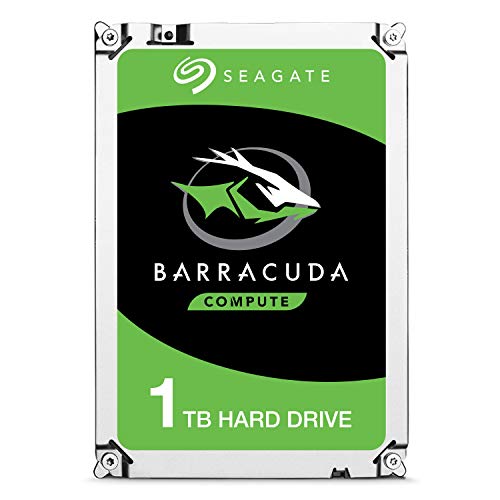
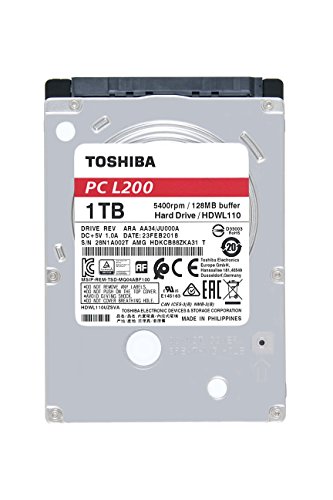
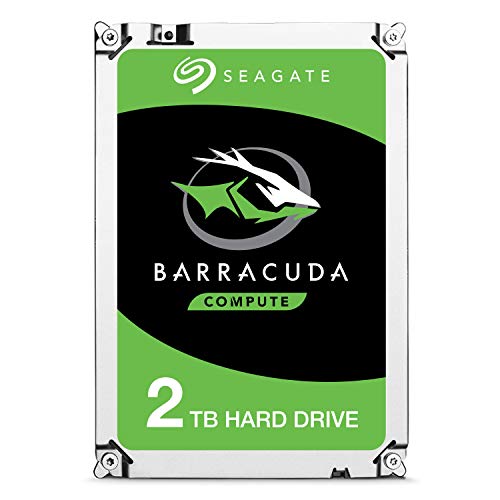
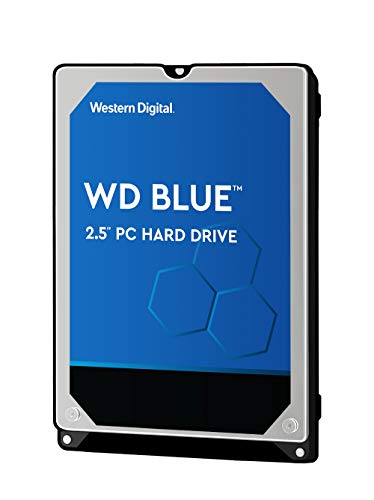
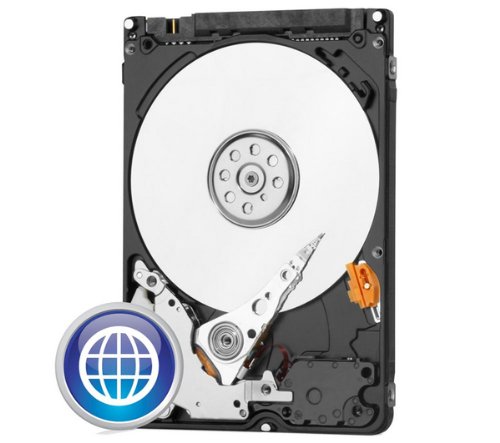
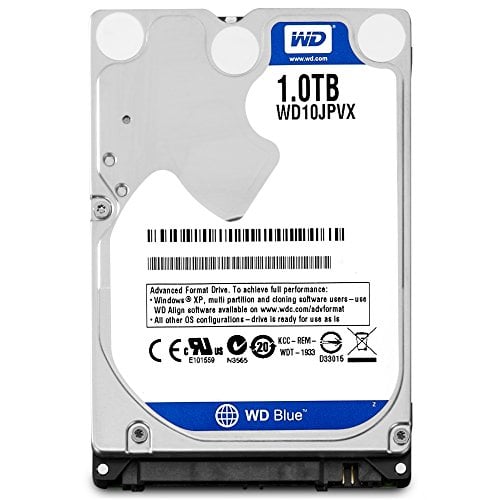
For a straight plug-and-play experience, a Seagate Expansion or WD Elements portable drive in 2TB runs around €60-75. These are 2.5-inch drives in a plastic shell, USB-powered, no external adapter needed. They’re the obvious choice if you don’t want to think about it.
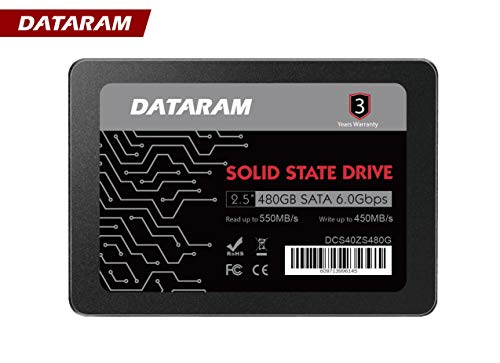
If you want better performance, grab a 2.5-inch SSD like a Samsung 870 EVO or Crucial MX500 in a cheap USB 3.0 enclosure. A 1TB SSD costs more than a 2TB mechanical drive, but load times on games like Bloodborne or Elden Ring drop noticeably. Not to PS5 levels, but enough to notice.
What I’d avoid: any drive marketed as “for PC only” with proprietary software, and no-name drives from marketplace sellers with fake capacity claims. A 2TB drive for €20 doesn’t exist. You’ll get a 32GB drive with hacked firmware that corrupts your data the moment you pass that limit.
Bottom line: a 2TB Seagate or WD portable drive is the safest, cheapest, most boringly reliable choice for a PS4 in 2026. Don’t overthink it.
Common Problems and How to Fix Them
If the PS4 doesn’t recognize your drive, check the USB cable first. A surprising number of “dead” drives are just bad cables. Then check the port — try a different one. Then check the format: if the drive is exFAT or NTFS with certain partition schemes, the PS4 may refuse it. Formatting it on a PC as exFAT usually clears that up.
If the PS4 says the drive is too small or too large, you’re outside the 250GB-8TB window. Nothing to do but swap it.
If games stutter or textures pop in, the drive is probably dying or the USB connection is unstable. Mechanical drives fail. That’s why keeping your save files backed up to PS Plus cloud storage is worth the subscription even if you never play online.
The whole setup is one of those rare console upgrades that’s cheap, fast, and delivers exactly what it promises. Plug it in, format it, and stop deleting games to make room for new ones.