Let’s cut the crap: taking a screenshot on Windows should be a one-second thing, yet half the people I know still fumble with their keyboard like it’s their first day on a PC. I’ve been watching forum threads, testing every shortcut myself, and honestly, most guides out there are either outdated or just plain lazy. So here’s the real deal for 2026, based on what actually works on Windows 10 and Windows 11 right now.
The Snipping Tool is now the king (and yes, it replaced Snip & Sketch)
If you’re still opening Paint to paste a screenshot, stop. The Snipping Tool in Windows 11 is a totally different beast than the clunky version from the Windows 7 days. Microsoft merged Snip & Sketch into it back in 2023, and by 2026 it’s become the default way to capture anything on screen.
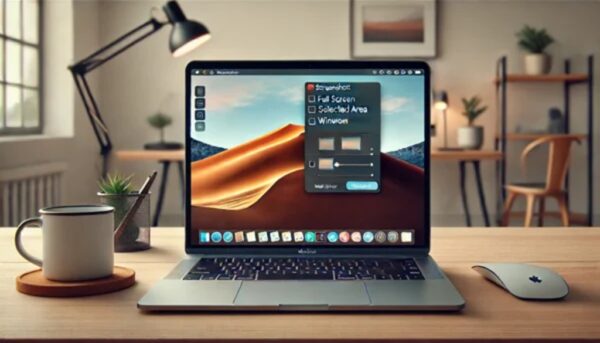
Just hit Windows + Shift + S and the screen dims. You get a tiny toolbar at the top with four modes: rectangular, freeform, window, and full screen. Pick one, drag, done. The capture goes straight to your clipboard and a notification pops up. Click it and the Snipping Tool editor opens with markup, OCR, and even video recording.
Here’s the thing nobody tells you: the Snipping Tool now does text extraction. That means you can grab text from a screenshot and paste it as editable characters. For anyone doing research or copying error messages, that’s a massive time-saver.
Classic keyboard shortcuts that still work in 2026
Not everything needs to be fancy. The old-school methods are still there, and depending on what you’re doing, they might actually be faster.
- PrtScn alone: copies the entire screen to clipboard. You still need to paste it somewhere (Paint, Word, WhatsApp Web). Works, but it’s the slowest option.
- Windows + PrtScn: saves the full screen automatically to Pictures > Screenshots. No pasting needed. Perfect if you’re documenting a long process and want a folder full of timestamped files.
- Alt + PrtScn: captures only the active window. Underrated for tutorials and bug reports.
- Windows + Shift + S: opens the Snipping Tool overlay. The most versatile of the bunch.
On laptops, remember that Fn + PrtScn might be required if your function keys are locked. That’s the number one reason people think their screenshot key is broken. Check your keyboard layout before blaming Windows.
Windows 11 added a dedicated screenshot key (finally)
If you bought a laptop after 2023, chances are it has a dedicated Snipping Tool key right on the keyboard. It looks like a little rectangle with a pencil. One press, and the snipping overlay opens instantly. No combinations, no Fn tricks.
Microsoft pushed this as part of the Copilot PC wave, and by 2026 most mid-range and high-end laptops ship with it. If yours doesn’t have it, you can remap any key using PowerToys Keyboard Manager. I’d argue this is the single most useful customization you can make on a Windows machine.
How to take a screenshot of a specific area (the right way)
This is where most people mess up. They take a full screenshot and then crop it in Paint, losing time and quality. The proper workflow is:
- Press Windows + Shift + S.
- Choose the rectangular snip mode.
- Drag over the area you want. The rest of the screen darkens so you can see exactly what’s being captured.
- The image lands in the Snipping Tool editor. Hit Ctrl + S to save it as PNG, JPG, or GIF.
Pro tip: if you enable auto-copy to clipboard in the Snipping Tool settings, you can paste the capture directly into Slack, Teams, or Gmail without saving a file. I use this constantly for bug reports.
«The best screenshot is the one you don’t have to edit afterward. Set up your snipping defaults once and you’ll never go back.»
Gamers: the Game Bar method is still the best for performance
There’s a long-running debate about whether the Game Bar (Windows + G) is worth using for screenshots outside of games. My take: yes, but only in specific scenarios.
The Game Bar captures in higher quality and doesn’t interrupt full-screen applications. If you’re recording gameplay, streaming, or capturing a DirectX app, this is the way. The downside is that it consumes more RAM and GPU resources. On a 16GB machine, you won’t notice. On an 8GB laptop running a heavy game, it can cost you FPS.
For everything else, stick with the Snipping Tool. It’s lighter and faster.
Fixing the classic screenshot problems in 2026
Even with modern tools, things break. Here are the issues I see most often and how to actually solve them.
Black screenshots in multimedia apps
Netflix, some video players, and DRM-protected content block screenshots on purpose. The screen goes black because the app is using hardware acceleration with content protection. The only reliable fix is switching to windowed mode or disabling hardware acceleration in the app’s settings. There’s no registry hack that works in 2026.
Screenshots saving as JPG instead of PNG
This is a regional settings quirk. Some Windows installations default to JPG based on locale. Go to Settings > Time & Language > Language & Region and check the format. Then open the Snipping Tool settings and force PNG as default. PNG is lossless, so for screenshots with text or UI elements, it’s always the better choice.
The PrtScn key does nothing
Three possible causes: Fn lock is on, the key is remapped by a third-party app (looking at you, OneDrive), or the keyboard driver needs a reinstall. Check Settings > Accessibility > Keyboard first. Microsoft added a toggle there that can disable the PrtScn key without warning.
Automating screenshots like a power user
If you take more than 10 screenshots a day, manual shortcuts become a bottleneck. Two tools worth knowing in 2026:
- ShareX: free, open-source, and absurdly powerful. Auto-upload, custom hotkeys, OCR, screen recording. It’s the Swiss Army knife of capture tools.
- PowerToys Screen Ruler and Text Extractor: Microsoft’s own utilities, integrated into the OS via PowerToys. The Text Extractor module is basically the Snipping Tool OCR on steroids.
For audits, QA testing, or content creation, ShareX with a custom workflow beats any native Windows option. The learning curve is real, but it pays off within a week.
Which method should you actually use?
There’s no universal answer, and anyone who tells you otherwise is selling something. Here’s my honest breakdown:
- Casual user: Windows + Shift + S. Done.
- Office worker documenting stuff: Windows + PrtScn for auto-save, Snipping Tool for anything selective.
- Gamer or streamer: Game Bar for full-screen apps, Snipping Tool for everything else.
- Power user: ShareX with custom hotkeys and auto-upload.
The real problem isn’t a lack of options. It’s that Windows hides its best features so well that people keep using the worst ones out of habit. Pick your method, set it up once, and stop wasting seconds on every capture. Those seconds add up to hours by the end of the year.