

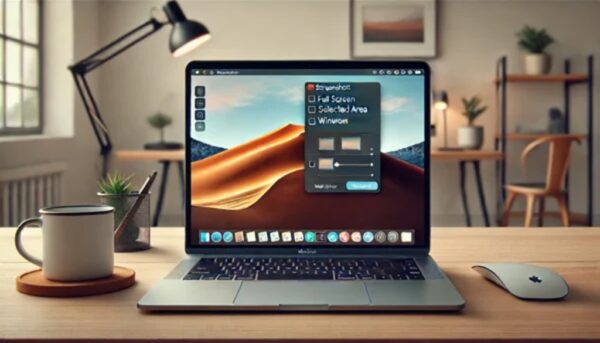
Taking a screenshot is one of those things you do a hundred times a week without thinking, until you switch devices and suddenly nothing works the way you expect. The shortcuts change, the tools hide behind weird names, and half the guides online are outdated. So here’s the real deal for 2026, tested on Mac, Windows, iPhone, and Android, with the tricks that actually save you time.
Mac: The Keyboard Shortcuts That Do Everything
On a Mac, Command + Shift + 3 grabs the entire screen instantly. If you only want a piece, hit Command + Shift + 4 and drag the cursor over the area. It’s way faster than hunting for an app, and the file lands on your desktop as a PNG by default.
The shortcut almost nobody uses is Command + Shift + 5. That opens a full toolbar where you can set a timer (perfect for capturing dropdown menus or tooltips that vanish when you click), decide whether the mouse pointer shows up, and even record video of your screen. If you want the screenshot to go straight to the clipboard so you can paste it into Slack or WhatsApp, add the Control key to any of these combos, like Control + Command + Shift + 4.
One annoyance: those PNGs can be huge. If you’d rather save JPGs to keep files smaller, you can change the default format via Terminal with a single command. It’s a one-time setup you’ll forget about until you need it.
Windows: Snipping Tool Is Finally Worth Using
The old PrtSc key still works, but it’s clumsy: it copies everything, including both monitors if you have a dual setup. The shortcut you actually want is Windows + Shift + S. That fires up the Snipping Tool (formerly Snip & Sketch), which lets you select a free area, grab a specific window, or make a rectangular crop.
Windows 11 gave the Snipping Tool a serious upgrade. You can now set a delay of up to 30 seconds, which is a lifesaver when you need to capture a context menu that disappears the moment you move your mouse. If you’re gaming, the Game Bar (Windows + G) also takes screenshots automatically saved inside your Videos folder.
Here’s a detail most people miss: in Windows 11 you can also press PrtSc to open the Snipping Tool overlay directly, without the old full-screen copy behavior. It’s a small change that makes the key useful again.
iPhone: Full-Page Screenshots and the Banking App Workaround
Ever since Apple killed the home button, the combo is always the same: side button + volume up. The screenshot appears as a thumbnail in the corner. Tap it and you’re in the editor to crop, draw, or share.
The killer feature is in Safari: you can capture the entire web page, not just what’s on screen. Tap the thumbnail, switch to the Full Page tab, and save the whole thing as a PDF. Great for saving receipts, articles, or long threads before they get deleted.
Some apps, like banking ones, block screenshots for security. The workaround is to use Record Screen from Control Center, record a couple of seconds, then take a frame from the video. It’s a hack, but it works when you genuinely need that proof.
Android: Chaos, but With Useful Tricks
Android is messier because every manufacturer adds its own twist. The near-universal method is volume down + power button. On Samsung phones, you can also swipe the side of your hand across the screen like you’re chopping it. Sounds ridiculous, but once you get it, it’s fast.
Google Pixel phones let you configure a quick tap on the back of the phone to take a screenshot. Many brands also put a button in the quick notifications panel. If you can’t find it, check your phone’s settings under «Buttons» or «Gestures» — it’s usually buried there.
When Native Tools Aren’t Enough: Third-Party Apps
You don’t need extra apps for everything, but for specific jobs they’re the only option.
For recording your screen with audio and webcam, ScreenPal and Loom are unbeatable. ScreenPal is free, doesn’t watermark your videos, and lets you record both screen and face in a small window, draw on the fly, and even make animated GIFs. Loom integrates beautifully with Slack and other work apps. Both are simpler and better designed for tutorials or bug reports than the built-in recorders on Mac or Windows.
For quick screenshots with instant editing, Lightshot is a beast. Install it, assign a shortcut, and in two clicks you select an area, add arrows or text, blur sensitive info, and upload it to share a link. Way faster than opening Paint or Preview just to crop.
Mirroring Your Phone to Your Computer
A special case: when you need to capture something from your phone on the computer. Apps like AirDroid Cast or Screen Cast let you mirror your Android screen to your PC via WiFi or USB. Once the image is on your monitor, you can use any screenshot method on the computer. This is vital for making guides or tutorials where you need to show the mobile interface in high quality.
Some tools, like AirDroid Cast, even give you remote control of the phone from the PC. The free Screen Cast app goes one step further: you only need a web browser on the PC to see what’s happening on the phone, which makes it perfect for remote technical support.
Which Method Should You Actually Use?
If you’re on a Mac, learn Command + Shift + 5 and stop wasting time. On Windows, make Windows + Shift + S a reflex. On mobile, the built-in tools are enough 90% of the time, but knowing the Safari full-page trick and the Android back-tap gesture will make you look like a pro.
For everything else, third-party apps fill the gaps. Don’t install them all — just pick the one that solves your specific problem, whether that’s recording a tutorial, editing on the fly, or mirroring your phone. The rest is just noise.
