

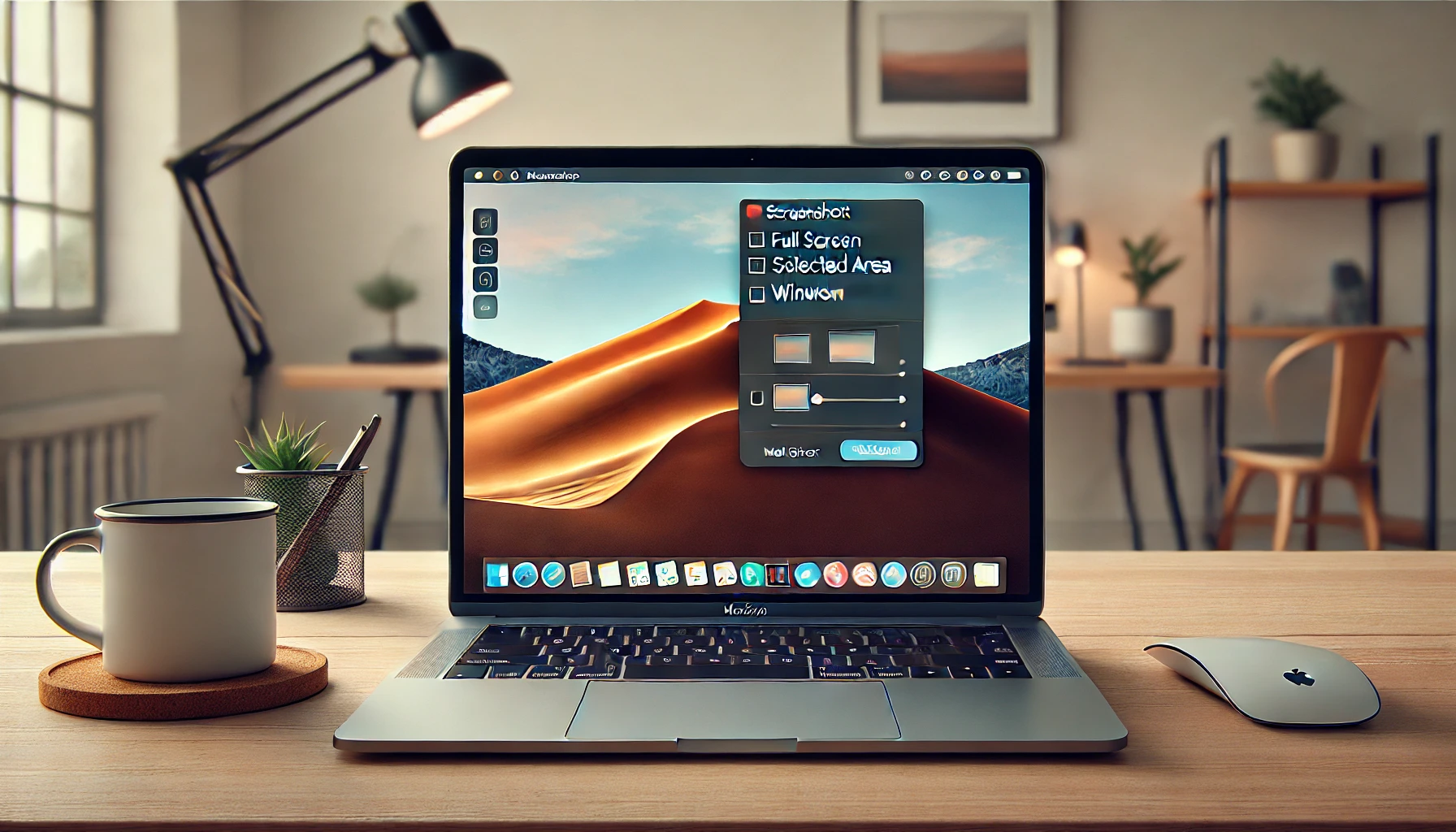
If you own a Mac and you’re still using third-party apps to capture your screen, you’re wasting time. macOS has built-in screenshot tools that most people never bother to learn. I’m talking about how to take a screenshot on Mac without installing anything, without fighting pop-ups, and without losing the file somewhere in a random folder.
I’ve been using Macs since the Intel era, and the screenshot shortcuts are still the same ones Apple shipped years ago. That’s actually good news: they haven’t broken, they haven’t been paywalled, and they work identically on an M1 MacBook Air and on a Mac Studio with an M4 Max. The only thing that changed is where macOS saves your captures by default — more on that in a minute.
The three shortcuts that solve 99% of your screenshot needs
Forget menus. The fastest way to screenshot on a MacBook is muscle memory, and it only takes three combos to cover almost every situation you’ll run into.
- Command + Shift + 3: captures the entire screen instantly. The file lands on your desktop with a name like «Screenshot 2026-01-15 at 10.42.13.png». No confirmation, no dialog, no drama.
- Command + Shift + 4: turns your cursor into a crosshair. Drag to select any area, release, and you’re done. If you press Space while the crosshair is active, the selection switches to window mode — the pointer becomes a camera icon and clicking any window captures it with its shadow. That shadow looks nice but adds transparent padding, which is annoying if you’re pasting into a slide deck.
- Command + Shift + 5: opens the Screenshot app, a floating toolbar that gives you the full menu: full screen, selected portion, specific window, plus screen recording options. This is the one you actually want pinned somewhere.
Here’s the detail almost nobody mentions: if you hold Control along with any of these shortcuts (Control + Command + Shift + 3, for example), the screenshot goes straight to your clipboard instead of saving a file. That’s the move when you’re writing an email or a chat message and don’t want to clean up your desktop afterwards.
Where do Mac screenshots go in 2026?
By default, macOS dumps every capture on the Desktop. Apple hasn’t changed this behavior in recent versions, and honestly it’s a mess if you take screenshots daily. The fix lives in the Screenshot app itself, not in System Settings.
Open the toolbar with Command + Shift + 5, click Options, and you’ll see a «Save to» section. You can redirect captures to Documents, Downloads, Desktop, Mail, Messages, Preview, or any folder you’ve added to your Finder sidebar. If you want a dedicated folder, create it first and drag it into the sidebar — it’ll show up as a destination.
There’s also a «Other Location…» option that lets you pick any folder on your drive. I keep a folder called /Screenshots at the root of my home directory and route everything there. Combined with a Hazel rule or a Shortcuts automation, you can auto-organize by date or app. Overkill for most people, but if you’re a designer or a support agent, it saves real time.
Recording your screen without extra software
The same Command + Shift + 5 toolbar handles video. Two icons on the right let you record the entire screen or a selected portion. Click the record button, then click anywhere on screen (or press Return) to start. To stop, click the stop icon in the menu bar or press Command + Control + Esc.
Recordings save as .mov files using H.264 by default. If you’re on Apple Silicon and want smaller files, you can switch the codec to HEVC in the same Options menu. There’s also a microphone toggle — off by default, which trips people up when they record a demo and realize there’s no audio.
One caveat: screen recording on macOS requires granting permission to the app doing the recording. For the built-in tool, this is automatic. For third-party apps, you’ll get a System Settings prompt under Privacy & Security > Screen Recording. Don’t skip it or the recording will be a black rectangle.
Editing and sharing before the screenshot even saves
After you take a capture (unless you used Control to send it to the clipboard), a small thumbnail appears in the bottom-right corner of the screen for a few seconds. Click it and you get a quick markup editor: crop, rotate, draw, add text, insert shapes, add a signature, and even redact areas with a black highlight.
From that same editor you can share directly to Mail, Messages, Notes, or any app in the share sheet. If you ignore the thumbnail, it disappears and the file sits quietly where you told it to save. If you want to skip the thumbnail entirely, hold Option while taking the screenshot — a known trick that most tutorials still don’t mention.
Speaking of formats: macOS defaults to PNG, which is lossless and great for UI captures but heavy for photos. You can change the default format with a Terminal command:
defaults write com.apple.screencapture type jpg
Swap jpg for pdf, tiff, gif, or heic depending on your workflow. Then run killall SystemUIServer to apply the change without rebooting. I use JPG for anything going into a document and keep PNG for UI work where text sharpness matters.
How to take a screenshot on Mac: the details that actually matter
There are a couple of edge cases worth knowing. On Macs with a Touch Bar — yes, they still exist in some 2019-2020 models — the shortcut appears as a button on the bar, which is convenient if you can’t remember the keys. On external keyboards without a dedicated screenshot key, the shortcuts work identically as long as the keyboard is recognized by macOS.
Another thing: if your screenshot shortcut isn’t working, check System Settings > Keyboard > Keyboard Shortcuts > Screenshots. Someone may have disabled it or remapped it to a conflicting app like a screenshot utility from a browser extension. Also, if you’re in a full-screen app or a game running in exclusive mode, shortcuts may not register — that’s a macOS limitation, not a bug you can fix.
And a personal take: don’t install a screenshot app unless you need annotation features that go far beyond what Apple offers, like scrolling capture or cloud upload with a shareable link. For 95% of users, the built-in tools are faster, lighter, and already integrated with the system. The only real gap is scrolling screenshots of long web pages, and even there, Safari’s «Export as PDF» often does the job better than any third-party tool.
So the next time you need to grab something off your screen, skip the App Store. Command + Shift + 3, 4, or 5 will get you there in under a second. Master those three and you’ve basically learned how to take a screenshot on Mac better than most people who’ve owned one for years.
