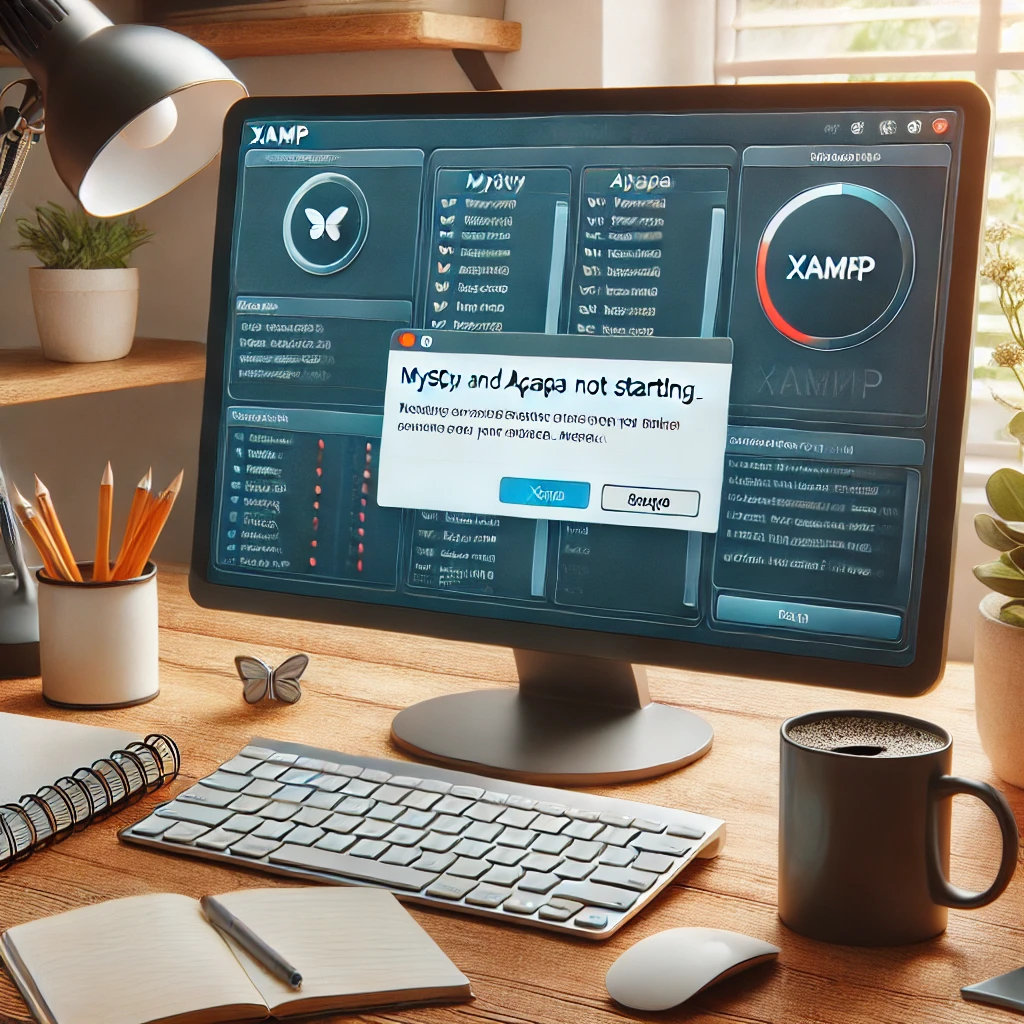
Why won’t MySQL start in XAMPP?
The reason MySQL won’t start in XAMPP is usually related to conflicts with ports, corrupted files, or incorrect configurations in the system. To fix it, the key is to <a href="https://www.empresadeserviciosweb.com/guia-complete-how-to-identify-define-and-leverage-keywords-for-your-seo-strategy/” title=”Complete Guide: How to identify, define, and leverage keywords for your SEO strategy”>identify the specific problem and apply the necessary adjustments, such as changing the port or restoring files. <a href="https://www.empresadeserviciosweb.com/post/solucion-errors–xampp-apache-mysql-ports/”>What errors are the most <a href="https://www.empresadeserviciosweb.com/solucion-errores-xampp-apache-mysql-puertos/" title="What errors are the most frequent in XAMPP and how to solve them.”>frequent in XAMPP and how to solve them. Has XAMPP failed on you? Discover how to repair XAMPP easily! 😩 Why won’t XAMPP start MySQL or Apache? 😤 (The most honest and complete guide you’ll ever read) .
I recommend checking out this interesting article: What are Longtails and what are they used for?.
When you install XAMPP to manage web projects, finding that MySQL in XAMPP won’t start can be maddening. This problem, although common, has several <a href="https://www.empresadeserviciosweb.com/completa-guia-de-solutions-for-wordpress-errors/” title=”Complete guide to solutions for WordPress errors”>solutions depending on the cause. Many times, <a href="https://www.empresadeserviciosweb.com/post/negocios-rentables-2020-programs-de-afiliados-rentables-donde-ganar-dinero/” title=”Profitable businesses 2020 – Profitable affiliate programs where you can earn money”>the conflict arises from programs that use the same port as MySQL. To detect it, check which applications are active on port 3306 using tools like the Windows Task Manager.
Another common cause is file corruption. When XAMPP can’t access MySQL’s configuration data, it simply won’t start. In this case, make sure you have a backup of the essential files, such as ibdata1, and restore a working copy if you detect corruption.
A common error occurs when performing <a href="https://www.empresadeserviciosweb.com/forzar-actualizaciones-windows-10-11-guia-seguridad-2025-cmd-powershell-servicios/” title=”how to force Windows 10 and 11 updates”>updates of XAMPP or MySQL, which can alter the configuration files. If this is your case, check the my.ini file and adjust basic parameters such as datadir or port. This can get MySQL working again without the need for a full reinstallation.
It’s also possible that the MySQL service isn’t enabled. This can be fixed from the XAMPP control panel by restarting the service manually or configuring it to start automatically when the system boots up. An incorrect configuration here can prevent MySQL in XAMPP from starting properly.
Finally, if nothing seems to work, reinstalling XAMPP may be the definitive solution. Make sure to back up all your projects before proceeding. Reinstalling can be a drastic step, but it guarantees a clean environment free of previous errors.
What to do when XAMPP Apache won’t start?
If Apache in XAMPP doesn’t respond when you try to start it, the most likely reason is that port 80, which is necessary for it to work, is occupied. Programs like Skype, IIS, or even Windows updates can be the culprits. Changing the port to 8080 from the httpd.conf file is a practical and quick solution.
Another recurring cause is the lack of permissions. If you run XAMPP without administrator privileges, Apache may fail to start. Running XAMPP as administrator on Windows or using sudo on Linux can resolve this issue immediately.
On the other hand, certain antivirus programs or firewalls can block Apache. Configure exceptions for XAMPP in your security software to allow Apache to run. Temporarily disabling the firewall will help you check if this is the root of the problem.
Also check the modules associated with Apache. Sometimes, additional extensions or incorrect configurations in the .htaccess files can cause failures. Disabling non-essential modules can help you identify conflicts.
If the problem persists after these solutions, consider reinstalling Apache or even all of XAMPP. Although it may seem radical, a reinstallation is usually the last resort for a stable and functional system.