

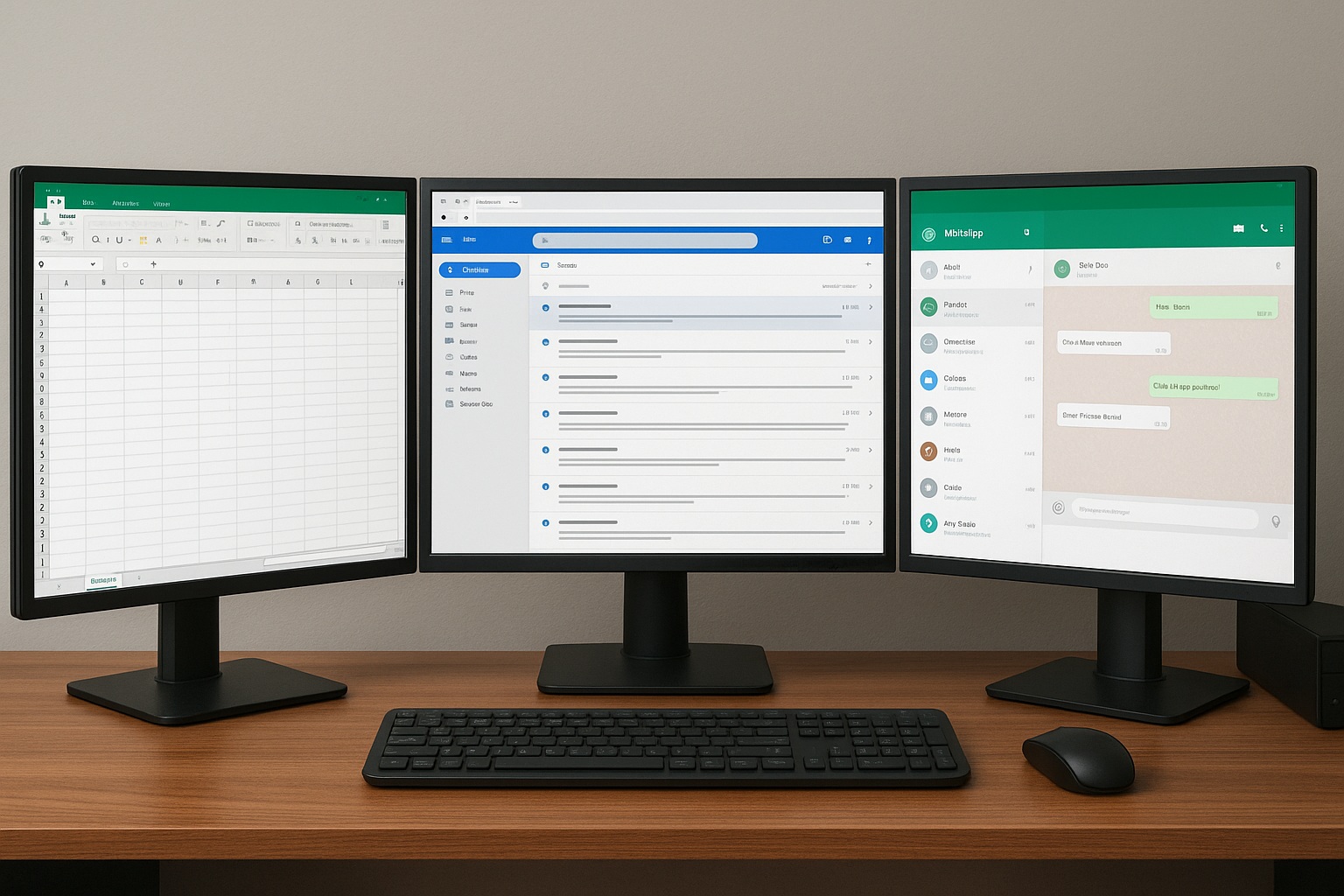
How to VIEW DESKTOP on MULTIPLE Screens on a Windows PC? DEFINITIVE Windows 10/11 Setup. Connect Monitors, Extend Screen and More! ⏬ GUIDE!
A few days ago, while browsing a forum about technology, I came across a thread that had hundreds of comments. The initial question was simple, but it seemed desperate: “How can I view my desktop on another screen? I bought an HDMI cable but nothing happens”.
The person explained that they worked from home and that a single screen was no longer enough for them. They needed to have their email open on one monitor and the reports on another, but the Windows setup felt like a maze to them.
I was very curious to see how dozens of users responded with different methods, some very complicated. This made me research the topic in depth to simplify it. What I learned is that, in reality, it is much easier than it seems.
The easiest way to view the desktop on multiple Screens on a Windows PC
The fundamental process is always the same, but people usually skip the first step, which causes all the problems. The first thing is to connect the second monitor to the PC with the correct cable (HDMI, DisplayPort, etc.) and make sure it is turned on.
Once this is done, Windows 10 and 11 are quite intelligent. They should automatically detect the new screen. If it does not, the problem is almost always with the cable, the port, or the fact that you need to install the drivers for your graphics card.
The magic happens when you press the Windows + P key on your keyboard. This opens a super useful side menu with all the options. You will see that it is the heart of the entire multi-monitor setup. From there you can choose how you want your screens to behave, whether you duplicate the image or extend it.
How to correctly set up connecting additional monitors on a Windows PC
A common mistake I saw in the forum is that people connect the monitor and then just wait for something to happen. The key is to actively tell Windows what to do with that new device. It is not 100% plug-and-play without a small intervention.
After connecting the hardware, right-click on any empty space on your desktop and select “Display settings”. This will take you to the control center for all your monitors. There you will see them represented with the numbers 1 and 2.
You can drag and drop these rectangles so that they match the physical arrangement of your monitors on your actual desk. This is crucial so that the mouse cursor moves naturally between them. If your second monitor is on the left, make sure that rectangle “2” is to the left of “1” in the settings.
Scroll down a bit in the menu and you will find options to adjust the resolution and scaling for each screen independently, especially useful if your monitors are different sizes or brands.
The real benefits of extending Screens on a Windows PC for productivity
I read a user’s comment that said that, ever since they set up two monitors, the way they work changed completely. They no longer spend all day minimizing and maximizing windows. Productivity increases in a way you do not appreciate until you try it.
On one screen you can have your main Word or Excel document, and on the second, have your research, email, or Teams video call open. Constantly switching context, which is a killer of concentration, is greatly reduced.
For those who edit video or photos, it is a radical change. They can have the timeline and tools on one monitor and the clean preview on the other. Programmers can have the code on one screen and the result or documentation on the second.
Really, it is one of the most cost-effective improvements you can make to your home office or entertainment setup. You do not need the most expensive monitor in the world; with one you have stored away or a basic one, the difference is already enormous.
Troubleshooting when setting up multiple monitors
Going back to the forum thread, most problems had a solution. The most frequent one was that Windows did not detect the second monitor. The almost universal solution was: check the connections, try another cable if possible, and update the GPU drivers.
Another common problem was that the image looked bad on one of the monitors. This was generally solved by going to Display settings > Resolution and selecting the recommended native resolution for that specific monitor.
I also saw cases where the Windows + P menu did not appear. This usually happens because of a software conflict or a disabled feature. A simple restart of the PC is usually the fastest solution for this type of rare error.
In the end, the user who started the thread happily replied that, after updating their NVIDIA graphics card drivers, everything worked perfectly. Their initial frustration turned into relief, and now they could not live without their two screens. It is a process with a happy ending for almost everyone.


