

Ugh, bro! 😵💻 That “folder” error in XAMPP is more common than memes of puppies. But chill, I’ll break it down for you in Facebook post style without weird technical jargon, so you understand what’s happening and how to fix it without going crazy.
I recommend checking out this article, it’s interesting: ⚠️ How to Sync Google Photos and Disable It [2025].
⚠️ You install XAMPP and… boom! Folder error 😤
You’re all excited, wanting to fire up your first local server like a movie hacker, and suddenly:
“Error: cannot create the folder in C:Program FilesXAMPP…”
And you’re like: But what did I do wrong, if I just clicked “Next, next, install”? 😩
💡 What’s going on here?
👉 Basically: Windows won’t let you write to certain folders without admin permission, like “C:Program Files”.
XAMPP wants to install everything there, but the system gets all picky and tells you:
“Nobody gets in here without permission.” 🛑
🔧 How do I fix it?
Easy, buddy:
- DON’T INSTALL IT IN “C:Program Files” (Classic mistake!)
- Pick a freer path, like:
👉C:xampp
👉D:xampp
👉 Or even on the desktop, if you’re just testing - If you’re already installing, cancel, go back and change the installation path.
- Make sure to run the installer as administrator (right-click → “Run as administrator”)
✅ Extra pro tip:
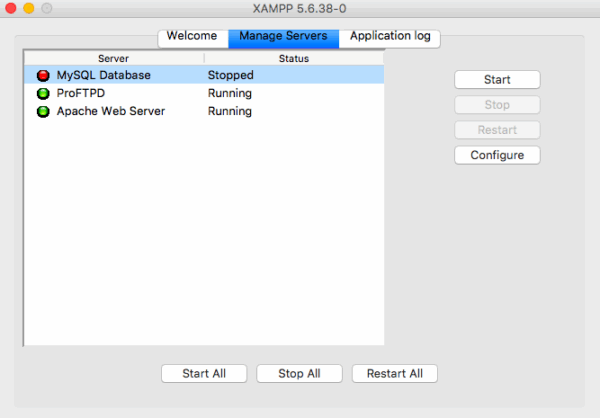
If you already installed it and it throws an error when starting Apache or MySQL, it might be a permissions issue too.
👉 Solution: Always run the XAMPP control panel as admin
👉 And disable Skype or any app that’s using the same port 80 (Apache gets jealous 😤)
🎤 Has this error happened to you, or are you one of those who installs everything anywhere and it still works?
Comment below and if you want, I’ll send you a more street-smart guide to set up XAMPP and WordPress locally without any drama 🧠🔥
#XAMPP #FolderError #DigitalTrick #StreetDev #InstallingLikeAPro


