

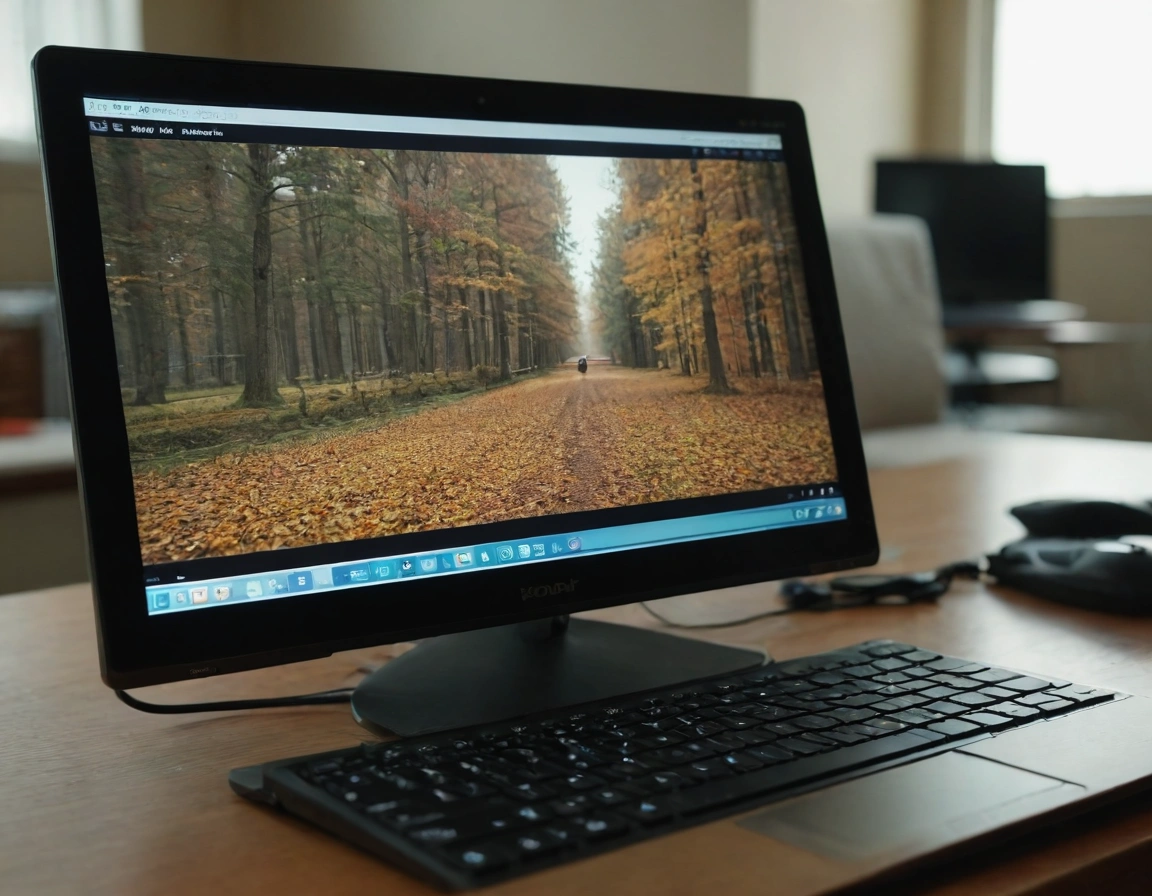
The .empresadeserviciosweb.com/post/como-anclar-google-a-la-barra-de-tareas/” title=”How to Pin Google to the Taskbar?”>taskbar is an <a href="https://www.empresadeserviciosweb.com/whatsapp-bloquea-millones-cuentas-tool-anti-estafas-seguridad-spam-2025/” title=”⚠️ WhatsApp Blocks 6.8M Accounts: New Anti-Scam Tool”>essential tool for any computer user.
I recommend checking out this interesting article: Differences Between SEO and SEM in the Short and Long Term.
It allows us to access <a href="https://www.empresadeserviciosweb.com/<a href="https://www.empresadeserviciosweb.com/que-opciones-de-busqueda-nos-permite-el-apartado-de-palabras-clave-en-google/" title="Guide to the keyword section in Google: how to search, use tools and get information safely”>tools-indexar-urls-rapido/” title=”What is the best SEO Tool to index URLs quickly”>quickly to our favorite applications and manage open windows. However, sometimes problems or questions arise about how to customize it. In this article, we will explain step by step how to add a taskbar to your desktop, solve common problems such as when the taskbar hides with other windows, and how to get the most out of it.
What Is the Taskbar and Why Is It Important?
The taskbar is one of the main tools in any operating system, especially in Windows. Its function is to serve as a central space where you can see and control your running programs, as well as quickly access important settings.
- It allows you to switch between open applications.
- It includes a notification area with essential information.
- It is customizable to suit your needs.
- It helps you organize your workflow efficiently.
- It works as a bridge to your most-used programs.
By understanding these features, you will understand why it is so annoying when the taskbar hides when I open an application or stops showing altogether. Below, we address how to fix this and more.
Why Does the Taskbar Disappear?
Why does the taskbar hide when I open an application?
The taskbar may disappear if it is set to hide automatically or if there is an error in the operating system.
The taskbar hides when I open certain applications because they take up full-screen mode. To avoid this, disable the auto-hide option from the settings.
How to Show the Taskbar in Different Situations
It is frustrating when you cannot see the taskbar, but there are several ways to solve it depending on the case.
1. Check Auto-Hide Settings
If the taskbar hides when I open any application:
- Right-click on an empty space on the taskbar.
- Select “Taskbar settings”.
- Make sure the “Automatically hide the taskbar” option is turned off.
2. How to Make the Taskbar Appear in Full Screen
If you are watching a video or using a program in full screen, follow these steps:
- Move the cursor to the bottom edge of the screen.
- If it does not appear, press
Ctrl + Escto open the start menu. - Make sure there are no active full-screen settings in the program you are using.
3. View Taskbar on Multiple Screens
In setups with more than one monitor, the taskbar may not show on all screens. To fix this:
- Go to Settings > System > Display.
- Make sure the “Show taskbar on all displays” option is turned on.
How to Put the Taskbar in a Different Position?
How do you put the taskbar in another part of the screen?
Moving the taskbar is simple and allows you to customize your workspace.
How do you put the taskbar in another position?
Right-click on the taskbar, select “Settings”, and then choose between the bottom, side, or top of the screen in the “Taskbar position” section.
Quick Solutions to Common Taskbar Problems
When the taskbar does not work as you expect, there are simple solutions you can apply.
1. The Taskbar Does Not Appear
- Press
Ctrl + Alt + Deland select “Task Manager”. - Find “explorer.exe”, end the process, and restart it from the “File > Run new task” menu.
2. Taskbar Stuck
- Make sure it is not locked by right-clicking on it and unchecking “Lock the taskbar”.
3. Programs That Do Not Show
- Restart your PC or update the graphics drivers, as they could be causing the error.
How to Customize the Taskbar
In addition to solving problems, it is important to learn how to customize your taskbar to improve your experience.
Add Icons to the Taskbar
If you want to add a taskbar to applications you use frequently:
- Right-click on the program icon.
- Select “Pin to taskbar”.
- Verify that the icon appears on the taskbar and is accessible at all times.
How to Show the Taskbar at All Times
If you prefer it to always be visible, disable auto-hide as we explained earlier. Also, make sure to adjust its size or add space for more applications.
Tips to Get the Most Out of It
- Organize your icons according to frequency of use.
- Use keyboard shortcuts to open applications faster (
Win + [icon number on the taskbar]). - Set up quick search from the taskbar to find files and applications without opening File Explorer.
- Customize the color and transparency so it matches your desktop theme.
The taskbar is an incredibly useful tool when configured correctly. From how to show the taskbar in specific situations to customizing its appearance and functionality, the options are numerous.
If you have problems such as the taskbar hiding with open applications or you cannot see the taskbar on certain screens, this article will help you fix it. Follow these tips and enjoy a more organized and efficient desktop.


