

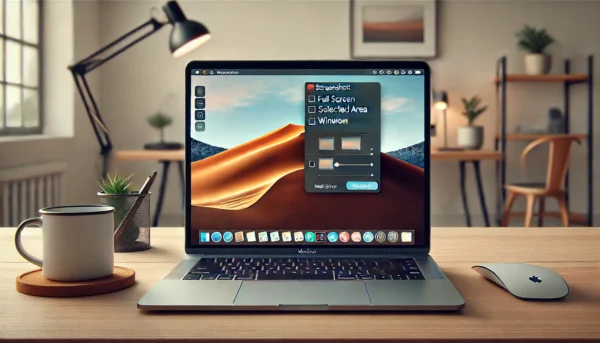
Do you need to take a screenshot on your laptop and don’t know how? Relax, it’s easier than it seems. Sometimes it happens that you want to save something quickly –an error, a meme, a receipt– and you can’t find the key. Or worse: you press PrtScn and… nothing! But yes, you can take a screenshot on a laptop without weird programs. Here I’ll tell you the tricks for Windows, Mac, and even Linux, without complications.
Why isn’t the screenshot key working for me?
If you press PrtScn and nothing happens, it’s not your fault. On some laptops you have to combine it with Fn (that key in the corner). Other times, the screenshot is saved to the clipboard and you have to paste it into Paint or Word. A pain, I know. But there are faster alternatives…
Easy method: the magic key on Windows
The most direct way is:
- Windows + PrtScn → The screen flashes and the screenshot is saved in Pictures > Screenshots.
- Alt + PrtScn → Only captures the active window (useful if you have a thousand things open).
👉 Don’t have a “PrtScn” key? On small laptops it sometimes appears as PrtScn or comes with Fn + Space.
The Snipping Tool (the one almost nobody uses)
Windows comes with a program called Snipping Tool. The good stuff:
- You can select just a portion of the screen.
- Add notes or underline.
- Save directly as JPG or PNG.
🚀 Quick shortcut: Windows + Shift + S (lets you snip instantly).
Screenshots on Mac (yes, it’s different from Windows)
If you have a MacBook, forget about PrtScn. Here’s what works:
- Cmd + Shift + 3 → Captures the entire screen.
- Cmd + Shift + 4 → Choose an area with the cursor (and it makes a cool click sound).
- Cmd + Shift + 5 → Opens a menu with more options (screen recording included).
⚠ Note: Screenshots are saved to the desktop by default.
And if you use Linux… (yes, there’s life there too)
It depends on the distribution, but the most common is:
- PrtScn → Full screenshot.
- Alt + PrtScn → Only the active window.
- Shift + PrtScn → Select area manually.
🔧 On Ubuntu, it asks you if you want to save it or copy it to the clipboard.
❓ FAQ: Silly questions we all ask ourselves
– Why is my screenshot saved dark?
It happens on HDR screens. Try temporarily disabling it.
– Are there better apps than the system ones?
Yes, like Lightshot (for quick editing) or Greenshot (for professionals).
– Can you also record the screen?
On Windows: Win + G. On Mac: *Cmd + Shift + 5*.
How to avoid the 3 typical mistakes
- Not finding the screenshot → Look in Downloads or Documents if it’s not in Pictures.
- The cursor showing up in the photo → Wait half a second before pressing.
- It taking up a lot of space → Save it as JPG, not PNG.
And that’s it, now you have no excuse not to take screenshots like a pro. If this helped you, share it! (And if your computer freezes, here’s a guide to restart without losing data 😉).


