

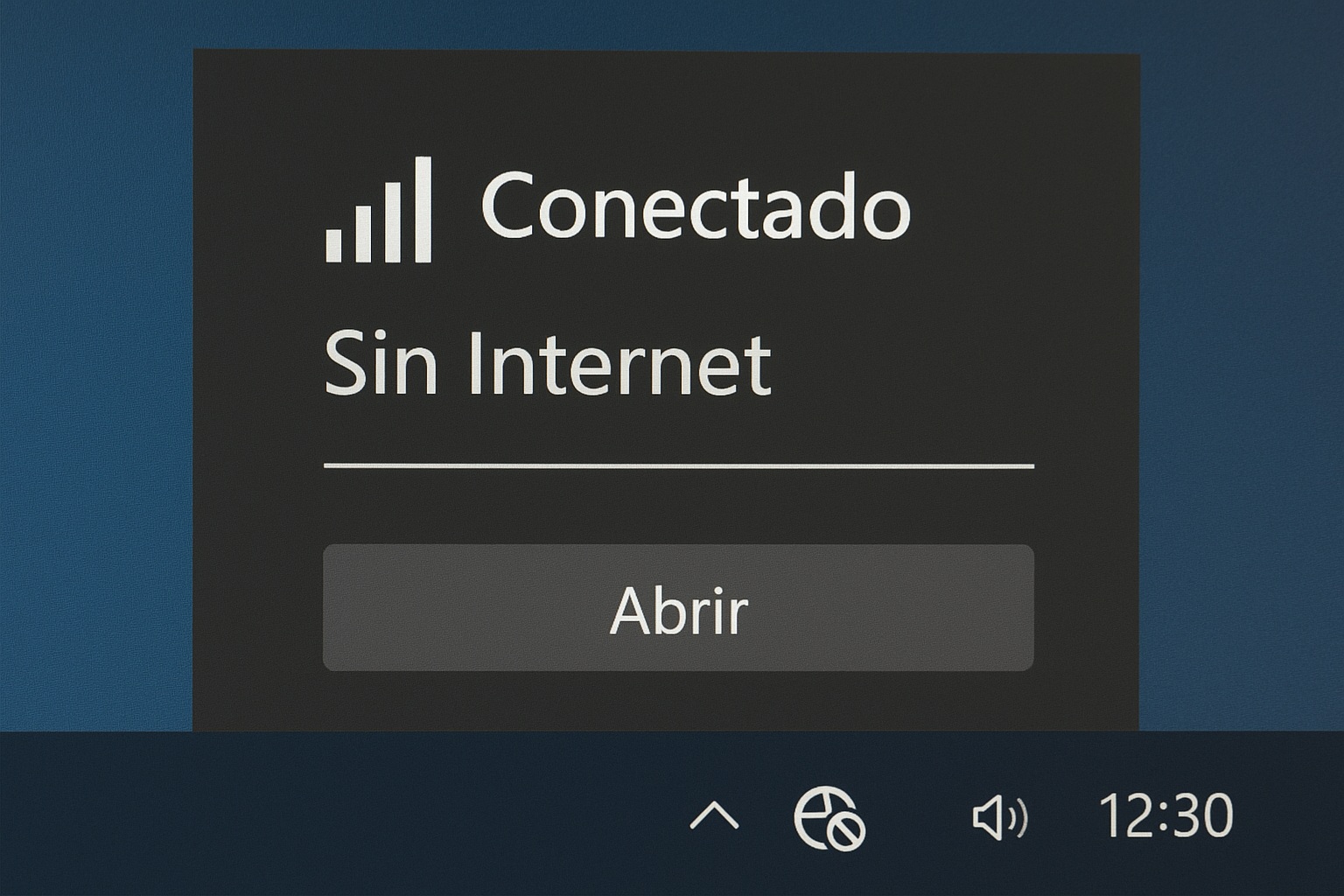
“Connected but no Internet access”? A common ERROR in Windows 10/8.1/7. We reveal the definitive trick that technicians don’t want you to know. Get your WiFi back INSTANTLY!
Connected but no internet Windows: The Definitive Solution I Found on Reddit
Have you ever seen that dreaded symbol on your Wi-Fi? The one with the famous signal, but also a yellow sign of exclamation that changes everything. It’s the message that has kept us all awake at night: “Connected but no internet”.
Just the other day, while browsing a forum, I came across the desperate story of a user. His story was like many others: “I have wifi but no internet” since the morning, Zoom meetings canceled and remote work completely paralyzed. The most frustrating part was that the other devices in his house worked perfectly. His problem was unique, specific to his Windows 10 laptop.
His experience seemed so common to me that I decided to investigate thoroughly. I gathered the solutions that technicians and expert users shared in communities like Reddit and Microsoft Answers. This is what really works, step by step.
The frustrating message of Connected but no internet on windows [7/8.1/10]
The forum user described his situation with total precision. The computer seemed to be perfectly linked to the router, showing all the signal bars. However, when opening the browser, it stayed on an eternal blank screen. Not even the typical DNS error appeared; it was simply nothing.
He tried the obvious: turning the router off and on. Nothing. He restarted the laptop. Nothing either. He even forgot the Wi-Fi network and reconnected it with the password. The problem persisted with admirable stubbornness. The curious thing is that when connecting the network cable directly, the internet worked without problems, which ruled out a provider issue.
This case makes it clear that the problem is not the wireless connection itself, but a communication failure between the operating system and the network once the link is established. It’s a configuration problem, not a hardware one.
When it doesn’t connect to wifi the right way
Actually, the phrase “it doesn’t connect to wifi” can be misleading. Because in this scenario, technically it does connect. The operating system authenticates correctly and obtains an IP address from the router. The failure occurs afterward, at the step where the computer tries to reach servers outside the local network to verify real connectivity.
Windows performs an automatic test to a Microsoft server. If it doesn’t receive a response, it assumes that, even though it’s connected to the router, there’s no internet access and shows the famous message. The causes are usually three: an outdated or corrupted network card driver, a damaged TCP/IP configuration, or a conflict with the IP address assigned by the router.
The forum user had already tried several things, but had skipped the most technical steps, those that require the command line or entering deep system configurations. They’re solutions that are a bit scary at first, but are completely safe.
Practical solutions for the state Connected but no internet
The solution that finally worked for the Reddit user, and that I’ve seen repeated in dozens of success stories, was a combination of two actions. First, he used the Command Prompt to release and renew his IP address. It’s simpler than it seems.
He just opened the Command Prompt or CMD as administrator (right-click, “Run as administrator”) and typed two commands in a row: netsh int ip reset and then ipconfig /release followed by ipconfig /renew. After restarting, the problem initially persisted, but then he tried the second method.
He temporarily disabled the IPv6 protocol in his network adapter properties. To his surprise, this was the key. Upon reactivating the connection, the exclamation sign disappeared and Google loaded instantly. It seems that a misconfigured protocol was preventing the correct handshake for online validation.
Another less common but effective solution I found is to completely reset the TCP/IP protocol stack with the command netsh winsock reset. This command restores network configurations to a basic state, eliminating any corruption that may have been generated by updates.
Conclusion
This anonymous user’s case is the perfect example that the most irritating problems sometimes have relatively simple solutions, albeit a bit technical. The “connected but no internet access” state is a Windows classic, but it’s not a death sentence.
You don’t need to be an expert. You just need to follow a logical order of steps: from restarting the obvious, to trying solutions like releasing the IP or disabling IPv6. If one doesn’t work, try the next. The most important thing is not to give up; it’s a known error and it can be fixed. The next time it happens to you, you already know where to start.


