

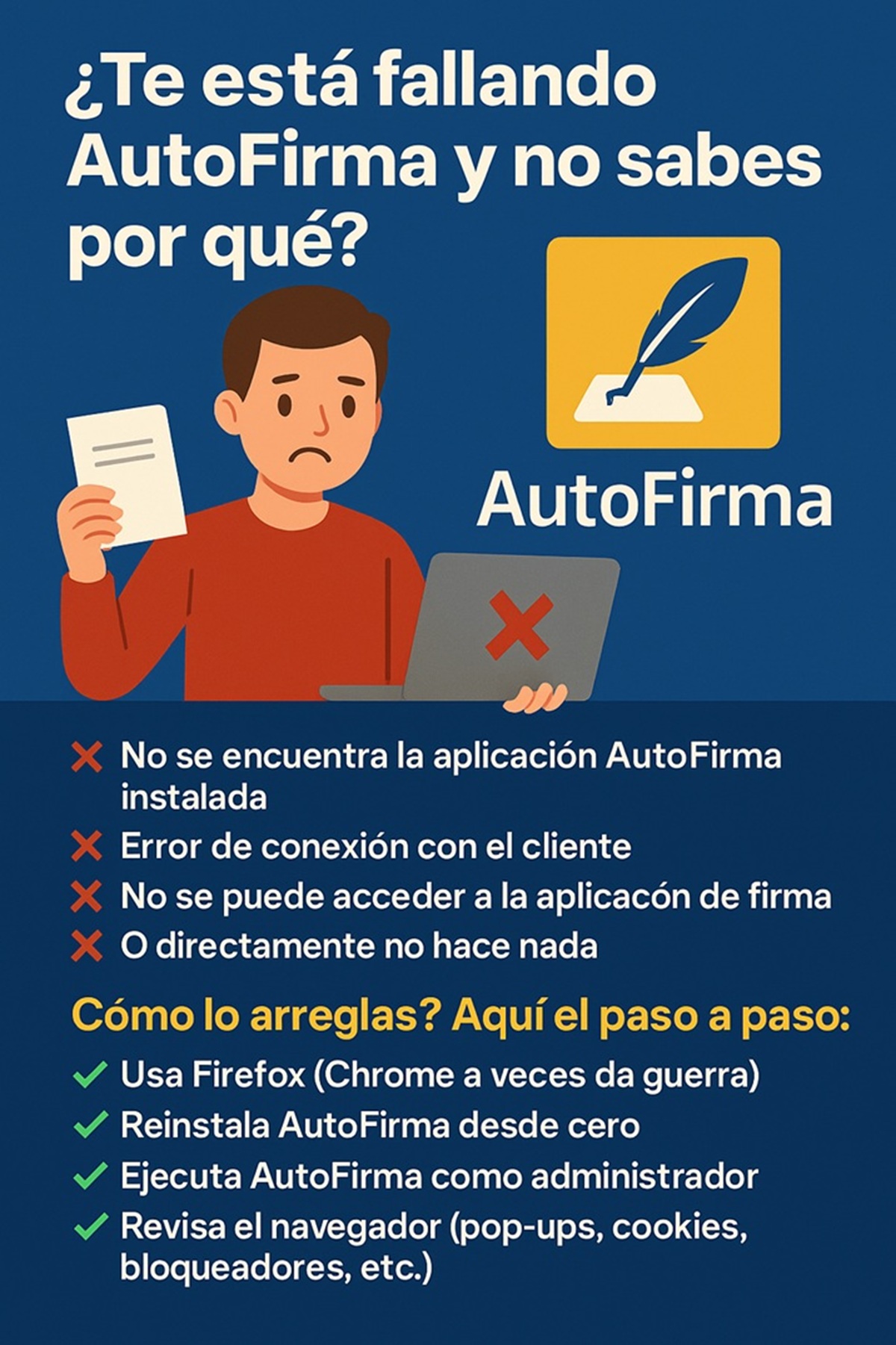
If you’ve fought with AutoFirma and its Java, I get it. In 2026, the tool is still the standard for procedures with the Administration, but there are tricks to keep it from driving you crazy. Let me tell you what I’ve learned.
The basics nobody tells you at the beginning
Before installing anything, make sure your digital certificate (the FNMT one, the DNIe, or your regional one) is valid and correctly installed in your browser. AutoFirma is nothing more than a key that uses that certificate. If you don’t have it, everything else is pointless. The application itself is free and official, developed by the Ministry of Finance . Download it always from the website of the electronic headquarters or the signature portal . I’ve seen apps on the Apple App Store with the same name, but they’re from private developers; they’re not the official tool and won’t work for serious procedures <a href="https://apps.apple.com/es/app/firmar-documento-pdf-autofirma/id6450445023″ target=”_blank” rel=”noreferrer noopener”>.
The installation is simple, but it has a hidden requirement: Java. Although many systems no longer include it by default, AutoFirma needs it to work. If you get a strange error when opening it, install the latest version of Java Runtime Environment (JRE). It’s 99% of problems with installation.
The workflow to sign quickly and get it right the first time
Forget about trying to sign from the browser directly the first time. Do it like this:
- Open AutoFirma like any other application on your desktop (Windows, macOS, or Linux) .
- Drag the PDF you want to sign directly into its window or use the “Select file” button.
- The application will ask you to choose your certificate from a list. This is where many people make a mistake: select the correct one (if you have several, check the validity date).
- It will ask for the PIN or password of the certificate. Enter it.
- Here’s the key step that speeds everything up: Before signing, click on “Options” or “Preferences”. You don’t have to touch the advanced signature format (XAdES, CAdES, PAdES…), but make sure the option “Add visible signature” is NOT checked, unless you need your signature to appear as a graphic on the document. Invisible signature = faster process and lighter file. The official tutorials have a specific video for this .
Once signed, save the document. You’ll now have a PDF with a valid electronic signature. Now you can upload it to the electronic headquarters you need.
Browser problems and how to bypass them
This is the biggest headache. AutoFirma communicates with Chrome, Edge, Firefox, or Safari to sign on web pages without downloading the file . Sometimes they don’t connect. If your browser doesn’t detect the application or gives you a connection error, don’t waste time restarting.
- The nuclear solution that almost always works: Go to the AutoFirma menu, to “Tools”, and choose “Restore installation”. Check the box to configure browsers to trust the application . This reinstalls the connection components.
- With Firefox there are chronic problems. The same “Restore installation” option has a specific check that says “Configure Firefox to trust the system root certificates” . Always enable it.
- My personal recommendation: For critical procedures, use Chrome or Edge. Their integration tends to be more stable than with Firefox.
When the job is more complex
If not only you have to sign, but the document must be signed by several people (a contract, a joint report), AutoFirma allows it. You have to understand the difference:
- Co-signing (or parallel signing): Several people sign the original document. It’s as if everyone put their signature on the same page. It’s useful for agreements where everyone is equally responsible.
- Counter-signing (or cascading signing): One person signs first, and then the next person signs not only the document, but also the previous person’s signature. It’s a chain, typical of hierarchical approvals (a boss who authorizes what their employee has signed).
AutoFirma has options for both cases, and the official tutorial videos explain it well . Choose carefully, because once you start one type of process, you can’t change it halfway through.
The last piece of advice is common sense, but vital: use the latest version. The Administration updates AutoFirma to fix security flaws and improve compatibility . If you have an old version, it will likely fail you at the worst moment.


