

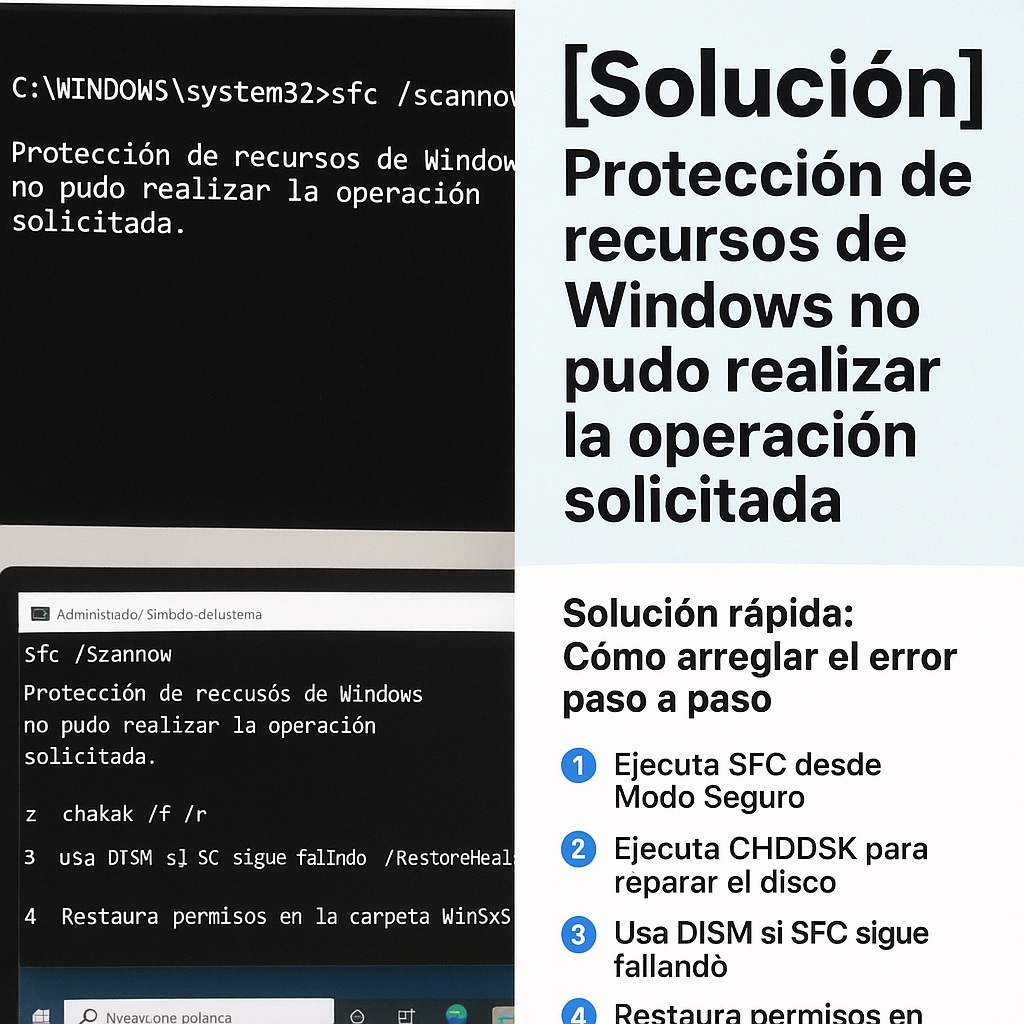
You ran sfc /scannow hoping to clean up your PC and instead got slapped with: «Windows Resource Protection could not perform the requested operation». Yeah, it’s annoying. But it’s also fixable, and in most cases you don’t need to reinstall Windows.
I’ve dealt with this Windows Resource Protection error on Windows 10 and Windows 11 machines more times than I’d like to admit. The message shows up when the System File Checker can’t touch the files it’s supposed to repair. Sometimes it’s a permissions mess, sometimes the drive itself is dying, and sometimes it’s just a background process locking things up.
What «Windows Resource Protection could not perform the requested operation» actually means
When you launch sfc /scannow, Windows tries to read and replace corrupted system files from the WinSxS component store. If it can’t access those files, it throws this error instead of finishing the scan. It’s not a virus, and it’s not necessarily a dead hard drive, but ignoring it is a bad idea.
The usual suspects behind this SFC scannow error are blocked permissions on system folders, bad sectors on the disk, third-party antivirus or background processes locking files, and a damaged WinSxS folder. Any one of them is enough to break the scan.
Fix #1: Run SFC from Safe Mode (works 80% of the time)
Safe Mode loads only the bare minimum drivers and services, so nothing interferes with the System File Checker. This is the fastest fix for the Windows Resource Protection error and honestly the one I try first.
- Press Windows + R, type msconfig and hit Enter.
- Go to the Boot tab and check Safe boot.
- Restart the computer.
- Once in Safe Mode, open CMD as administrator.
- Type sfc /scannow and let it finish.
If it completes without the error, reboot normally, go back into msconfig and uncheck Safe boot. Done.
Fix #2: Repair the disk with CHKDSK
If Safe Mode didn’t cut it, your drive might have physical errors that SFC can’t work around. The chkdsk /f /r command scans for bad sectors and repairs file system issues.
Open CMD as admin and run: chkdsk /f /r. It’ll ask if you want to schedule the scan on next restart, say yes, then reboot. This can take a while depending on your drive size. On an SSD it’s usually under 30 minutes, on a rusty HDD it can take hours.
Fix #3: Use DISM to repair the Windows image
SFC pulls files from the component store, and if that store is corrupted, SFC will keep failing. DISM fixes the underlying image so SFC has something healthy to work with.
DISM /Online /Cleanup-Image /RestoreHealth
Run that in an elevated CMD, wait for it to hit 100%, restart, then run sfc /scannow again. This combo resolves the Windows Resource Protection could not perform the requested operation error in a lot of cases where Safe Mode alone doesn’t.
Fix #4: Restore permissions on the WinSxS folder
WinSxS is the folder where Windows keeps all the component versions. If its permissions got screwed up (usually by a «cleanup» tool or a botched update), SFC can’t read it. Fix it manually:
- Open CMD as administrator.
- Type icacls C:Windowswinsxs and check the output.
- If permissions look wrong, run:
takeown /f C:Windowswinsxs /r /d y
icacls C:Windowswinsxs /grant Administrators:F /t
Be patient, this takes a few minutes. Then try sfc /scannow again.
What if nothing works? Last-resort options
If you’ve tried all four fixes and the System File Checker error is still there, here’s the ladder I climb:
- System Restore to a point before the problem started.
- In-place repair with a Windows ISO (mount it, run setup.exe, choose «Keep files and apps»).
- Clean install if the drive is actually dying or the OS is beyond repair.
One thing people miss: if CHKDSK found bad sectors, run a SMART check with CrystalDiskInfo before wasting more time. A failing drive will keep throwing Windows Resource Protection errors no matter how many times you run SFC.
Quick checklist to fix Windows Resource Protection error
- Boot into Safe Mode and run sfc /scannow
- Run chkdsk /f /r to repair the drive
- Repair the image with DISM /RestoreHealth
- Fix permissions on the WinSxS folder
- Check drive health before reinstalling anything
Most of the time, Safe Mode plus DISM is enough. If you’re still stuck, the problem isn’t SFC, it’s your hardware, and no command will fix a dying disk.
