

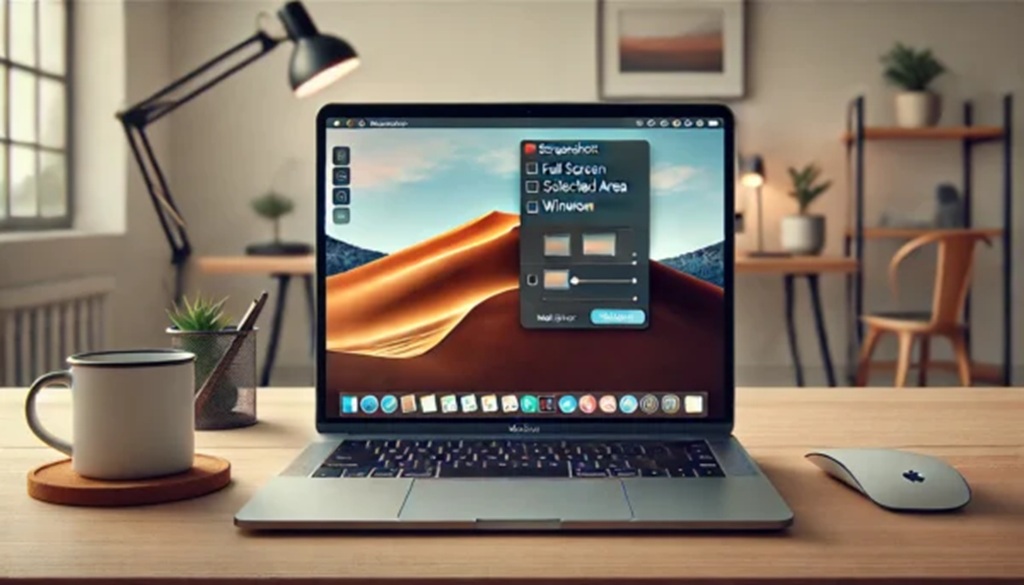
There’s a moment every week where someone asks me «hey, how do I take a screenshot?» and I die a little inside. Not because it’s a dumb question, but because Windows and macOS have had this solved for years and people still download sketchy third-party apps to do it. So let’s cut the noise: here are the shortcuts I actually use, the ones that save you time and don’t require installing anything.
The trick with learning how to take a screenshot on Windows is understanding there isn’t just one method. There are at least four, and each one fits a different situation: quick paste, save to file, partial crop, or video. Pick the wrong one and you’ll spend five minutes fighting with Paint when you could’ve been done in two seconds.
Win + Shift + S: my go-to for 90% of screenshots
Press Windows key + Shift + S at the same time. The screen dims slightly, the Snipping Tool overlay appears, and a crosshair lets you drag a rectangle over exactly what you want.
Here’s the part most people miss: the image doesn’t get saved to your disk. It goes straight to the clipboard. You paste it with Ctrl+V into WhatsApp, Slack, Word, Discord, wherever. No file, no folder, no cleanup afterwards. For a screenshot on Windows that you’re going to share immediately, this is unbeatable.
If you’re on Windows 11, the overlay also gives you options for freeform, rectangular, window, or full-screen capture, plus a quick annotation tool. You can highlight, draw arrows, or blur stuff before pasting. That last bit matters if you’re sharing screenshots with sensitive info in them.
Full-screen capture that saves itself: Win + PrtScr
Want the whole monitor saved as a file without opening anything? Press Windows key + PrtScr. The screen flashes, and the PNG lands automatically in Pictures > Screenshots.
This is the one I use when I’m documenting bugs or building tutorials and I need a folder full of images I can drag into a doc later. No clipboard juggling, no pasting, no drama. Ideal if you’re capturing ten screenshots in a row and don’t want to touch the mouse.
One caveat: on some laptops with compact keyboards, PrtScr is hidden behind Fn. If nothing happens, try Fn + Windows + PrtScr. It’s annoying but it’s a hardware quirk, not a Windows problem.
Mac users: Command + Shift + 4 and its cousins
If you bounce between a Mac and a PC, this is the trio you need memorized. On Mac, the screenshot on Mac shortcut set is dead simple once you know it:
- Cmd + Shift + 4: crosshair appears, drag to select an area, image saves to the desktop.
- Cmd + Shift + 3: captures the entire screen and saves it to the desktop.
- Cmd + Shift + 5: opens the full toolbar with options for screen recording, timer, and where to save.
Pro move: after pressing Cmd + Shift + 4, hit the spacebar and the cursor becomes a camera icon. Click any window and macOS captures just that window with a nice drop shadow, no manual cropping. That’s the one I use for clean product shots.
By default, Mac screenshots land on the desktop as .png files. If you’d rather have them go straight to the clipboard (like Windows does), hold Ctrl while pressing the shortcut: Cmd + Ctrl + Shift + 4. The image copies, no file created.
Windows + Alt + R: not a screenshot, but you’ll want it
A lot of people confuse this one. Windows + Alt + R doesn’t capture an image. If Xbox Game Bar is enabled (it is by default on Windows 10 and 11), it starts a screen recording. Press it again to stop, and the MP4 lands in Videos > Captures.
This is the shortcut for tutorials, gameplay clips, or showing someone a bug that only happens in motion. A static screenshot won’t cut it when the issue is «the button flickers when I hover.» Record it, send the file, done.
If nothing happens when you press it, Game Bar is probably disabled. Search «Game Bar settings» in the Start menu and flip the switch. Some corporate machines block it via group policy, in which case you’re stuck using OBS or the built-in Snipping Tool’s recording feature (Windows 11 only).
What about Windows + Shift + R?
Short answer: it’s a trap. This combination isn’t a native screenshot command. Depending on what software you have installed, it might trigger something entirely different, or nothing at all. I’ve seen people swear it works, but they were running a third-party tool that had claimed the shortcut.
Don’t build muscle memory around it. Stick to the four real commands: Win + Shift + S for quick clipboard captures, Win + PrtScr for saved files, Win + Alt + R for video, and on Mac, the Cmd + Shift family.
The Snipping Tool app itself: worth opening sometimes
Windows key + Shift + S launches the overlay, but the full Snipping Tool app (search «Snipping Tool» in Start) does more. You can set a delay timer, which is essential when you need to capture an open dropdown menu or a tooltip that disappears the moment you click elsewhere.
Set the delay to 5 seconds, arrange your screen, and let it fire. It also supports window-mode capture and, on Windows 11, video recording of a selected region. That last feature quietly made Game Bar optional for a lot of people.
On Mac, the equivalent built-in app is Screenshot, which is just the Cmd + Shift + 5 toolbar in standalone form. Same features, different entry point.
Which one should you actually use?
My honest take: Win + Shift + S covers almost everything. It’s fast, it crops on the fly, and it doesn’t clutter your disk. The only reason to use Win + PrtScr is if you’re archiving a bunch of images. And the only reason to touch Game Bar is if you genuinely need video.
On Mac, Cmd + Shift + 4 with the spacebar trick is the single most useful combo in the entire operating system. Learn that one and you’ll never open Preview to crop a full-screen capture again.
Stop installing screenshot apps. The tools are already there, they’re faster than anything you’ll download, and they don’t ask for permissions they shouldn’t need. Learn four shortcuts and you’re set for the next decade.
