

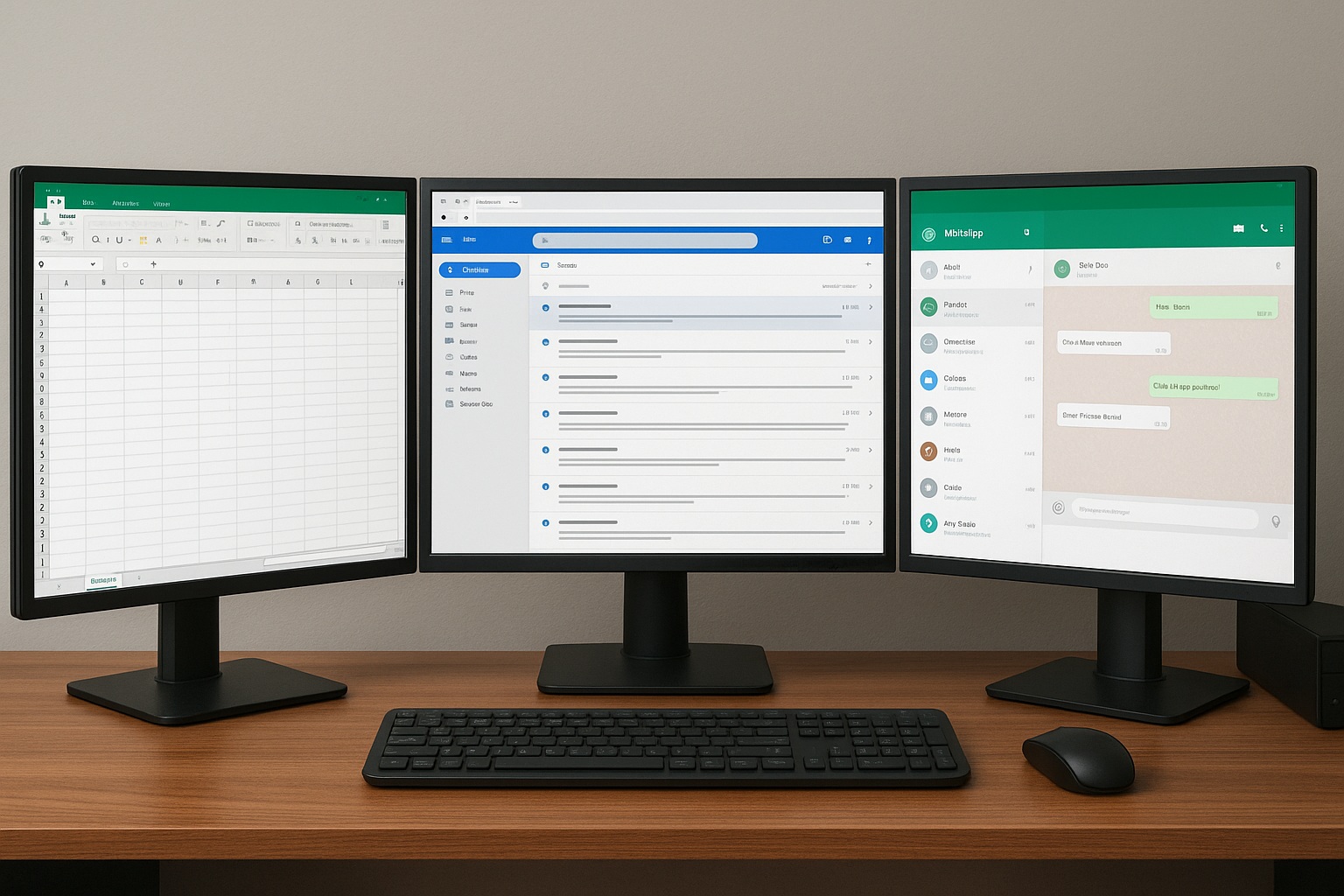
I was scrolling through a tech forum the other day and stumbled on a thread with hundreds of replies. The original post was desperate: «I bought an HDMI cable but my second monitor does nothing.» That person worked from home and needed two screens to keep email and reports separate, but Windows felt like a labyrinth. After reading dozens of convoluted answers, I decided to dig into the real solution. Spoiler: setting up dual monitors on Windows 11 in 2026 is easier than most people think, but there’s a catch that almost everyone misses.
The only step that actually matters when you connect a second monitor
Forget the fancy guides. The core process is always the same: plug the monitor into your PC with the right cable (HDMI, DisplayPort, USB-C, whatever your GPU supports), and make sure it’s powered on. That’s it. Windows 10 and 11 are smart enough to detect the new screen automatically in 90% of cases.
If nothing shows up, the problem is almost never Windows. It’s the cable, the port, or outdated graphics drivers. I’ve seen people waste hours reinstalling Windows when their HDMI cable was simply dead. Test with another cable before you panic.
The real magic? Press Windows + P on your keyboard. A side menu pops up with four options: PC screen only, Duplicate, Extend, and Second screen only. This is the heart of any multi-monitor setup. If you want your desktop to span both screens, choose Extend. That’s the setting that changes everything.
How to arrange your monitors so the mouse moves naturally
Connecting the hardware is half the battle. The other half is telling Windows how you want those screens to behave. Right-click any empty spot on your desktop and select Display settings. You’ll see numbered rectangles representing each monitor.
Here’s the part people screw up: drag those rectangles so they match the physical position of your monitors on your desk. If your second monitor sits to the left of your laptop, rectangle «2» must be to the left of «1». Otherwise, your mouse cursor will jump in the opposite direction and you’ll feel like you’re losing your mind.
While you’re there, scroll down and check the resolution and scaling for each screen independently. This matters a lot if your monitors are different sizes or brands. A 27-inch 1440p next to a 24-inch 1080p will look weird if you don’t adjust scaling. Set each to its native resolution and tweak the scale until text looks sharp on both.
Why extending your screen beats duplicating it every single time
Duplicating means both monitors show the same thing. That’s fine for presentations, but for daily work it’s a waste. Extending gives you double the desktop real estate, and that changes how you work.
One user on that forum said something that stuck with me: since setting up two monitors, they stopped minimizing and maximizing windows all day. That constant context switching is a concentration killer, and extending your screen eliminates most of it.
Think about it: main document on one screen, research and email on the other. Video editors can keep their timeline and tools on one monitor and a clean preview on the second. Programmers get code on one side and documentation or output on the other. Once you try it, going back to a single screen feels like working with one hand tied behind your back.
And no, you don’t need an expensive monitor. That dusty 1080p screen in your closet will do the job. The productivity jump is one of the cheapest upgrades you can make to your home office in 2026.
Fixing the most common dual monitor problems on Windows
Back to the forum thread. Most issues had simple fixes, and I’ve seen the same patterns repeat for years.
- Windows doesn’t detect the second monitor: Check the connections, try a different cable, and update your GPU drivers. That last one solves it more often than you’d think.
- The image looks blurry or stretched: Go to Display settings > Resolution and pick the recommended native resolution for that specific monitor. Don’t force a weird aspect ratio.
- The Windows + P menu doesn’t appear: This is usually a software conflict or a disabled feature. A full restart fixes it in most cases.
- One monitor stays black after waking from sleep: Unplug and replug the cable, or toggle the input source on the monitor itself. It’s annoying but common with DisplayPort.
I also saw cases where the second monitor worked but the refresh rate was stuck at 60Hz on a 144Hz panel. Fix that in Display settings > Advanced display, where you can set the refresh rate per monitor.
What about laptops with USB-C or docking stations?
If you’re on a laptop, a USB-C dock can drive two external monitors, but only if your laptop supports DisplayPort Alt Mode or Thunderbolt. Not all USB-C ports do. Check your laptop’s specs before buying a dock, because this is where people waste money.
For desktops, make sure you’re plugging into the graphics card ports, not the motherboard ports. If you plug one monitor into the GPU and another into the motherboard, you might get no signal on one of them. Keep them on the same GPU.
My honest take after setting this up myself
Setting up dual monitors on Windows 11 in 2026 takes about five minutes once you know the Windows + P trick and how to arrange the display rectangles. The people who struggle are the ones who skip the software step and expect pure plug-and-play.
The guy who started that forum thread came back a day later, happy as hell, after updating his NVIDIA drivers. His frustration turned into relief, and he said he couldn’t live without two screens anymore. That’s the typical ending. It’s a process with a happy ending for almost everyone, as long as you don’t give up at the first black screen.
