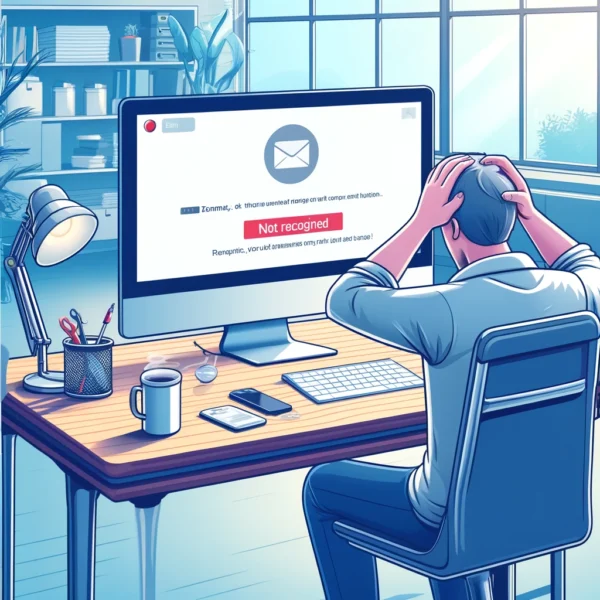
You open XAMPP, hit Start next to MySQL, and… nothing. Or worse, it flashes green for two seconds and then dies. If XAMPP is not starting the MySQL server, you are not alone: it’s one of the most searched headaches among people running WordPress locally. The good news is that in 9 out of 10 cases the culprit is boring and fixable in under five minutes.
Before you reinstall anything, understand one thing: MySQL inside XAMPP is just a process that needs a free port, a clean config file and permission to run. When any of those three fails, MySQL refuses to boot. So let’s attack each one in order.
Check if something else is already hogging port 3306
This is the number one reason why XAMPP MySQL server won't start. MySQL defaults to port 3306, and if another instance of MySQL, MariaDB, or even a leftover Windows service is sitting on it, XAMPP will crash silently.
Open CMD as administrator and run:
netstat -ano | findstr :3306
If you get a result, note the PID (last number on the right) and kill it from Task Manager, or run taskkill /PID 1234 /F. Common offenders: a previous XAMPP install, WAMP, Docker containers with a MySQL image, or the MySQL Windows service installed by the official installer.
If you can’t kill the process because you actually need it, change XAMPP’s MySQL port instead. Open my.ini inside xamppmysqlbin, find port=3306 and swap it for 3307. Do the same in phpMyAdmin’s config.inc.php so it connects to the new port. Restart and you’re done.
The MySQL service is not actually registered or running
Sometimes the port is free but the MySQL service never got installed as a Windows service. In the XAMPP Control Panel, click Config next to MySQL and make sure the “Install as service” checkbox isn’t half-broken. If it is, uncheck it, apply, and check it again.
You can also open services.msc and look for mysql. If it exists and is stopped, start it manually. If it doesn’t exist at all, that’s your answer: XAMPP is trying to launch a binary that Windows doesn’t know about, and running the Control Panel as administrator usually fixes it.
Run XAMPP as administrator (yes, really)
Half the XAMPP MySQL Won't Start threads online end with this: close XAMPP, right-click the icon, run as administrator. Without elevated permissions, MySQL can’t bind the port or write to its data folder, and it dies before you can even see the error.
Firewall and antivirus blocking MySQL
Windows Defender or a third-party antivirus like Avast, Kaspersky or Bitdefender can block incoming connections on port 3306 without telling you. Add an inbound rule for mysqld.exe in Windows Firewall, or temporarily disable the antivirus to test.
This is especially common if you’re connecting from another machine on your LAN, or if you’re using XAMPP to serve a WordPress site from your phone. Locally it usually doesn’t matter, but it does the moment you cross the loopback boundary.
Broken my.ini config file after editing it
If you tweaked MySQL’s configuration to increase max_connections, change the data directory, or bump the buffer pool, a single missing semicolon or a stray quote will kill the server. MySQL is brutal about syntax and will refuse to start rather than guess.
Quick test: rename my.ini to my.ini.bak and try to start MySQL. If it boots, you know the config was the problem. Rebuild it line by line, or restore the original from a fresh XAMPP download.
Corrupted InnoDB files after a hard shutdown
This one is sneaky. If your PC crashed or you force-killed MySQL last time, the InnoDB log files in xamppmysqldata can end up inconsistent. MySQL then aborts on startup with an error about ib_logfile0 or ibdata1.
The fix that actually works: back up your databases folder, then delete ib_logfile0 and ib_logfile1 (never ibdata1 unless you’re ready to lose everything). MySQL will regenerate them on next start. If you don’t have a backup and this is a real project, copy the whole data folder to a safe place first.
Restart Windows and try again
It sounds like the lazy answer, but a full restart flushes stale sockets, releases zombie processes holding port 3306, and clears whatever DLL got locked by an antivirus scan. I’ve personally rescued more broken XAMPP installs with a reboot than with any config tweak.
Just don’t use “shut down” on Windows 10 or 11 — that’s actually hibernation. Use Restart, which does a real cold boot of the kernel and services.
When to stop fixing and reinstall
If you’ve tried all of the above and MySQL still won’t start, export your databases (copy the data folder somewhere safe), uninstall XAMPP completely, delete the leftover C:xampp folder, and reinstall the latest version from Apache Friends. Downloading a fresh copy in 2026 takes two minutes and saves you an afternoon of forum archaeology.
Also worth checking: some users report that the vcredist (Visual C++ Redistributable) is missing after a Windows update, which breaks mysqld.exe silently. Installing the latest x64 redistributable often resolves it. And if you want the full picture of what else can break in your local stack, read our guide on XAMPP MySQL Won't Start alongside Apache failures in 2026.