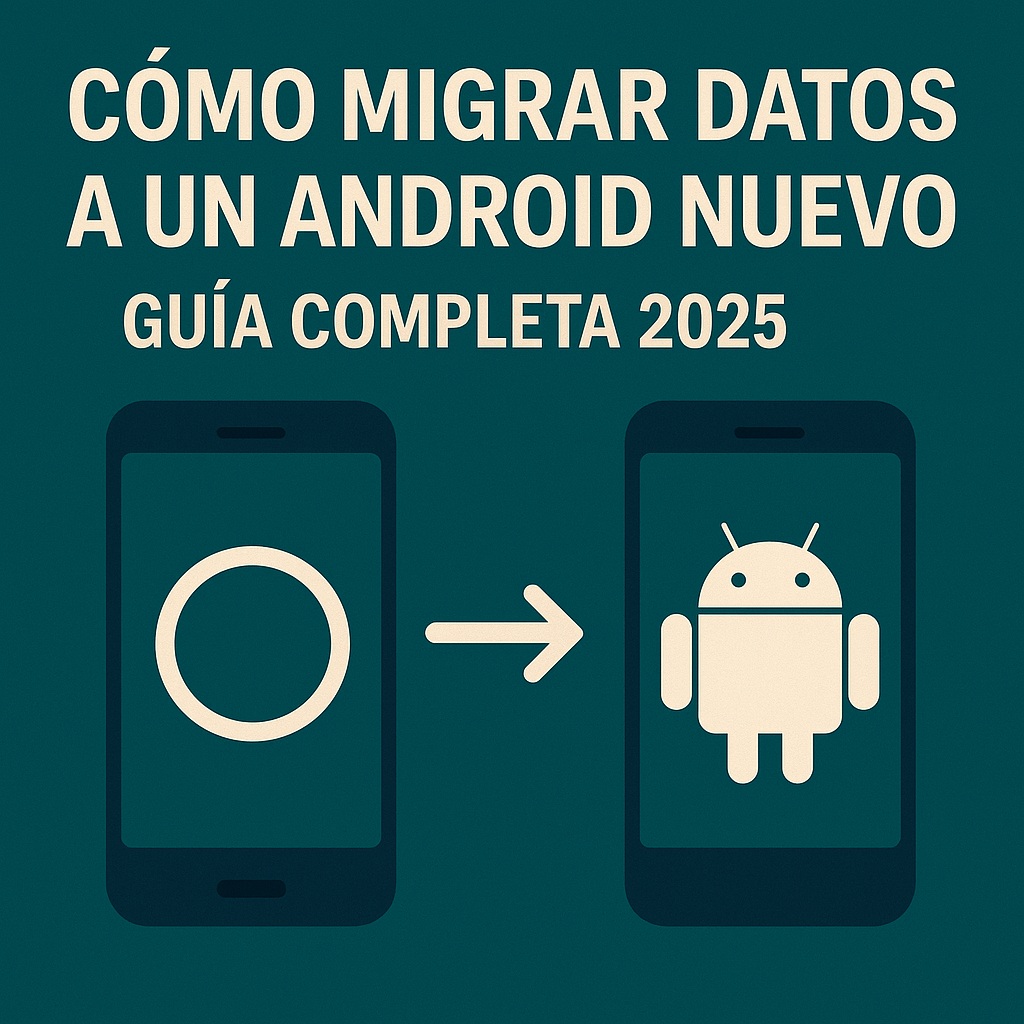
So you got a new Android and now you’re staring at two phones wondering how to move everything without losing your mind. Good news: transferring data from Android to Android is way easier than it used to be, but there are a few traps that can ruin your afternoon if you don’t know them. I’ve done this dance more times than I care to admit, and I’ll tell you exactly what works in 2026 and what’s a waste of time.
The first thing you need to understand is that there is no single magic button. Google has its own system, Samsung pushes Smart Switch, and Xiaomi has its own quirks. The key is picking the right method for your specific pair of phones, not just following the first tutorial you find on YouTube.
Before You Touch Anything: The Prep Work That Saves You
I know you want to just plug in the cable and go. Don’t. Five minutes of prep prevents two hours of frustration.
Charge both phones to at least 50%. A transfer that dies halfway through can leave your WhatsApp backups corrupted, and that’s a nightmare to fix.
Check free storage on the new device. If you’re moving 80GB of photos and the new phone has 20GB free, the transfer will fail silently or just stop. Delete the junk first.
Turn on Google Drive backup on the old phone. Go to Settings > Google > Backup and hit «Back up now.» This is your safety net if the direct transfer goes sideways.
Have a USB-C to USB-C cable or an OTG adapter ready. Wireless transfers sound cool until you’re moving 50GB of 4K video and it takes four hours.
The Fastest Method: Cable Transfer Between Androids
When you first boot up a new Android phone, it asks if you want to copy data from an old device. Say yes. This is the built-in Android data transfer tool, and it’s honestly the best option for most people.
If you skipped that screen, go to Settings > System > Data transfer and you’ll find it again. You get two choices: cable or wireless.
Cable is faster and more reliable. Connect the two phones with a USB-C cable (or an OTG adapter if one phone has micro-USB). The new phone becomes the host and pulls everything: contacts, photos, videos, SMS, call history, Wi-Fi passwords, and even some app data.
Wireless works too, but it’s slower and more prone to disconnects. Use it only if you don’t have the right cable and you’re not moving a ton of data.
Samsung Smart Switch: The Best Tool If You Own a Galaxy
If either phone is a Samsung, stop reading and download Smart Switch. It’s not just marketing fluff — it actually handles Samsung-specific stuff that Google’s tool ignores, like Secure Folder contents, Samsung Notes, and your home screen layout.
Smart Switch works via cable, wirelessly, or even through a PC with the desktop app. The PC version is the most reliable for huge transfers because it uses your computer as a bridge and doesn’t depend on the phones staying connected to each other.
One catch: Smart Switch only works well when at least one device is a Samsung. Don’t try to use it between a Pixel and a Motorola — you’ll waste your time.
Coming from iPhone? Move to iOS Won’t Help You Here
Quick clarification because people get confused: Move to iOS is for going from Android to iPhone, not the other way around. If you’re leaving an iPhone for Android, you need Android Switch (formerly Switch to Android) on your iPhone.
Download it from the App Store, connect both phones, and it moves contacts, calendar, photos, and videos. It won’t move your iMessage history, and it won’t move paid apps — those are tied to your Apple ID forever. Accept that and move on.
WhatsApp is a separate beast. You need to use WhatsApp’s own migration tool inside the app (Settings > Chats > Move chats to Android) and it only works with a cable. No cable, no chat history. That’s Meta’s restriction, not a bug.
Google Drive Backup: Slow But Bulletproof
If the direct transfer fails (and it will sometimes), fall back to Google One backup. On the old phone, go to Settings > Google > Backup and force a manual backup. Then sign into the same Google account on the new phone and restore during setup.
This method won’t bring your photos if you don’t have Google Photos syncing, and it won’t bring app data for apps that don’t support Android’s backup API. But for contacts, calendar, Wi-Fi, and app list, it’s rock solid.
Pro tip: before you wipe the old phone, open Google Photos and check that everything you care about is actually uploaded. «Backup on» doesn’t always mean «backup finished.»
Typical Problems and How to Actually Fix Them
«The transfer keeps cutting out.» Restart both phones. Then disable battery optimization for the transfer app and keep both screens awake. Android loves killing background processes mid-transfer.
«Apps are missing on the new phone.» Some apps aren’t compatible with the new device’s Android version or chipset. You’ll have to install them manually from the Play Store. Nothing you can do about it.
«My contacts didn’t come over.» Check that your contacts are saved to your Google account, not just the SIM card or the phone’s local storage. SIM contacts rarely transfer cleanly.
«Banking apps ask me to verify again.» That’s not a bug, that’s security. Almost every bank forces re-authentication on a new device. Have your ID and phone number ready.
Best Apps for Moving Data Between Androids
- Smart Switch: Essential for Samsung-to-Samsung or Samsung-to-anything transfers.
- Google One: Automatic backups, easy restore, works on any Android.
- ShareMe: Xiaomi’s tool, great for moving large files between Xiaomi phones without cables.
- CLONEit: Decent third-party option if the built-in tools fail, but watch the ads.
Don’t install five of these at once. Pick one, do the transfer, verify everything, then uninstall.
Frequently Asked Questions People Actually Search For
Does WhatsApp transfer between Androids? Yes, but you need a cable and the official WhatsApp migration tool. A Google Drive backup of chats works too, but only if both phones use the same phone number and you restore during initial setup.
What about very old phones? If the old device runs Android 4.0 or higher, most methods work. Below that, you’re better off exporting contacts to a CSV and copying photos manually via SD card.
Will my home screen layout transfer? On Samsung with Smart Switch, yes. On stock Android, no. You’ll rebuild your folders by hand.
Last-Minute Tips Before You Sell the Old Phone
Do a factory reset. Not optional. Your data lingers in ways you don’t expect, and a proper reset is the only way to be sure.
Verify the new phone has everything — open your gallery, check your contacts, send a test WhatsApp, log into your bank. Once you’re sure, then wipe the old one.
If something’s broken, Google’s official support page and Samsung’s Smart Switch help section are actually useful. Skip the random blog posts from 2019 that still recommend apps that don’t exist anymore.
Changing phones in 2026 doesn’t have to be a drama. Pick the right tool, prep properly, and you’ll be up and running in under an hour.