

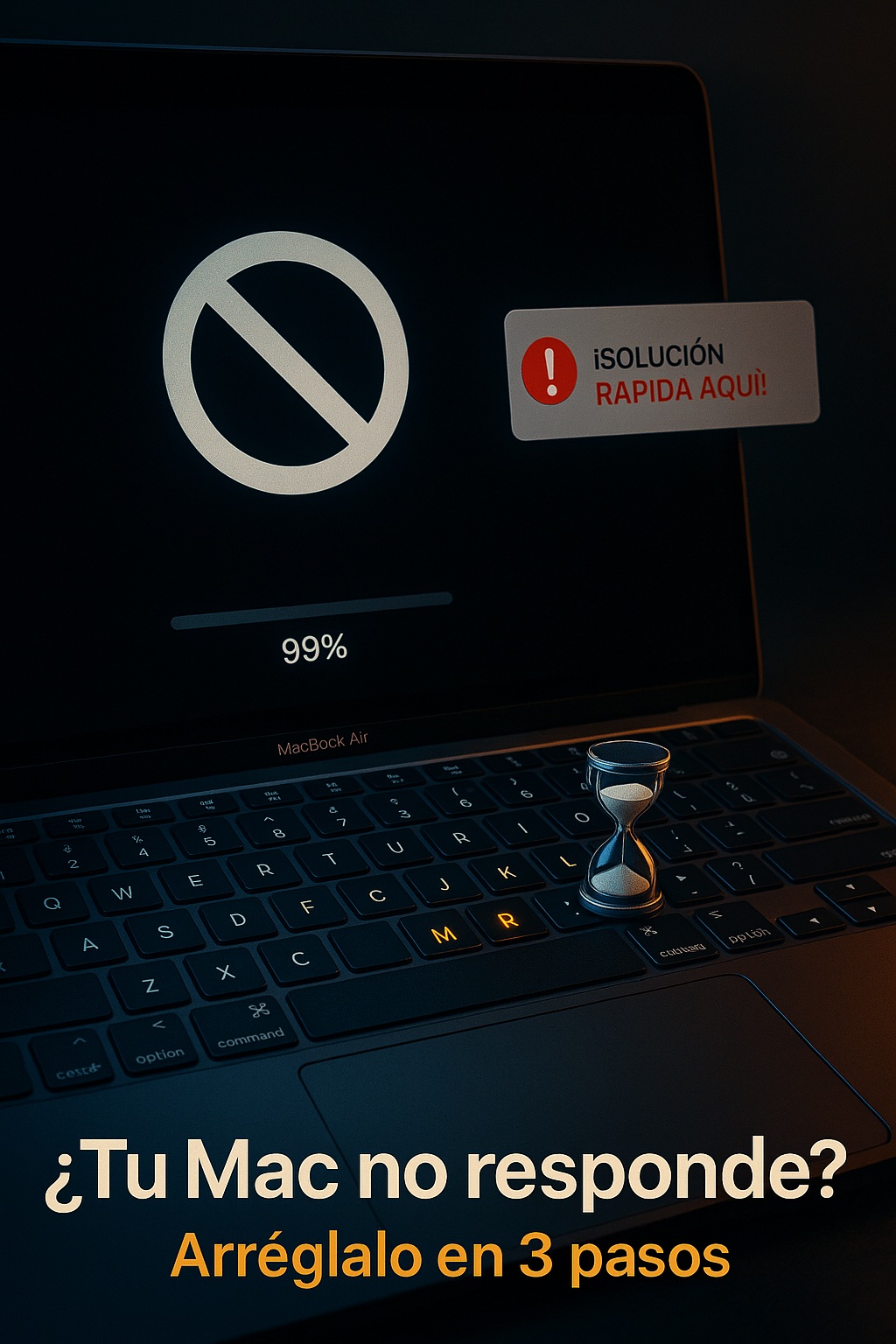
Your Mac won’t start, it stays loading and shuts down. You hit the power button, see the Apple logo, the progress bar crawls a bit, and then the screen goes black. No error code, no warning. Just silence. I’ve been through this twice with different Macs, and I can tell you the panic is real, but the fix is usually less dramatic than you think.
Before you start mourning your data, unplug everything. I mean everything: external drives, USB hubs, that sketchy third-party charger, even the mouse if it’s wired. I read a thread on a tech forum where a guy’s MacBook Pro refused to boot for two days, and the culprit was a shorted USB-C dock. One unplug later, it booted like nothing happened. If your Mac won’t start up, external peripherals are the first variable you eliminate. Not the last.
Why your Mac gets stuck on the Apple logo and then dies
When the machine shows the Apple logo, that’s actually good news. It means the firmware, the CPU, and the basic hardware are alive. The failure happens later, when macOS tries to hand off control to the operating system on your drive. That handoff is where things break.
Most of the time it’s a corrupted directory on the SSD, a botched macOS update, or a kernel extension that’s incompatible after an upgrade. Less often, it’s the drive itself dying. The tricky part is that both scenarios look identical from the outside: logo, loading bar, shutdown, repeat.
I’m going to be blunt here: if your Mac is from 2017 or earlier and still has a spinning hard drive, the odds shift heavily toward hardware failure. SSDs fail too, but they usually give you warning signs like random freezes weeks before. Old mechanical drives just die mid-boot.
Force a shutdown, then reset NVRAM and SMC
Holding the power button for 10 seconds forces a hard shutdown. Do that first. Then, on Intel Macs, reset the NVRAM by holding Option + Command + P + R immediately after pressing power. Keep holding for about 20 seconds, until you hear the startup chime twice or see the Apple logo appear and disappear twice.
This clears stored hardware settings that can block boot. On Apple Silicon Macs (M1, M2, M3, M4), NVRAM resets automatically on every boot, so skip that step. For those machines, a simple shutdown and 30-second wait is often enough to clear whatever glitch got stuck.
For the SMC, the procedure varies wildly by model. On Macs with T2 chips, it’s Control + Option + Shift held for 7 seconds, then power added for another 7. On Apple Silicon, there’s no SMC reset because the chip handles it internally. Don’t waste time on tutorials that mix these up.
Recovery Mode is your real escape hatch
Shut the Mac down completely. Press power, then immediately hold Command + R until the Apple logo shows. On Apple Silicon, just keep holding the power button until you see «Loading startup options.»
Once inside Recovery Mode, open Disk Utility and run First Aid on your internal drive. This is where the forum user I mentioned earlier found the actual problem: directory errors that were preventing the system from loading. First Aid repaired them in about four minutes, and the Mac booted normally afterward.
If First Aid can’t fix it, you have two paths. Reinstall macOS from the same Recovery screen, which preserves your files in the vast majority of cases. Or, if the drive itself is failing, restore from a Time Machine backup. That second option only works if you actually have one. If you don’t, this is the moment you learn why everyone nags you about backups.
When the problem is the drive, not the software
There’s a hard truth here. If Disk Utility can’t even see your internal drive, or First Aid fails repeatedly with I/O errors, the SSD is likely dead or dying. No amount of key combinations will bring it back.
On older MacBooks with removable drives, you could swap in a new SSD and move on. On anything sold after 2018, the storage is soldered to the logic board. That means a logic board repair or a full replacement, which is expensive enough that many people just buy a new machine.
Before you accept that, try booting from an external drive with macOS installed. If the Mac boots fine from external storage, the problem is confirmed to be your internal drive, not the motherboard. That distinction matters when you’re deciding whether to repair or replace.
What actually fixes a Mac that shuts down during startup
- Unplug all peripherals and try booting with nothing attached.
- Reset NVRAM on Intel Macs, skip on Apple Silicon.
- Boot into Recovery Mode and run First Aid on the internal drive.
- Reinstall macOS from Recovery if First Aid finds nothing but boot still fails.
- Test with an external bootable drive to rule out logic board failure.
- Restore from Time Machine if the drive is confirmed bad.
The sequence matters. People jump straight to reinstalling macOS, which takes an hour and often doesn’t fix a directory problem that First Aid would have caught in five minutes. Work from least invasive to most invasive.
One thing most guides get wrong
They tell you to reset everything at once. Don’t. If you reset NVRAM, SMC, run First Aid, and reinstall macOS in one sitting, you’ll never know which step actually solved it. That matters if the problem comes back, because you won’t know where to start.
Also, ignore the advice to reseat RAM on modern Macs. Since 2017, memory is soldered. If someone tells you to open your MacBook and check the RAM sticks, they’re working from a 2012 playbook. The hardware changed. The advice didn’t.
If your Mac still won’t start after all of this, take it to an Apple Store or an authorized service provider. Not because they have magic tools, but because they can run diagnostics that confirm whether it’s a drive failure, a power delivery issue on the logic board, or something in the T2 security chip that’s blocking boot. Those three problems look identical to the user and require completely different repairs.
