You double-click the XAMPP installer, click Next like a good citizen, and then Windows slaps you with a folder error. Annoying? Yeah. Rare? Not even close. The XAMPP folder error is one of the most common walls people hit when setting up a local server for the first time, and it has almost nothing to do with XAMPP itself.
The real culprit is Windows permissions. The moment the installer tries to write into C:Program Filesxampp, the system blocks it because that directory is protected. Windows does not care that you are the only user on the machine. If the process is not elevated, it gets denied. That is your XAMPP folder error explained in one line.
Why C:Program Files Breaks XAMPP
Windows treats Program Files as a protected zone since Vista. Every write operation there needs admin rights, and even then, some subprocesses inside XAMPP (Apache, MySQL, Mercury) run without those rights later. So you end up with a half-installed XAMPP folder error that reappears every time you start a service.
People keep installing XAMPP in Program Files because the installer suggests it by default. That default is garbage for a dev tool. The XAMPP folder error fix starts with ignoring that suggestion completely.
The Fix That Actually Works: Install Somewhere Else
Pick a path you own without asking permission. Anything at the root of a drive works fine.
- C:xampp — the classic, clean, zero drama.
- D:xampp — perfect if your C: drive is a SSD with limited space.
- C:devxampp — good if you keep all your projects under one dev folder.
If you already started installing into Program Files, cancel everything, uninstall the partial install, and run the setup again. Reinstalling on top of a broken XAMPP folder error just stacks more problems. Clean slate, new path, done.
Run the Installer as Administrator (Yes, Really)
Right-click the installer and choose Run as administrator. This is not optional folklore. The XAMPP setup needs to register services, create firewall rules, and write config files. Without elevation, you get a XAMPP folder error even if you install to C:xampp.
Pro tip: if you install to C:xampp as admin, you can run the Control Panel as a normal user afterward. If you install to Program Files, you will be running it as admin forever. That is a miserable way to work.
Apache or MySQL Won’t Start After a Clean Install?
Different symptom, same root cause family. If XAMPP installed fine but Apache or MySQL refuse to start, you are dealing with either port conflicts or leftover permission issues.
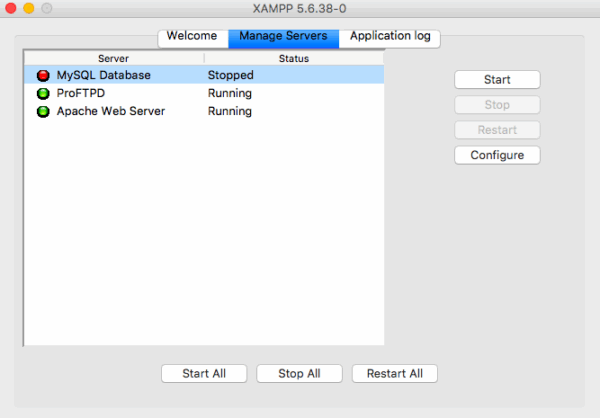
Port 80 is the usual suspect. Skype, IIS, VMware, and even some printer utilities grab it. Open the XAMPP Control Panel, check the Port-Check button, and see who is sitting on 80 or 443. Kill that process or reconfigure Apache to port 8080 in httpd.conf.
MySQL failing is usually a corrupted data directory from a previous failed install. Delete the mysqldata folder, run mysql_install_db, and restart. That clears the XAMPP folder error faster than reinstalling Windows, which some people actually do. Don’t be that person.
Antivirus and Windows Defender Interference
Here is a less obvious one: antivirus software loves to lock folders while XAMPP is writing to them. If you see a XAMPP folder error mid-install and your AV pops a notification at the same time, that is not a coincidence.
Temporarily disable real-time protection, complete the install, then add an exclusion for your XAMPP folder. That exclusion prevents future false positives when Apache spawns child processes.
UAC, Folder Ownership, and the Manual Fix
If you absolutely must install into a protected path, you can take ownership of the folder first. Right-click the folder, Properties, Security, Advanced, and change the owner to your user. Grant Full Control. This works, but it is a band-aid.
You are fighting Windows instead of working with it. The cleaner solution to the XAMPP folder error is still installing outside Program Files. Ownership hacks break after Windows updates and confuse backup tools.
What About Installing XAMPP on a Non-System Drive?
Installing to D:xampp is not just fine, it is smart. Your system drive stays clean, and if you ever reinstall Windows, your local dev environment survives. Just remember that drive letters can shift when you plug in USB devices, which breaks Apache’s config paths.
To avoid that XAMPP folder error resurrection, assign a fixed letter to that drive in Disk Management. Takes thirty seconds and saves you an hour of debugging later.
Quick Checklist Before You Reinstall
- Uninstall the broken XAMPP completely.
- Delete any leftover C:xampp or C:Program Filesxampp folders.
- Run the new installer as administrator.
- Choose C:xampp or D:xampp as the target.
- Add antivirus exclusions for that folder.
- Check ports 80, 443, and 3306 before starting services.
Follow that order and the XAMPP folder error does not come back. Skip a step and you will be back on forums at 2 AM wondering why Apache hates you.
Why This Error Keeps Fooling Beginners
XAMPP markets itself as one-click simplicity, so people assume zero friction. Reality: it is a stack of four servers glued together, and Windows security is the glue’s enemy. The XAMPP folder error is not a bug, it is a design clash between a Linux-friendly tool and a locked-down OS.
Once you accept that, the fix feels obvious. Install where you have rights, run as admin, deal with ports. Every local dev environment on Windows works this way, from WAMP to Laragon to Docker Desktop.
So no, you did not break anything. You just trusted a default path that was never meant to be trusted.