

Taking a screenshot on a computer isn’t just about pressing a key anymore. In 2026, Windows 11 and macOS have turned screen capture into a full toolkit: snips, recordings, annotations, and instant sharing. If you’re still fumbling with your phone to photograph your monitor, this is for you.
I’ve tested every method on Windows 11 (24H2 and 25H2 builds) and macOS Sequoia to give you the real shortcuts that work right now. No fluff, no outdated advice.
Windows 11: Snipping Tool Is Now a Full Recorder
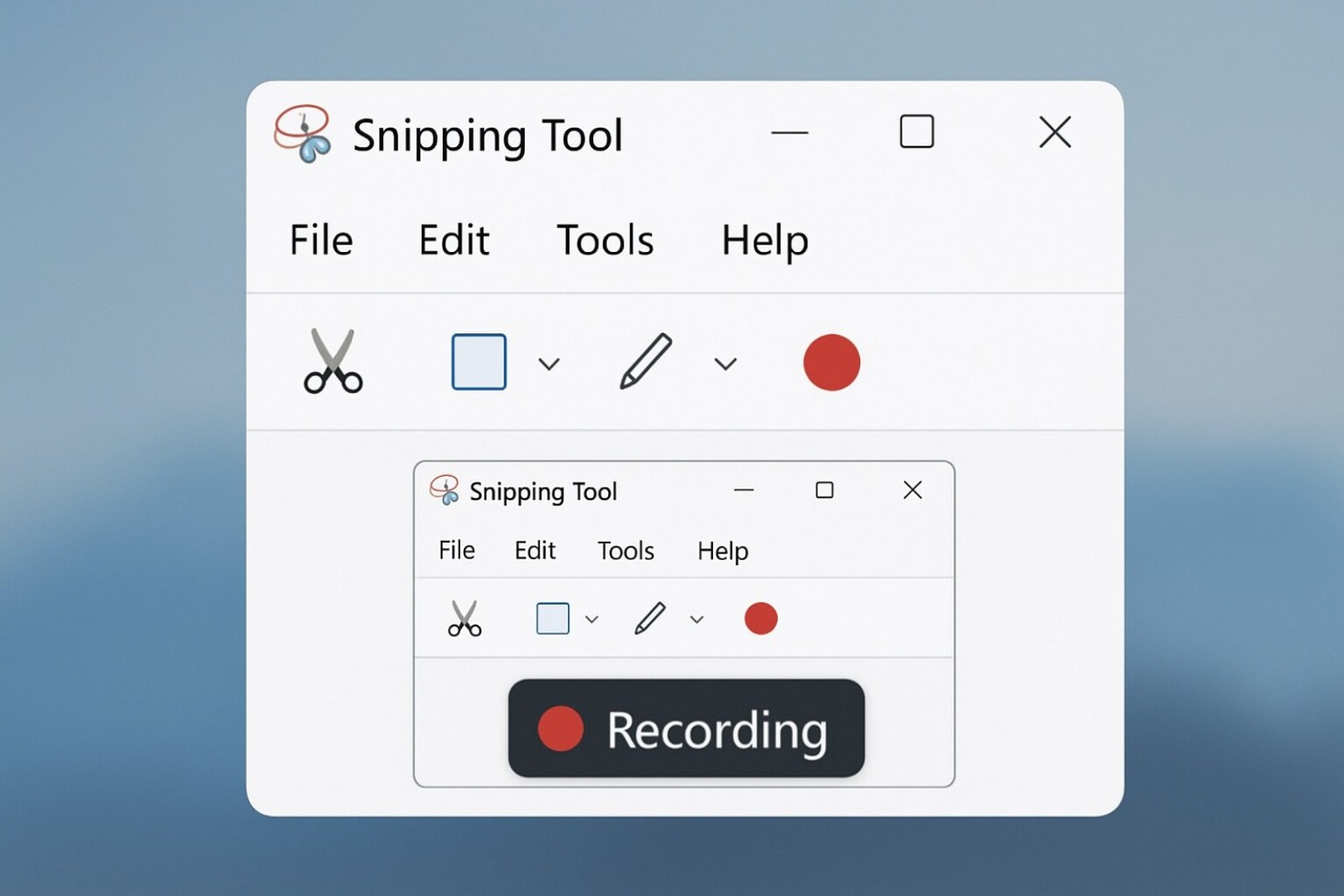
The Snipping Tool, formerly Snip & Sketch, got a massive upgrade. In Windows 11 2026, it doesn’t just take screenshots: it records your screen in MP4, with microphone and system audio.
To open it, hit Win + Shift + S. That keyboard shortcut is the fastest way to take a screenshot on Windows 11 in 2026. A toolbar appears at the top with four modes: rectangle, freeform, window, and full screen.
But here’s the thing most people miss: there’s a fifth icon shaped like a circle. That’s the screen recorder. If you don’t see it, update Windows via Settings > Windows Update. The recording feature rolled out in the 23H2 update and is now standard.
How to Record Your Screen with Snipping Tool
Click that circle icon, then choose full screen or drag a rectangle around the area you want. A small toolbar appears with a red Start button. Hit it, and after a 3-second countdown, recording begins.
During recording, you get a floating bar to pause, stop, or annotate live. The gear icon lets you toggle microphone and system audio. That last one is huge: you can capture game sound or a video call without extra software.
When you stop, the file saves automatically to C:Users[your_user]VideosCaptures as an MP4. It also copies to your clipboard and opens a preview where you can trim the clip before sharing.
Other Windows Shortcuts You Should Actually Use
PrtScn still works, but it dumps the full screen to your clipboard with no preview. Fine for quick pastes into Paint or WhatsApp Web.
Win + PrtScn saves a full-screen PNG directly to PicturesScreenshots. No clipboard, no fuss.
Alt + PrtScn captures only the active window. Great for error messages you need to send to IT.
For gamers or anyone recording an app window, Win + G opens Xbox Game Bar. It records any window, not just games, and saves clips to VideosCaptures too. It’s a solid fallback if Snipping Tool acts up.
Mac: The Shortcuts Apple Fans Swear By
On macOS, Cmd + Shift + 3 grabs the entire screen. Cmd + Shift + 4 turns your cursor into a crosshair for a custom area. Add Ctrl to either combo and the shot goes to your clipboard instead of the desktop.
Since macOS Mojave, Cmd + Shift + 5 opens a toolbar with screen recording, area selection, and options to save or copy. It’s the closest thing to Windows’ Snipping Tool, and it’s been stable for years.
Screenshots land on your desktop as PNG by default. You can change that folder in Screenshot settings under Options in the Cmd + Shift + 5 toolbar.
Third-Party Tools Worth Your Time in 2026
If you need more than the built-in tools, two names dominate: ShareX (free, Windows-only) and Snagit (paid, cross-platform). ShareX does scrolling capture, OCR, and auto-upload to Imgur or your own server. Snagit has the cleanest annotation editor I’ve used.
For recording, OBS Studio remains the free king. It’s overkill for a quick clip, but if you’re streaming or making tutorials, nothing beats it. Camtasia is the paid alternative with a friendlier timeline.
One warning: avoid random screenshot extensions from the Chrome Web Store. Many inject ads or harvest data. Stick to tools from Microsoft, Apple, or well-known open-source projects.
Common Problems and How to Fix Them
If Win + Shift + S does nothing, check if another app hijacked the shortcut. Apps like OneNote, Discord, or Steam often bind it. Disable their hotkeys in settings.
If Snipping Tool opens but recording is missing, your Windows build is outdated. Go to Settings > Windows Update and install everything pending. The feature isn’t available on Windows 10, period.
If your recording has no audio, open the gear icon in the recording toolbar and make sure the correct microphone is selected. System audio capture requires a recent audio driver; update it via Device Manager if it’s silent.
Pro tip: pin Snipping Tool to your taskbar. Right-click its icon and choose «Pin to taskbar.» One click beats memorizing shortcuts when you’re in a hurry.
Which Method Should You Use?
For a quick screenshot, Win + Shift + S on Windows or Cmd + Shift + 4 on Mac. For full-screen grabs with zero clicks, Win + PrtScn or Cmd + Shift + 3.
For screen recording without installing anything, Snipping Tool on Windows 11 or Cmd + Shift + 5 on macOS. For serious production, OBS Studio or Camtasia.
The bottom line: you don’t need paid software to take a screenshot or record your screen in 2026. The built-in tools finally caught up. Learn three shortcuts and you’ll never Google «how to screenshot» again.
