Taking a screenshot without touching the screen isn’t sci-fi anymore. It’s a built-in trick on almost every phone, and most people have no idea it exists. I’ve tested it on Android and iPhone, and I’m telling you exactly how it works, where it fails, and when it’s actually worth using.
Why would you want a screenshot without touching the screen?
Simple: your hands are wet, greasy, or full of flour. Or you’re wearing gloves. Or the screen is cracked and the touch layer is dying. A screenshot without touching the screen solves all of that in one move.
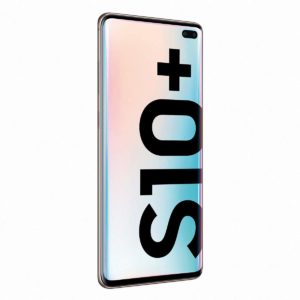
On Android there’s a genuinely hidden feature called Palm Swipe to Capture. You just swipe the edge of your hand across the screen from left to right, and it captures. No buttons, no taps. Samsung has shipped this for years, and some Xiaomi and Oppo models copied it.
To turn it on: Settings > Advanced Features > Motions and Gestures > Palm Swipe to Capture. If you don’t see it, your brand didn’t include it. That’s the hard truth.
Here’s the one that actually feels like a hidden button: Google Assistant voice command. Say «Hey Google, take a screenshot» and it captures instantly. No hands, no contact. It works on any Android with Assistant enabled, which is basically all of them.
Is it fast? Not as fast as the palm swipe. But it’s 100% hands-free, and that’s the whole point of a screenshot without touching the screen.
On Samsung you can also go further: Bixby Routines can trigger a screenshot when you shake the phone, flip it face down, or even when you say a custom phrase. I’ve set one up that captures when I say «capture this» and it fires in under a second.
Apple doesn’t advertise this, but iOS has a feature called Back Tap. You double-tap the back of your iPhone and it takes a screenshot. No screen contact at all.
Go to Settings > Accessibility > Touch > Back Tap > Double Tap or Triple Tap > Screenshot. Done. It works on iPhone 8 and newer, and it’s shockingly reliable once you get the rhythm.
This is the closest thing to a literal «secret button» on an iPhone. It’s not a button, it’s the back of your phone, but the result is the same: a screenshot without touching the screen.
One warning: if you use a thick case, the tap might not register. Thin cases or no case work best. And if you have a MagSafe wallet attached, forget it. The tap gets absorbed.
Power + Volume Down is the universal combo on almost every Android. It’s muscle memory for most people, and it works even when the screen is off or an app is frozen.
Exceptions exist. Older Samsungs with a physical home button used Home + Power. Some Sony Xperia models require holding Power until a menu pops up and then selecting «Take screenshot.» Xiaomi and Huawei also put a screenshot button in the quick settings panel you pull down from the top.
If your Android is recent, after a normal screenshot you’ll sometimes see «Capture more» or «Scroll capture.» That lets you grab an entire webpage or a long chat in one image. It doesn’t work in every app, but when it does, it saves you from stitching five screenshots together manually.
Windows and Mac: the shortcuts that actually matter
On Windows, forget PrtScn alone. It only copies to clipboard and forces you to open Paint like it’s 2005. The two that matter are:
- Win + PrtScn: saves the full screen directly to Pictures > Screenshots.
- Win + Shift + S: lets you select any area and copies it to clipboard. This is the one I use daily.
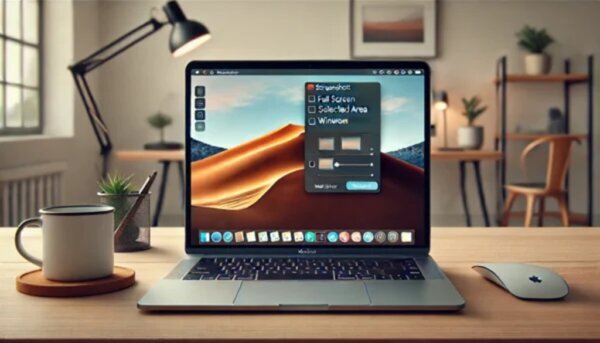
On macOS, Cmd + Shift + 3 captures the whole screen to the desktop. Cmd + Shift + 4 lets you drag a selection. And here’s the detail most people miss: after pressing Cmd + Shift + 4, hit the spacebar and you can capture a single window with a clean shadow. No cropping needed.
My honest take on which method wins
For a screenshot without touching the screen, Back Tap on iPhone and Palm Swipe on Samsung are the two best options. They’re fast, they’re native, and they don’t require talking to your phone in public.
Voice commands sound cool, but in a quiet room or a meeting, saying «Hey Google, take a screenshot» is awkward. I use them only when my hands are genuinely occupied.
Third-party apps like Easy Screenshot offer more editing and cloud upload options, but for 95% of people, the built-in tools are more than enough. Installing an app that asks for screen recording permission just to take a screenshot is a privacy risk you don’t need.
The real problem isn’t the method. It’s that phone makers bury these features so deep in settings that nobody finds them. If you’ve read this far, you now know more than the average user. Go turn on Back Tap or Palm Swipe, and you’ll never fumble with buttons again.