

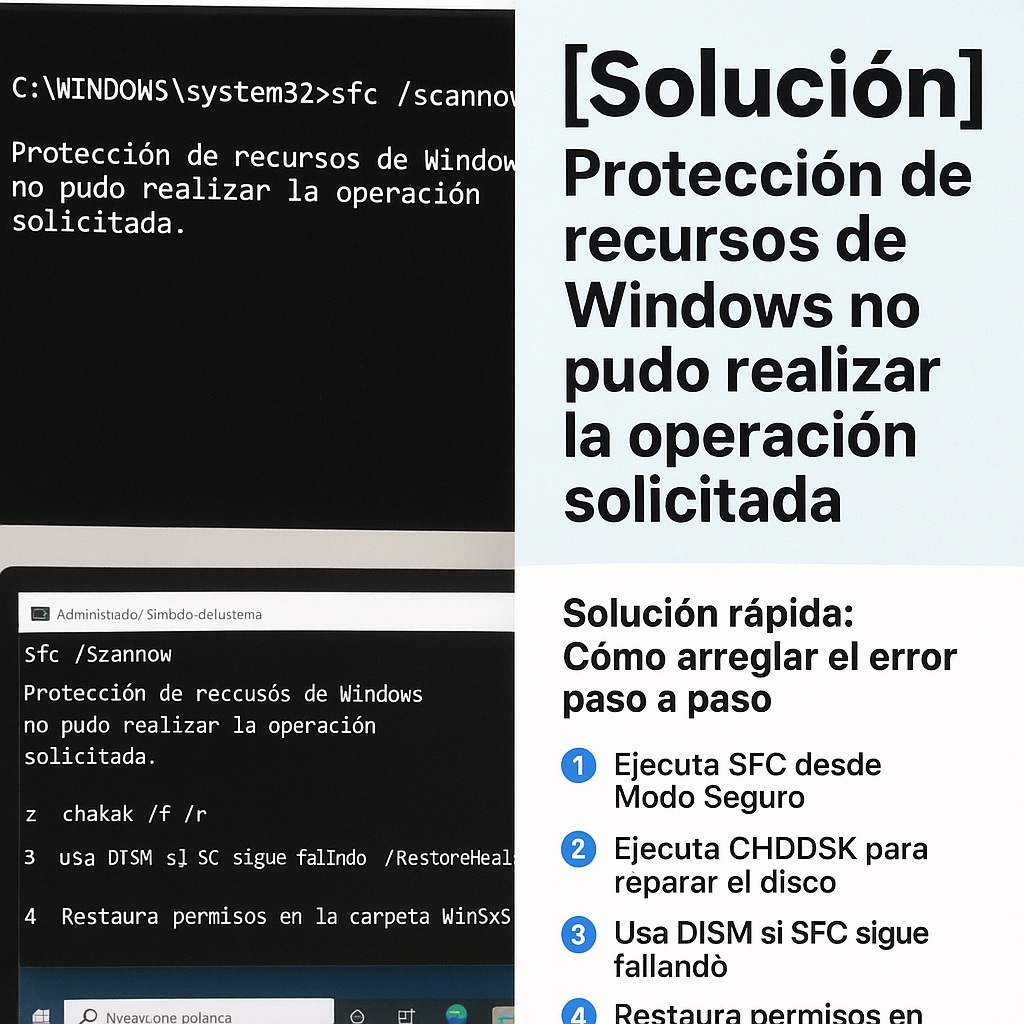
Did you try using SFC /<a href=”https://www.empresadeserviciosweb.com/post/codigos-windows-r-para-limpiar-el-sistema-lo-que-encontre-en-mi-busqueda/” title=”scannow“>scannow on your PC and got this message?
“Windows Resource Protection could not perform the requested operation”
You’re not alone. This is one of the most common failures in Windows 10 and 11, but also one of the most frustrating.
Here I explain why this <a href=”https://www.empresadeserviciosweb.com/post/que-es-seo-y-por-que-es-importante-para-los-sitios-web/” title=”error“>error appears, how to fix it in less than 5 minutes, and what to do if nothing else works. 💻💥
🔍 What does “Windows Resource Protection could not perform the requested operation” mean?
This error appears when the sfc /scannow command (System File Checker) cannot access system files to scan or repair them.
The most common causes are:
- 🔒 Blocked permissions or corruption in system folders
- 💽 Errors on the hard drive
- 🔄 Conflicts with background processes
- 📂 The WinSxS folder is damaged or inaccessible
✅ Quick fix: How to fix the error step by step
✅ 1. Run SFC from Safe Mode
- Press
Windows + R, typemsconfig - Go to the Boot tab and enable “Safe boot”
- Restart the computer
- Once in Safe Mode, open CMD as administrator
- Type:
sfc /scannow
✅ In Safe Mode, the system has no interfering processes, and SFC usually completes without error.
✅ 2. Run CHKDSK to repair the disk
Sometimes, the error is due to damaged sectors on the hard drive.
- Open CMD as administrator
- Type:
chkdsk /f /r - Press Enter and accept the scan on the next restart
- Restart your PC
✅ 3. Use DISM if SFC keeps failing
DISM repairs the operating system image. Do this:
DISM /Online /Cleanup-Image /RestoreHealth
Then restart and try sfc /scannow again.
🔁 4. Restore permissions on the WinSxS folder
If all of the above fails:
- Open CMD as admin
- Type:
icacls C:Windowswinsxs
Make sure it has read permissions. If not, use:
takeown /f C:Windowswinsxs /r /d y
icacls C:Windowswinsxs /grant Administrators:F /t
🧠 What to do if nothing works?
- 🧼 Try restoring the system to a previous point
- 💽 Use a Windows ISO image to perform a repair
- 🔃 Consider reinstalling Windows as a last resort
📌 Summary to fix it
✅ Boot into Safe Mode
✅ Run sfc /scannow
✅ Use chkdsk /f /r
✅ Repair with DISM
✅ Check permissions on the WinSxS folder
💬 Did any of these solutions work for you?
Leave it in the comments. And if it didn’t work for you, write to me telling me what error you’re getting


