

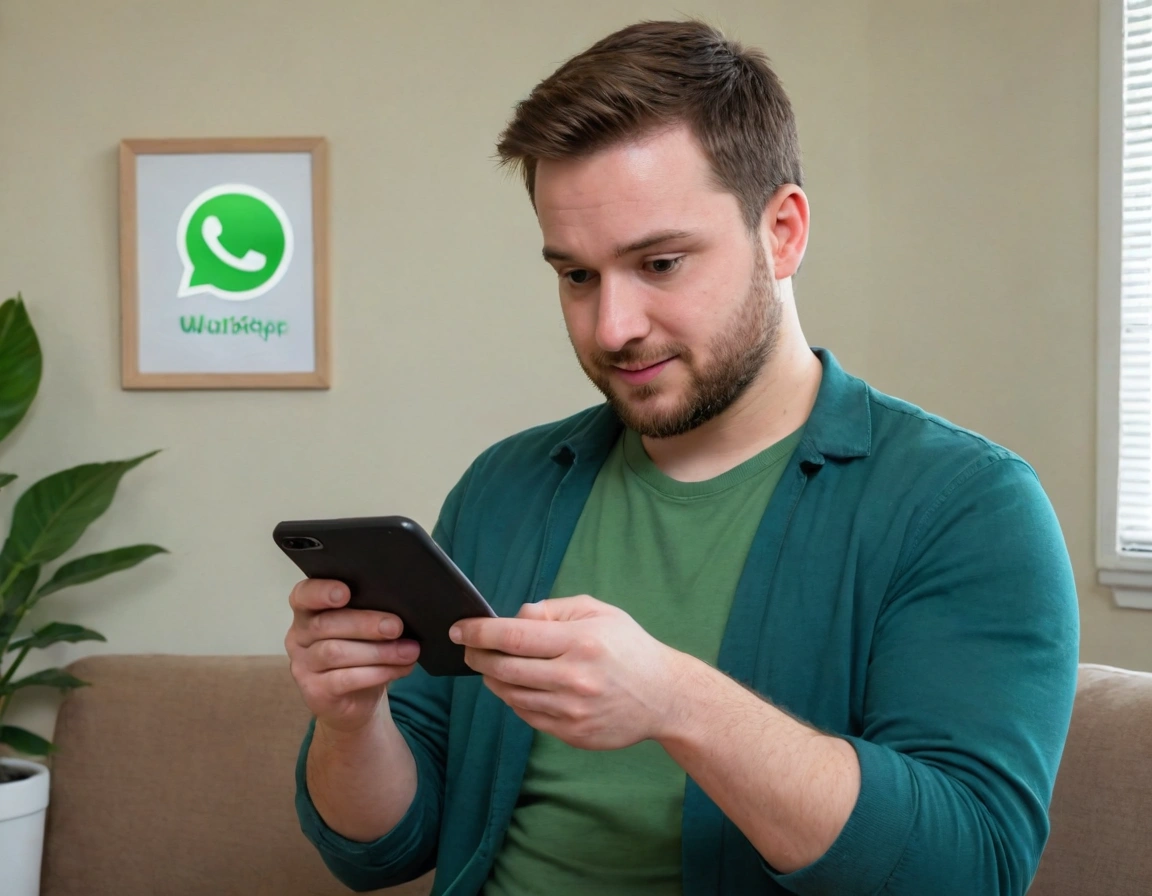
“Do you want to chat on your computer without being glued to your phone all the time? Here I’ll tell you how to open WhatsApp Web without complications.” — Something we all need these days. .
I recommend you check out this interesting article: 8 Estrategias Infalibles para Posicionar Palabras Clave y Mejorar tu SEO.
📌 What is WhatsApp Web and what is it for?
WhatsApp Web is the version of WhatsApp you use on your computer, from the browser. It’s not a standalone application, but rather an extension of your phone’s WhatsApp, so that you can write and send messages without having to constantly pick up your phone.
Ideal for:
- Working and replying quickly
- Sending photos and files from your computer
- Not missing notifications
- Writing more comfortably with a keyboard
🚀 How to open WhatsApp Web on PC step by step (easy, for real)
Step 1: Open the browser on your computer
You can use Chrome, Firefox, Edge, or any modern browser.
Step 2: Go to the official WhatsApp Web page
Type this link: <a href="https://web.whatsapp.com”>https://web.whatsapp.com
You’ll see a large QR code on the screen.
Step 3: Open WhatsApp on your phone
- On Android: tap the three dots in the top right and select Linked devices
- On iPhone: go to Settings and then Linked devices
Step 4: Link your phone to the PC
- Tap Link a device
- Point your phone’s camera at the QR code shown on the PC screen
- Wait a few seconds and that’s it, your WhatsApp will appear on the computer
⚙️ Tips for using WhatsApp Web without problems
- Keep your phone nearby and with an internet connection, because WhatsApp Web depends on the phone to work
- If it doesn’t connect, check that your phone has a good signal and isn’t in airplane mode
- You can log out whenever you want from the PC or phone to protect your privacy
⚖️ Pros and cons of WhatsApp Web on PC
| ✅ Advantages | ❌ Disadvantages |
|---|---|
| More comfortable for writing and sending files | Requires the phone to be connected to the internet |
| Nothing to install, it works in the browser | The phone’s camera must work to scan the QR code |
| Lets you use the keyboard and a large screen | If the connection drops, it disconnects automatically |
| It’s free and secure (if you use the official page) | It doesn’t have all the features of the mobile app (like calls) |
🔒 Security: use only the official page
There are many pages that imitate WhatsApp Web, but be careful with fake links or websites that promise more features. Always use this official address:
This way you guarantee that your account isn’t at risk of security issues.
“Do you want to chat on your computer without being glued to your phone all the time? Here I’ll tell you how to open WhatsApp Web without complications.” — Something we all need these days. .
📌 What is WhatsApp Web and what is it for?
WhatsApp Web is the version of WhatsApp you use on your computer, from the browser. It’s not a standalone application, but rather an extension of your phone’s WhatsApp, so that you can write and send messages without having to constantly pick up your phone.
Ideal for:
- Working and replying quickly
- Sending photos and files from your computer
- Not missing notifications
- Writing more comfortably with a keyboard
🚀 How to open WhatsApp Web on PC step by step (easy, for real)
Step 1: Open the browser on your computer
You can use Chrome, Firefox, Edge, or any modern browser.
Step 2: Go to the official WhatsApp Web page
Type this link: https://web.whatsapp.com
You’ll see a large QR code on the screen.
Step 3: Open WhatsApp on your phone
- On Android: tap the three dots in the top right and select Linked devices
- On iPhone: go to Settings and then Linked devices
Step 4: Link your phone to the PC
- Tap Link a device
- Point your phone’s camera at the QR code shown on the PC screen
- Wait a few seconds and that’s it, your WhatsApp will appear on the computer
⚙️ Tips for using WhatsApp Web without problems
- Keep your phone nearby and with an internet connection, because WhatsApp Web depends on the phone to work
- If it doesn’t connect, check that your phone has a good signal and isn’t in airplane mode
- You can log out whenever you want from the PC or phone to protect your privacy
⚖️ Pros and cons of WhatsApp Web on PC
| ✅ Advantages | ❌ Disadvantages |
|---|---|
| More comfortable for writing and sending files | Requires the phone to be connected to the internet |
| Nothing to install, it works in the browser | The phone’s camera must work to scan the QR code |
| Lets you use the keyboard and a large screen | If the connection drops, it disconnects automatically |
| It’s free and secure (if you use the official page) | It doesn’t have all the features of the mobile app (like calls) |
🔒 Security: use only the official page
There are many pages that imitate WhatsApp Web, but beware of fake links or websites that promise more features. Always use this official address:
This way you ensure that your account is not at risk security-wise.
If you also have or want WhatsApp Web for business, you can have a WhatsApp online store


