

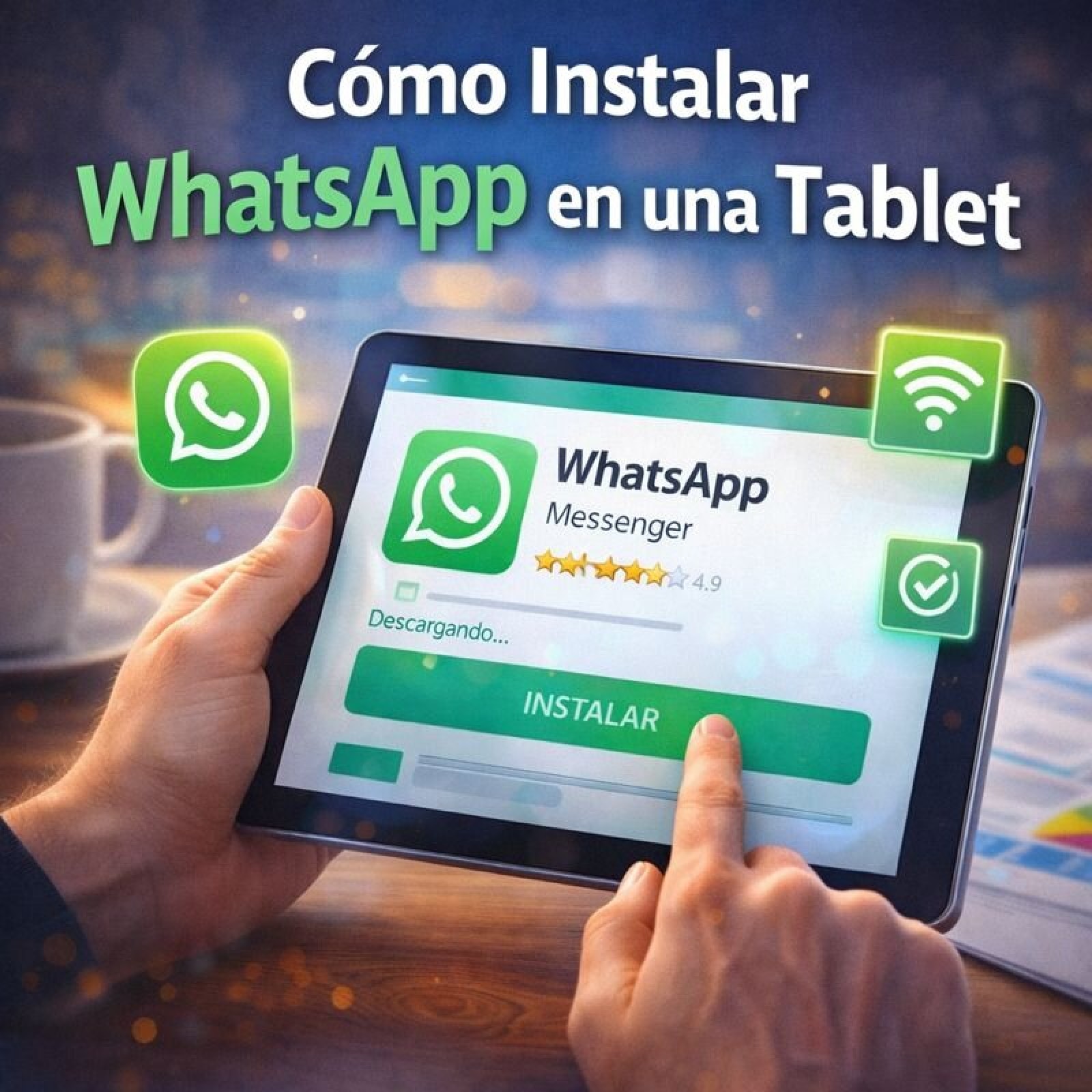
The cleanest way to have WhatsApp on your phone and tablet at the same time is to use the official feature of “Linked Devices“, which is now available to the entire world (previously it was only in the beta version).
What you do is link the tablet as an extra device, not as a phone primary. The beauty of it is that your phone doesn’t need to be turned on or nearby for the tablet to work. Both receive notifications and you can chat from either one instantly.
Here’s how to do it:
- On the tablet: You need to install the official WhatsApp application. If your tablet’s Play Store won’t let you install it directly, you can download the installer (APK) from WhatsApp’s official page.
- When you open it: The app will show you a screen with a large QR code. Leave it there.
- On your phone: Open WhatsApp, tap the three dots
⋮and go to Settings > Linked Devices > Link a Device. - Scan: With your phone’s camera, point it at the QR code shown on the tablet’s screen.
- Wait a few seconds: The conversations will start loading on the tablet. Very old messages may take a little while to appear.
Once done, that’s it. If one day you want to stop using WhatsApp on the tablet, you can log out from the app’s settings on the tablet itself, or remotely from the “Linked Devices” section on your phone.
Alternatives I don’t recommend
Other ways exist, but they have drawbacks:
- Using WhatsApp Web in the browser: You can open <a href="https://web.whatsapp.com/” target=”_blank” rel=”noreferrer noopener”>web.whatsapp.com in Chrome or Safari. The problem is that your phone absolutely has to be turned on and connected to the internet for it to work on the tablet. If it turns off or loses its connection, the connection on the tablet is cut off.
- Installing WhatsApp as the main app on the tablet: This would involve verifying a different phone number on the tablet. It’s not “having your account in two places”, but rather creating a separate account. Also, if you try to use your same number, the app will close on your phone.
- Third-party apps like “Dual App”: They promise to clone the app. Don’t touch them. They aren’t official, they’re a risk to your privacy and security, and WhatsApp can block your account for using them.
If you’re having trouble finding the “Link a Device” option on your phone, make sure you have the most recent version of WhatsApp installed.


