

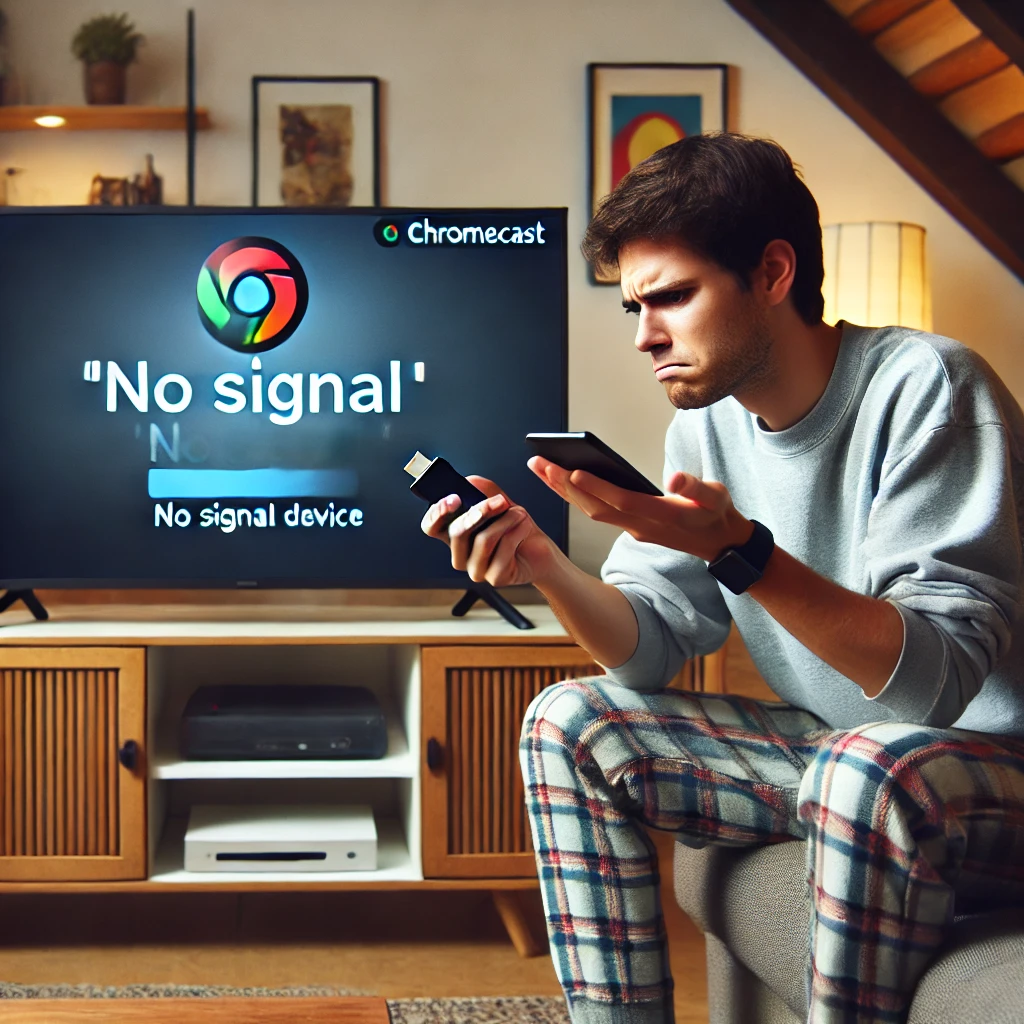
Ok, you have your Chromecast there, ready to watch something chill… and suddenly nothing happens. It doesn’t connect, it doesn’t show up on your phone, it doesn’t load, it freezes… anyway: Chromecast isn’t working and you don’t know whether to restart it, cry, or turn on the TV with candles.
I recommend checking out this article, it’s interesting: PRIVACY POLICY.
Don’t worry at all, because here I leave you the simplest and most complete guide so you can bring it back to life without needing to be a technician. Steps, causes, solutions, and even what to do if nothing works. Let’s go!
🔍 What search intents do we solve here?
- Chromecast doesn’t appear
- Chromecast won’t connect to the phone
- Chromecast stays on a black screen
- Chromecast doesn’t detect WiFi
- Chromecast doesn’t show up in Google Home
- Chromecast won’t turn on / doesn’t respond
- Chromecast disconnects on its own
💡 Spoiler: all of that has a solution. Most problems are silly things that get fixed with a little patience.
🛠️ Step-by-step solutions if Chromecast isn’t working
IMPORTANT: Try them in order, from the simplest to the most complex. Many times it gets fixed with a restart.
1️⃣ Check that your Chromecast is connected to the correct HDMI input
It may sound obvious, but sometimes you change the port, the TV, or the cable and forget.
- Use the TV remote to select the correct HDMI input.
- Check that the USB cable is plugged in and receiving power.
Cons:
Sometimes the HDMI port can be loose or somewhat damaged. Try another one if you have one available.
2️⃣ Restart the Chromecast (yes, literally)
Unplug it from the USB, wait 10 seconds, plug it back in. Wait for it to load.
You can also do a restart from the Google Home app:
Google Home App → Device → Settings → More (3 dots) → Restart
Pro: Nothing gets erased.
Con: It doesn’t always fix it if the error is a network issue.
3️⃣ Check the WiFi
If Chromecast doesn’t appear on your phone or won’t “let itself be cast,” it may be disconnected from the network.
- Check that the phone and the Chromecast are on the same WiFi network.
- Restart the router (turn it off for 30 seconds and turn it back on).
- If you changed providers or networks, reset the Chromecast (step 6).
Useful official link:
👉 <a href="https://support.google.com/chromecast/answer/7331010?hl=es-419″>Google Chromecast Help Center – WiFi
4️⃣ Use the Google Home app (and update it)
The Google Home app is what manages everything. If it’s outdated or failing, it won’t detect the device.
- Go to your app store (Play Store or App Store)
- Search for Google Home and update it if needed
- Close the app and reopen it
Pro: Fixes most connection errors.
Con: Sometimes it bugs out and you have to clear the cache.
5️⃣ Reset the router (advanced mode)
If your WiFi network is acting weird, drops, or doesn’t give a steady signal, the Chromecast can get stuck. In that case:
- Go into your router (usually from 192.168.1.1 in the browser)
- Change the WiFi channel or do a factory reset
- Rename the network and use a simple password (temporary)
WATCH OUT: this restarts the whole network. Save the config if you know what you’re doing.
6️⃣ Do a factory reset of the Chromecast
If none of the above worked, go with a full reset. Everything gets erased and you start from scratch.
How to do the physical reset:
- Hold down the side button on the Chromecast for 20-25 seconds
- Wait for the light to start blinking
- Release the button and let it restart
After that:
- Set it up again from Google Home
- Choose the WiFi network, name, and done
Con: All previous settings are lost, but many times it’s the only real solution.
🧯 What if it still doesn’t work?
In that case:
- Try it on another TV or in another HDMI port
- Change the USB cable or the power adapter
- Try it on another WiFi network
- Use another phone/tablet to see if it detects it
If none of that works, it may be that the Chromecast is damaged. In that case, check the warranty or consult official support:
👉 Chromecast technical support
✅ Pros and cons of using Chromecast (when it works)
PROS:
- It’s affordable and easy to use
- Streams from almost any app
- Compatible with Android, iOS, PC, etc.
- Has Google support and updates
CONS:
- Depends entirely on WiFi
- If the network or the app fails, it can’t be used
- It can have annoying bugs if it isn’t updated properly
🧠 Conclusion: Chromecast can fail, but it can also be fixed (most of the time)
Most of the time when Chromecast isn’t working, it’s because of simple things: WiFi, an outdated app, a missing restart. With patience and by following these steps, you have a good chance it’ll work again without having to spend a single peso.
And if not, well… maybe it’s time to change devices or take advantage of some new promo 😅


