If you’re still using the official Microsoft Media Creation Tool to make bootable USB drives, you’re wasting time. Rufus does the same job in a fraction of the time, handles ISOs the Microsoft tool chokes on, and works on machines from Windows 7 all the way up to Windows 11 24H2.
I’ve been using Rufus for years to install Linux distros, rescue dead Windows installs, and flash BIOS firmware. It’s the one utility I keep on every USB stick I own. Here’s the no-BS guide to downloading and using the latest Rufus version in 2026.
What Is Rufus and Why It Beats Every Other USB Tool
Rufus is a tiny, portable Windows executable — under 2 MB — that formats and creates bootable USB flash drives. No installer, no admin bloat, no telemetry. You double-click, it opens, you pick your ISO, you hit Start.
The reason pros stick with it: Rufus auto-detects the correct partition scheme (MBR vs GPT) and target system (BIOS vs UEFI) from the ISO itself. That single feature prevents the most common boot failures people hit with other tools.
It supports FAT32, NTFS, exFAT, UDF, and even ReFS in recent builds. It can write ISO images or raw DD images, and it handles Windows ISOs, Linux ISOs, FreeDOS, and firmware updaters without complaint.
Download Rufus 2026: 32-bit vs 64-bit — Which One Do You Actually Need
Grab Rufus only from the official source: rufus.ie. Any other site offering a «Rufus download full version» is likely bundling adware. The portable build is the same file as the installed one — Rufus doesn’t have a separate installer anymore.
Which architecture? Simple rule:
- Rufus 64-bit (x64): use this on any PC built after roughly 2008. It’s the default for Windows 10 and 11 machines.
- Rufus 32-bit (x86): only needed if you’re running it on ancient 32-bit Windows 7 or a 32-bit-only embedded system.
- ARM64 build: exists for Windows on ARM devices (Surface Pro X, Snapdragon laptops). Don’t grab it unless you know you need it.
If you’re on a modern PC and you download the 32-bit version by mistake, it’ll still run — but you’d be leaving performance and large-file handling on the table.
Rufus 2026 Features That Actually Matter
The changelog looks boring until you realize what each item saves you from. Here’s what’s worth caring about in the current release:
- Windows 11 TPM/Secure Boot bypass options: Rufus can strip the TPM 2.0, Secure Boot, and RAM requirements directly during USB creation. No registry hacks required after install.
- Automatic ISO → partition scheme detection: it reads the boot files and picks MBR/GPT for you.
- Persistence support for Linux: create a live Ubuntu USB with a persistent casper-rw partition so your changes survive reboots.
- Bad block check: scans your USB for dead sectors before writing, which has saved me from more than one fake-capacity flash drive sold on marketplaces.
- UEFI:NTFS support: boot Windows ISOs larger than 4 GB from FAT32 by loading an NTFS driver at boot.
That last one is the reason Rufus is the go-to for Windows 11 24H2 installation on unsupported PCs. Microsoft’s own tool refuses to help; Rufus just does it.
How to Create a Bootable USB with Rufus (Step by Step)
Plug in a USB drive of at least 8 GB — 16 GB if you’re doing Windows 11. Rufus will wipe it, so back up anything on it first.
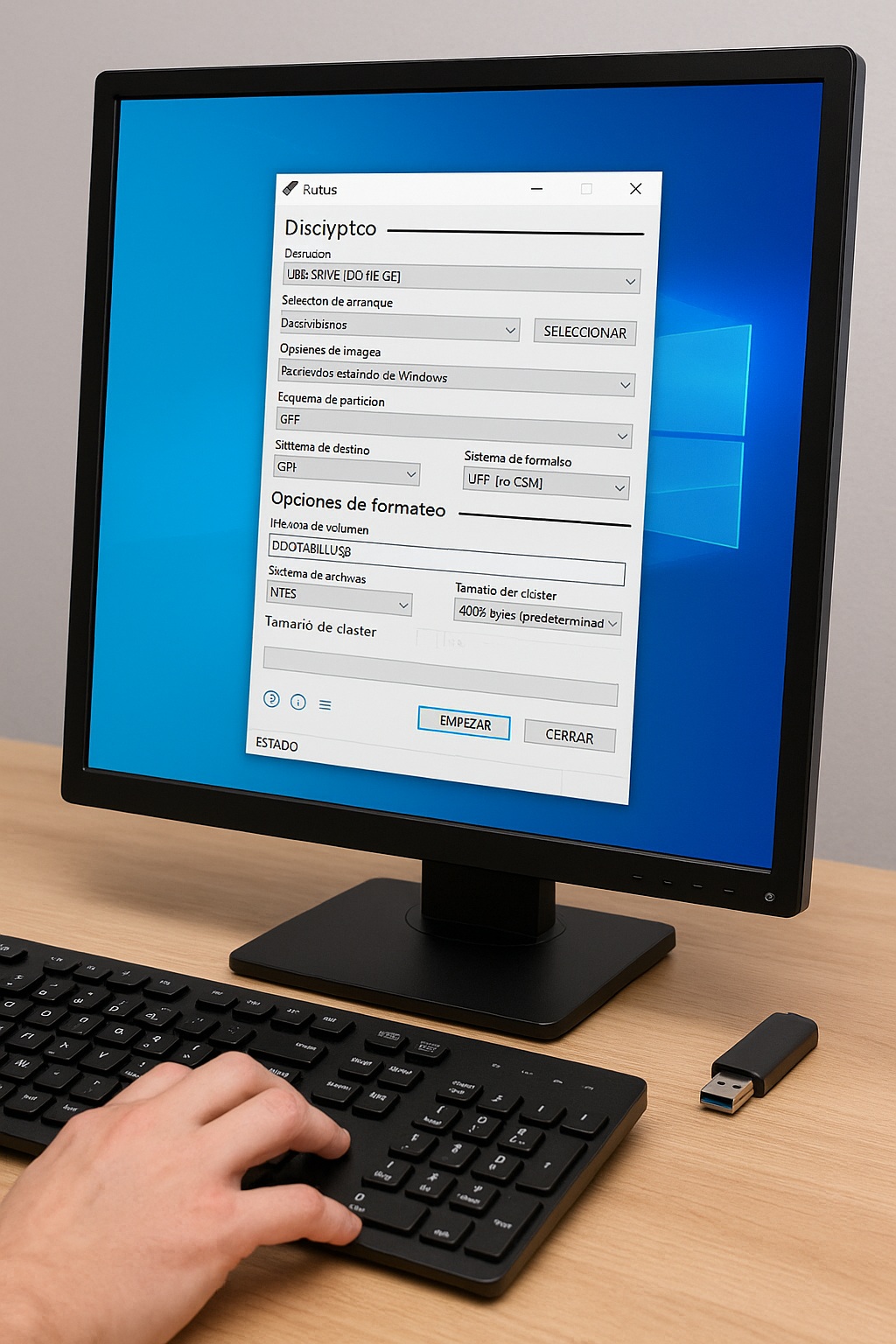
- Open Rufus. It should detect your USB under «Device» automatically.
- Click SELECT and point it at your ISO file (Windows, Linux, whatever).
- Leave «Partition scheme» on GPT and «Target system» on UEFI for any PC from the last decade. Rufus usually sets this correctly on its own.
- File system: NTFS for Windows ISOs over 4 GB, FAT32 for most Linux ISOs and older BIOS systems.
- Optional: check «Check device for bad blocks» if the USB is old or suspicious.
- Hit START. Accept the data-loss warning. Wait 3–10 minutes depending on USB speed.
When it says READY, eject safely, plug into the target machine, and boot from it via the F12/F10/Esc boot menu.
Rufus vs Ventoy vs BalenaEtcher: Quick Reality Check
Rufus is not always the right answer. If you want a single USB that holds multiple ISOs and lets you pick one at boot, use Ventoy — you just copy ISO files onto it and it works. Rufus writes one ISO per USB.
BalenaEtcher looks friendlier but is slower and offers zero partition-scheme control. For Windows installs and BIOS flashing, Rufus wins. For a multi-boot toolkit, Ventoy wins.
The smart move: keep a Ventoy drive for general use, and a Rufus-written Windows 11 USB as your emergency reinstall stick.
Common Rufus Problems and Fixes
«USB won’t boot after Rufus» almost always means the wrong partition scheme. Re-do it: GPT + UEFI for modern PCs, MBR + BIOS for pre-2012 machines. That single toggle fixes 90% of cases.
If Rufus won’t detect your USB, it’s usually a driver issue or the drive is formatted as something Windows is choking on. Open Disk Management, delete the existing partition, and try again.
Antivirus flags? Rufus writes boot sectors — some AVs hate that. The official build from rufus.ie is clean. Anything downloaded from a random «Rufus full version crack» page is not.
FAQ
Is Rufus free? Yes — completely free, open source, GPL-licensed. No pro version, no nag screens.
Does Rufus work on Mac or Linux? No. It’s Windows-only. On Linux you’d use dd or GNOME Disks; on Mac, balenaEtcher or dd.
Can Rufus install Windows 11 on unsupported hardware? Yes — its bypass options remove TPM, Secure Boot, and RAM checks during USB creation, so the installer never complains.
Is the latest Rufus version safe? If it comes from rufus.ie, yes. Third-party mirrors often wrap it with adware installers.
That’s it. Skip the sketchy download sites, grab the official build, and stop wasting hours on bootable USB problems.