

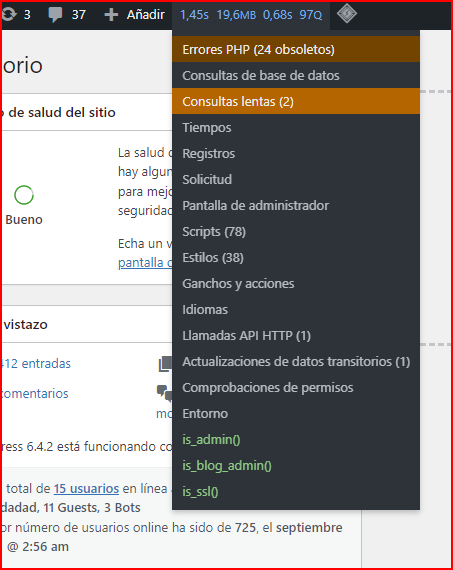
If your WordPress site is crawling, throwing weird PHP notices, or just acting plain weird, Query Monitor is the plugin you install before you start blaming your hosting. It’s not a caching plugin, it’s not a security firewall. It’s a diagnostic tool that shows you what WordPress is actually doing under the hood on every single page load.
I’ve used it on client sites where the homepage took 6 seconds to generate, and within five minutes of activating Query Monitor I found a single plugin firing 340 database queries per request. That’s the kind of thing this plugin exposes.
What Query Monitor Actually Shows You
Once activated, a new item appears in your admin toolbar (the black bar at the top). It displays real numbers for the current page: page generation time in seconds, peak memory usage, total SQL query time, and total number of SQL queries.
Everything Query Monitor reports is tied to the page you’re currently viewing. There’s no historical log built in (the developers have hinted a future version might add it, but as of 2026 it’s still real-time only). Click the toolbar item to open the Summary panel, or hit any submenu to dive into a specific panel.
Most people start with the Queries panel, and honestly that’s the right instinct. It lists every database query executed during that page load, lets you sort by time or caller, and tells you exactly which plugin or theme triggered each one.
Fixing a Slow WordPress Site with Query Monitor
So your site is slow and you installed Query Monitor to find the culprit. Here’s where to look first, in order of usefulness.
Queries by Component
The Queries → Queries by Component panel aggregates database queries by plugin and theme. This is gold. It sorts components by total query time, so the worst offender sits right at the top.
A plugin running 200 queries in 0.8 seconds is a problem. A plugin running 5 queries in 2 seconds is a bigger problem. Query Monitor exposes both patterns, and you’ll often find that a single bloated page builder is responsible for half your load time.
HTTP API Calls
The HTTP API Calls panel shows outgoing server-side requests made during the page load. These are the silent killers. A plugin pinging an external API every time someone visits your homepage will tank your TTFB, and it won’t show up in your query count at all.
If you see repeated calls to the same remote endpoint on every page load, that’s a caching opportunity or a plugin you should replace. WordPress HTTP API requests are often the invisible cause of a slow site.
Object Cache: The Fix Most People Skip
The Summary panel tells you whether a persistent object cache is active. If it isn’t, you’ll see a message saying «External object cache not in use». That’s a red flag.
By default, WordPress uses a non-persistent object cache. That means repeated operations within a single page load get cached, but nothing survives between page loads. Every visitor re-runs the same expensive queries.
Install a persistent object cache backend like Redis or Memcached (via a plugin such as Redis Object Cache or W3 Total Cache‘s object cache module). This alone can cut database load by 40-70% on a busy site. If you’re on shared hosting, ask your provider whether Redis is available — many cheap hosts still don’t offer it in 2026, which is a reason to move.
PHP Errors, Notices and Warnings
The PHP Errors panel only appears when something in your code throws an error during the page load. If your admin toolbar turns red or orange, you’ve got issues.
A warning means code isn’t behaving as expected and could be corrupting your site’s output. Warnings also get written to your server’s error log, which adds I/O overhead on every request. Fix them fast.
A notice is less critical but still worth chasing. It usually signals sloppy code from a plugin author who hasn’t kept up with modern PHP standards. Whether it gets logged depends on your server config.
Don’t ignore either one. A site running with 15 PHP notices per page load is a site that’s one PHP version upgrade away from breaking completely.
Scripts and Styles: The Frontend Slowdown
Here’s a nuance a lot of admins miss: loading 40 JavaScript and CSS files won’t necessarily slow down your server’s page generation time. Query Monitor might show a clean 200ms TTFB while your visitors wait 5 seconds for the page to render.
The Scripts and Styles panels show every file enqueued through WordPress’s dependency system. If the list is long, install a plugin that minifies and combines assets. But be careful — aggressive combining breaks sites more often than it fixes them. Test on staging first.
Panels Most People Never Open (But Should)
Despite the name, Query Monitor does far more than track SQL. A few panels worth your time:
- Requests: shows rewrite rules and query variables — useful when debugging custom post types or permalink issues.
- Templates: reveals the theme’s template hierarchy and which template part is actually rendering the page. Invaluable when a child theme override isn’t kicking in.
- Environment: dumps server settings, PHP version, constants and loaded extensions. Handy when a plugin works locally but fails on production.
Query Monitor also has a Hooks & Actions panel that lists every hooked callback running on the current request. If a plugin is firing a callback on init that does heavy lifting, you’ll see it there.
My Take: Don’t Run a WordPress Site Without It
Every developer I know installs Query Monitor on day one. It’s the difference between guessing why your site is slow and knowing. If you’re debugging a WordPress error, optimizing performance, or just trying to figure out which of your 27 plugins is the problem, this is the tool.
One warning: don’t leave it active on a high-traffic production site without thinking. Query Monitor adds overhead itself, and it can expose database credentials or debug info to logged-in users if misconfigured. Run it on staging, or restrict it to administrators only.
Install it, load a page, and start clicking panels. You’ll learn more about your WordPress site in ten minutes than you did in the previous year.
