

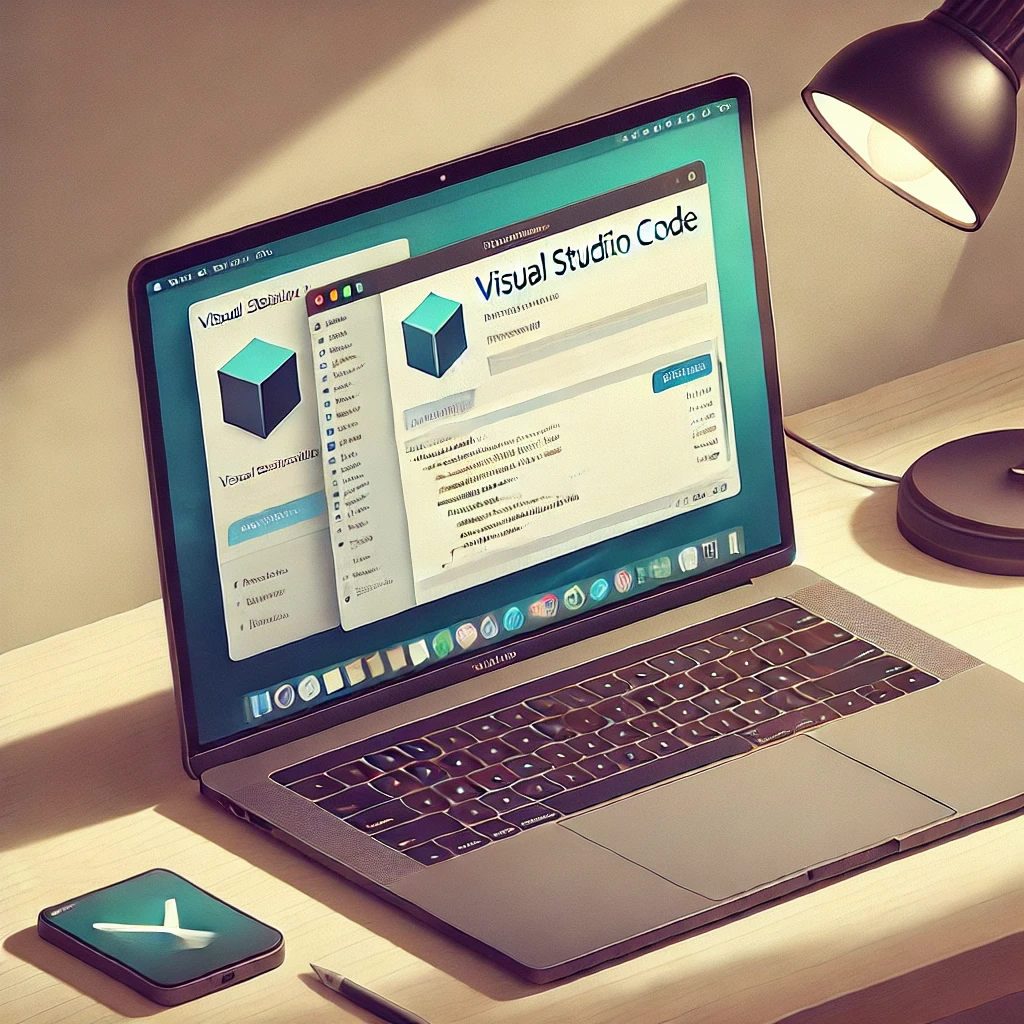
Have you wondered how to start coding like a professional on your Mac? If you’re ready to dive into the world of development, Visual Studio Code is the tool you need. This editor for code, lightweight yet powerful, has won the heart of programmers and enthusiasts. And the best part? Installing it on your Mac is simpler than you think. Ready for the journey? 🐍💻 Python tutorial from scratch and without complications! 🚀 Learn as if you were chatting with a friend 🤓 .
I recommend checking out this interesting article: Google Adsense, how to be accepted to show advertising.
1. Downloading Visual Studio Code
The first step is to go to the official website of <a href="https://code.visualstudio.com/”>Visual Studio Code. From there, select the version compatible with macOS. Yes, it’s compatible with both Intel chips and the powerful Apple Silicon. See how Microsoft has thought of everything?
Once downloaded, you’ll have a .dmg file in your downloads folder. This file is the magic key that will open the doors to your new code editor.
2. Installation: Quick and hassle-free
Open the .dmg file and drag the Visual Studio Code icon to the Applications folder. Yes, it’s that simple. macOS makes everything so intuitive that it seems like technology is on your side. Now you just need to open the application from Launchpad or Spotlight.
3. Initial setup
When you open Visual Studio Code for the first time, it will greet you with a clean interface ready for action. But this is where the magic really begins: you can customize it to your liking. Install extensions from the Marketplace such as support for programming languages (Python, JavaScript, etc.), visual themes to give it style, and tools that improve your workflow.
Did you know you can sync your settings with other devices? If you work on multiple computers, simply sign in with your Microsoft or GitHub account to keep everything the same, no matter where you are.
4. Integrated terminal and more
One of the most beloved features of VS Code is its integrated terminal, perfect for running commands without leaving the editor. From installing packages with npm to running tests in your project, everything is just one click away. Additionally, you can connect Git for efficient version control.
5. Advanced options
Do you have a Mac with an M1 or M2 chip? Good news! Visual Studio Code is optimized to get the maximum performance out of your hardware. This means your projects will run faster and with less resource consumption. And if you’re a dark mode lover, VS Code has a default theme that will make your long hours of programming more pleasant.
Summarizing the post
Learning how to install Visual Studio Code on Mac is just the beginning. This editor is not just a tool, it’s a door to the infinite potential of your creativity. So don’t waste any more time: install it, configure it, and start building your own epic projects. Are you ready to change the game?


